
Testers with limited desk space
You want to check a checkout without the monitor, stand and laptop taking over your desk. AOC lists the 22P1 as having a 21.5-inch screen; remember to measure the space needed for the entire setup too.


Start by measuring the space available on your desk, including the monitor stand, before choosing a screen size. A fixed monitor with an adjustable stand can be practical for longer testing sessions. A portable screen can be put away afterwards, but gives you less physical screen space while testing. For mobile checkout views, a monitor on its own isn’t enough: use browser emulation as an initial check, and test key steps on a real device too, as recommended by Chrome for Developers and Microsoft Learn.
You want to check a checkout without the monitor, stand and laptop taking over your desk. AOC lists the 22P1 as having a 21.5-inch screen; remember to measure the space needed for the entire setup too.
You keep the checkout page and developer tools on screen for longer, so you want a clear display and an adjustable setup. Arboportaal highlights legibility, reflections and ambient light as factors to consider when working with screens.
You want to connect your monitor easily, but USB-C features vary by model. Dell lists a USB-C data port on the P2425; Philips says the 24E1N1300AE/00 supports video and power via USB-C for compatible devices.
First, measure the space available for the screen, stand, laptop and keyboard. Then decide whether you mainly need more workspace, want to be able to put the monitor away, or are looking for a specific connection.
| What to consider | What should you check? | Who is this important for? |
|---|---|---|
| Desk space | Measure the width and depth of the screen and stand, and allow room for your laptop and keyboard too. | If space is limited, I want to know whether the whole setup will fit without filling up the desk. Desk space is the main factor when choosing a monitor for around 33% of consumers. |
| Checkout overview | Compare the screen size and resolution with the forms and test windows you want to view at the same time. | When I’m looking at checkout fields and developer tools at the same time, I want a clear overview without assuming that a larger screen will replicate the mobile view. Page overview is the top priority for around 27% of consumers. |
| Connections | Check the video input, laptop output, cable and, if needed, the power delivery required for the exact model. | If I want to connect my laptop with as few cables as possible, I check whether both devices support the same video and power features. A compatible connection is the main factor when choosing a monitor for around 20% of consumers. |
| Comfort at work | Check whether the stand is adjustable and whether the screen remains easy to read without distracting reflections. | For longer testing sessions, I want to position the screen well and read text comfortably. Comfort at work is the top priority for around 20% of consumers. |
The monitor stand, laptop and input devices also need to fit on your desk. Screen size alone doesn’t tell you whether there’s enough room for the whole setup.
Compare the dimensions and stand of the exact model with the space where you plan to put the monitor.
You may need a different stand, a monitor arm or a new desk layout to make the setup fit.
USB-C features aren’t the same on every monitor model. Dell lists the P2425 as having a downstream data port rated at up to 15 W; Philips says the 24E1N1300AE/00 supports video and power for compatible devices.
Check what the ports on your monitor and laptop support, which cable you need and how much power your laptop requires.
Depending on the connection you choose, you may need an extra video cable, adapter or laptop charger.
Browser emulation gives you an approximation of a mobile view, but it doesn’t reproduce every difference between browsers or real devices.
Use emulation for quick checks, and test key checkout steps on relevant devices and browsers too.
The 21.5-inch 22P1 is a fixed monitor option; the 15.6-inch 16T20E2 is portable.
The P2425 is a fixed 24.07-inch monitor with 1920 × 1200 pixels and an adjustable stand.
The 24E1N1300AE/00 is a 23.8-inch model for anyone looking for USB-C video and power.
This Joybuy selection includes fixed and portable monitors. For a small desk, pay particular attention to the footprint, screen space and connections of the exact model.
 No image available
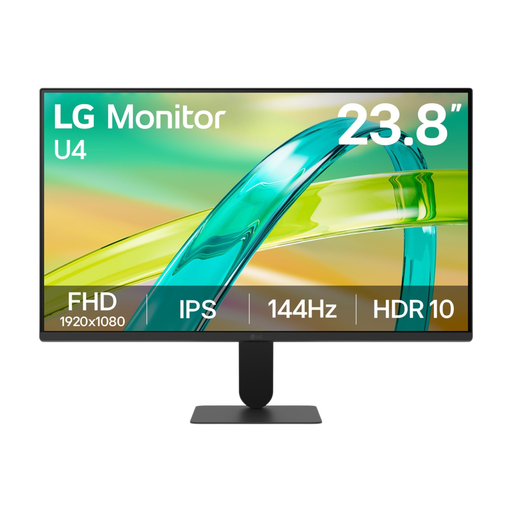
A fixed monitor for viewing checkout fields and messages in a desktop setup.
23.8 inches; IPS; 1920 × 1080 pixels; HDMI and VGA connections.
VESA mounting is listed; check the positioning and mounting hardware you’ll need for your desk.
 No image available
A portable option if you want to put the screen away after checkout testing. A smaller panel gives you less physical space to view the page and test tools side by side.
16 inches; 2.5K; 16:10; 2560 × 1600 pixels; two USB-C ports and Mini HDMI.
The product title lists a built-in kickstand. Check that your laptop supports the required video connection.
 No image available
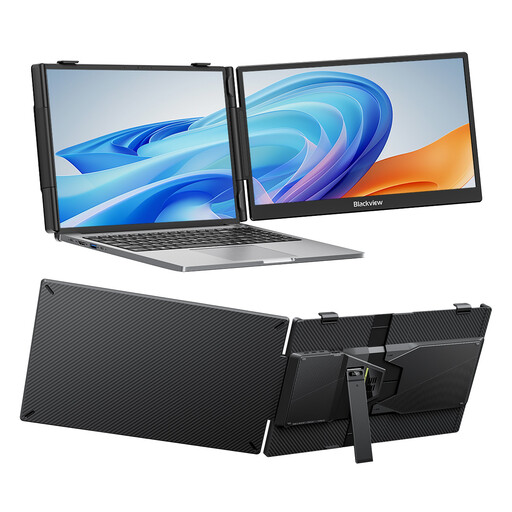
A compact portable option if you want to move or put away the screen after use.
14 inches; Full HD; IPS; adjustable stand.
Listed laptop compatibility is 13 to 17.3 inches; check your laptop’s connection too.
 No image available
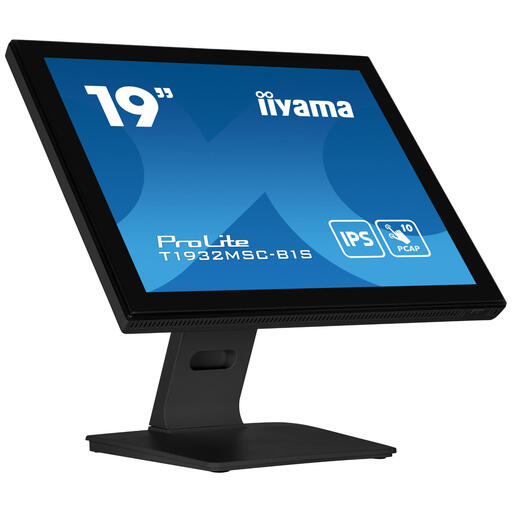
A fixed 19-inch screen option. Check in advance that the screen size and resolution suit the checkout content you want to view.
1280 × 1024 pixels; multi-touch support; VESA 100 × 100 mm.
The resolution is 1280 × 1024 pixels. Check that this is sufficient for your forms and test windows.
 No image available
A high-resolution fixed monitor for viewing checkout content and test tools side by side. Measure your desk in advance to make sure it will fit.
27 inches; 3840 × 2160 pixels; IPS; USB-C with 90 W Power Delivery.
The listed width, including the stand, is 613.4 mm. Check that it fits within the space available.
No. Chrome for Developers describes device mode as an initial approximation; Microsoft Learn notes that browser emulation doesn’t replicate differences in browser support. So test key steps on relevant devices and browsers too.
No. It depends on the features of the monitor and laptop ports, as well as the power delivery required. Philips describes USB-C video and power for compatible devices on the 24E1N1300AE/00; Dell lists a USB-C downstream data port rated at up to 15 W on the P2425.
Choose a setup where text is easy to read and you can position the screen comfortably. Check for reflections and consider the ambient light too. Arboportaal highlights these factors when working with screens.