
Testing checkouts across multiple windows
For anyone who wants to view the checkout alongside error messages or test notes, and needs to check narrower layouts separately.


Choose a compact, adjustable monitor if space is limited at your shared desk, or a larger QHD monitor if you want to view the checkout and test notes at the same time. Before buying, check that the connections and power supply are compatible with your laptop. A larger screen and wide viewing angles won’t automatically protect customer data from prying eyes. You should also assess mobile layouts and forms separately in a browser or on a suitable device.
For anyone who wants to view the checkout alongside error messages or test notes, and needs to check narrower layouts separately.
For anyone who moves between workstations and needs to consider connections, adjustability, reflections and the risk of others seeing their screen.
For anyone with a specific reason to assess touch input on an external monitor, alongside tests on suitable mobile devices.
| What to consider | What to look for | Who is this important for? |
|---|---|---|
| Room for windows | Compare the screen size and resolution with the depth of your available desk space. Test narrow and zoomed-in layouts separately; a large screen isn’t a mobile viewport. | If I want to see the checkout and test notes at the same time, I need room to place windows side by side; around 33% of consumers prioritise this workspace. |
| Privacy and reflections | Check sightlines from neighbouring desks and the position of windows. Consider suitable privacy measures if test data includes personal information. | At a shared desk, I want to prevent others from seeing customer data; around 27% of consumers give privacy and positioning top priority. |
| Easy connectivity | Check that your laptop can output a picture through the port you’ve chosen and that the power supply is sufficient. Check the connections on the exact model. | If I switch between laptops at the same workstation, I want to be able to connect them appropriately; around 20% of consumers put easy connectivity first. |
| Adjustability | Check which adjustments the specific model offers, and assess the setup, lighting and reflections at your own workstation. | When working at a screen for long periods, I want to be able to adjust the monitor to suit my workstation; around 20% of consumers name adjustability as their top priority. |
The physical screen size doesn’t determine the CSS viewport or how forms work on a phone.
Test narrow layouts and relevant interactions separately from your desktop overview.
Allow extra time for separate viewport and interaction checks.
USB-C alone doesn’t guarantee that your laptop can output video through that connection or that it will provide enough power. The HP 524pn lists HDMI and DisplayPort; other models may offer USB-C features.
Before buying, compare your laptop’s video output and power requirements with the connections and power capabilities of the exact monitor model.
Depending on the combination, you may need a suitable video cable, an adapter or a separate laptop power supply.
A screen that’s easy to read from different angles won’t shield sensitive test information from view.
Check sightlines at your workstation and follow your organisation’s risk assessment if personal data may be visible. The Dutch Data Protection Authority says that organisations must decide for themselves which security measures are needed.
The P2725DE we reviewed is a 27-inch QHD monitor with a USB-C hub, designed for a multi-window setup.
The 524pn we reviewed is designed for compact WUXGA office work; the separate E24t G5 is worth considering if you need touch input on an external screen.
The 243S1/00 we reviewed is a compact FHD office monitor with a USB-C dock for a compatible laptop.
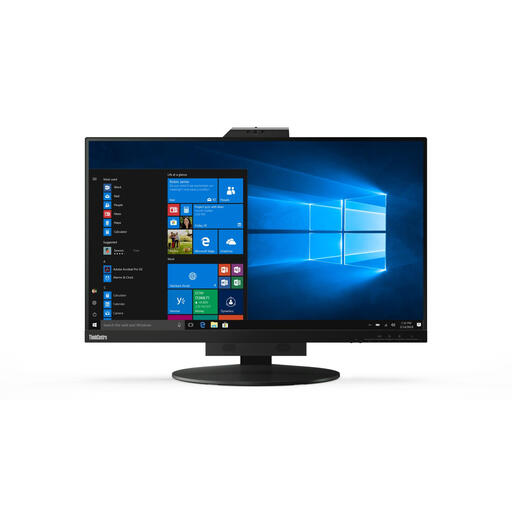
The ThinkVision T24v-30 we reviewed combines a 23.8-inch FHD monitor with conferencing features, making it suitable for a workstation that’s also used for video calls.
This Joybuy selection includes monitors for compact workstations, connecting to a laptop and specific touch tests.
 No image available
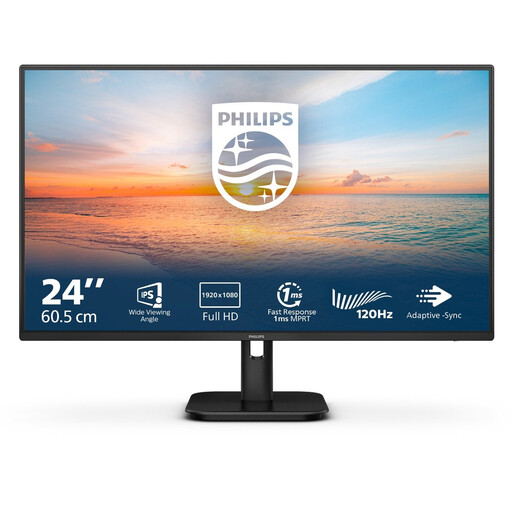
A 23.8-inch screen for a compact shared workstation; check that the connections suit the computer you use.
Full HD resolution of 1920 × 1080, IPS panel, HDMI and VGA.
 No image available
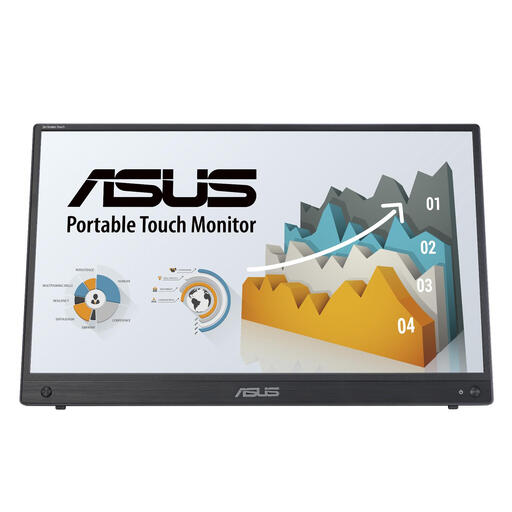
For specific tests of touch input on an external screen; this isn’t a substitute for testing on a phone with the relevant viewport and interactions.
15.6-inch portable Full HD touchscreen with HDMI and USB-C connections.
 No image available
For anyone who wants to view the checkout and test notes side by side on a more compact screen; check that your laptop supports the required USB-C features.
24-inch QHD screen, USB-C hub and Power Delivery up to 90 W.
 No image available
For anyone who wants to view the checkout, error messages and notes side by side; at a shared workstation, also consider the monitor’s position and the risk of others seeing your screen.
27-inch QHD screen, USB-C hub and Power Delivery up to 90 W.
 No image available
For a shared workstation where height and tilt adjustment could be useful; check which connections your setup requires.
27-inch QHD screen with HDMI and DisplayPort. The description says the power adapter must be purchased separately.
No, not on the basis of screen size alone. Check the narrow viewport and magnification separately. The W3C Web Accessibility Initiative’s reflow criterion includes a width of 320 CSS pixels, with exceptions for content that requires a two-dimensional layout.
Check that your laptop actually outputs a picture through the connection you’ve chosen and that the setup doesn’t cause distracting reflections. In the checkout, also test form text, error messages and whether users can recover their input; the W3C Web Accessibility Initiative covers these separately from the monitor itself.
Not necessarily. The Netherlands Authority for Consumers and Markets explains that, for sales to consumers, the seller is responsible for the statutory guarantee; a commercial or manufacturer’s warranty is separate. If you’re buying on behalf of a business, don’t assume that consumer protection applies and check the relevant purchase terms.
The Arboportaal doesn’t specify a required screen size in inches. However, rules on workstation setup do apply to employees and workplaces covered by the regulations on display screen work. The Arboportaal states, for example, that if you work at a screen for more than two hours a day, the screen and keyboard must not be fixed together. According to its guidance, exceptions may be made under certain conditions if health and safety are safeguarded.
No. If an organisation processes personal data, the Dutch Data Protection Authority says it must decide for itself which security measures are needed. A monitor specification doesn’t assess those measures.