
Print image editor
You assess images for the printed catalogue yourself, matching your monitor, colour profiles and proof prints. Adobe describes colour profiles and soft proofing as parts of this workflow.


If you assess print colours yourself, choose a monitor based on colour management, calibration and soft proofing with the profile for your intended print output. A high resolution or wide colour gamut alone won’t guarantee a match with the printed result. If you mainly work with text and page layouts, compare usable screen space, adjustability, reflections and connections with your workspace and laptop.
You assess images for the printed catalogue yourself, matching your monitor, colour profiles and proof prints. Adobe describes colour profiles and soft proofing as parts of this workflow.
You place images, check typography and switch between pages and tool panels. Usable workspace and connections are important points of comparison.
You spend long periods reading and proofreading, so you pay attention to screen position, reflections and ambient light. Arboportaal sets out factors to consider for screen-based work in the workplace.
Choose this approach: if you assess reproduction colours yourself and create soft proofs using the profile for your intended print output.
Bear in mind: calibration and profiling take time, and you may also need a measuring device.
Choose this approach: if you view pages, images and software panels side by side, but don’t assess the final print colour yourself.
Bear in mind: 4K resolution or sRGB coverage alone doesn’t prove a monitor is suitable for a specific print proof.
Choose this approach: if readability, desk layout and easy connections matter more than assessing print colours yourself.
Bear in mind: a 27-inch QHD screen has fewer pixels than the 27-inch 4K models mentioned here.
Compare monitors according to what matters most for your catalogue work. The percentages below give a rough indication of the share of consumers who prioritise each requirement in that situation.
| Factor to consider | What to look for when buying | Who should prioritise this? |
|---|---|---|
| Assessing print colour | Compare the colour gamut and calibration method of the exact model; ask your printer for the output profile. | If I assess reproduction colours myself, I want to match the screen profile and soft proof to the intended print output. Around 36% of consumers give reliable print colour their highest priority. |
| Space for pages and images | View an actual page at your usual scale and check that text remains legible with your software panels on screen. | When I view images, typesetting and panels at the same time, I want enough workspace without making text unreadable at my chosen scale. For around 29% of consumers, space for pages and images comes first. |
| Screen position and reflections | Check the height adjustment and screen finish, and take windows and lamps into account when setting up your workspace. | When reading and proofreading for long periods, I want to position the screen comfortably and reduce distracting reflections. A calm reading and working environment is the top priority for around 21% of consumers. |
| Connecting a laptop | Check the monitor’s display and charging features, and compare its stated power output with your laptop’s requirements. | When I connect my laptop at my workspace, I want to know whether the chosen connection supports display and charging. Easy connectivity is the main priority for around 14% of consumers. |
The screen profile describes how the monitor displays colour; soft proofing also requires the profile for your intended output. Colour coverage alone won’t predict how the catalogue will look on paper.
Ask your printer for the output profile and assess the soft proof in a colour-managed workflow before approving colours.
Calibration and profiling take time. Hardware calibration may also require a measuring device.
A USB-C connection alone doesn’t confirm that a laptop can send a display signal through the monitor or receive enough power to charge.
Check the video and power features of the monitor, laptop and cable, and compare the stated power output with your laptop’s charging requirements.
You may still need a separate laptop power supply or another display cable.
Screen position, reflections and ambient light also matter when you’re reading and proofreading for long periods. Resolution alone doesn’t determine whether the setup will be comfortable to read from.
Measure the available desk space, check adjustability and screen finish, and assess text at the scale you use.
The ColorEdge CS2740 is a model worth comparing for colour-critical image preparation for print.
According to the Dutch model specifications, the ProArt PA279CRV combines a wide colour gamut with an adjustable 27-inch 4K screen.
The DesignVue PD2705U is a 27-inch 4K option for design work and sRGB display.
The UltraSharp U2725QE is a 27-inch 4K hub monitor for a workspace where connectivity matters.
The 27E1N1600AE/00 is a QHD work monitor worth comparing if text, layout and USB-C are priorities.
These Joybuy models are suited to catalogue layout and image work, with both 4K workspace and QHD options.
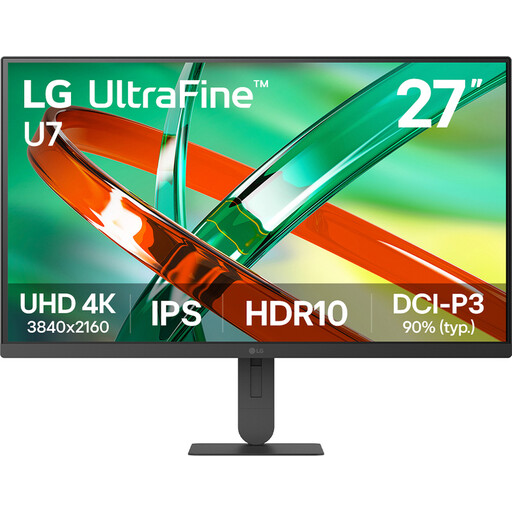 No image available
A 27-inch 4K screen worth comparing for detailed page and image layout.
The product name specifies 27 inches, 4K and IPS.
Check the display and charging features available through the monitor and connection for your laptop.
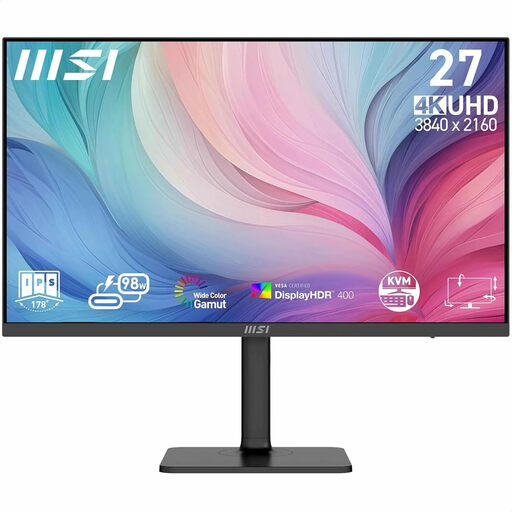 No image available
A 27-inch 4K model worth comparing for creative work and catalogue layout.
The product information mentions an adjustable stand. For colour-critical print preparation, check the specifications and calibration options for the exact version, and make sure they suit your workflow.
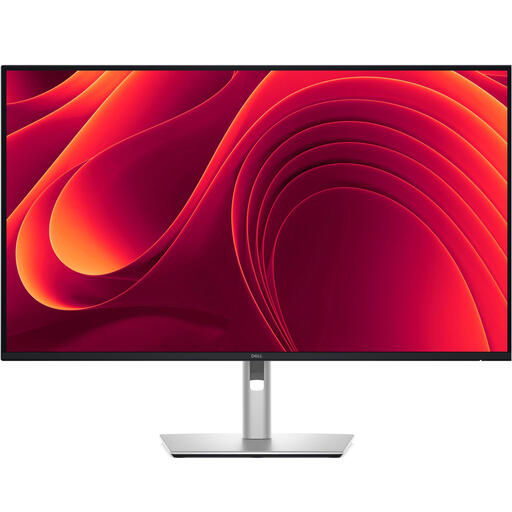 No image available
The larger screen may be useful if you want to view pages and images side by side; measure your available desk space first.
The product name specifies 31.5 inches and 4K. The product information mentions USB-C with 90 W Power Delivery and an adjustable stand.
Check that the power output is suitable for your laptop.
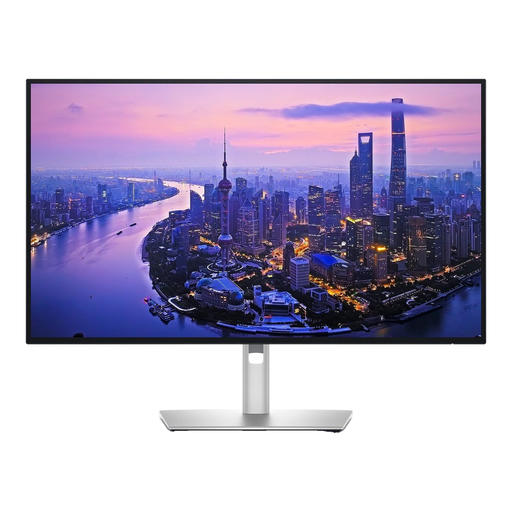 No image available
A 27-inch 4K model worth comparing for page and image layout.
Dell lists height adjustment for the U2725QE; the product information mentions a low-reflection screen.
A low-reflection screen doesn’t mean reflections will be eliminated in every desk setup.
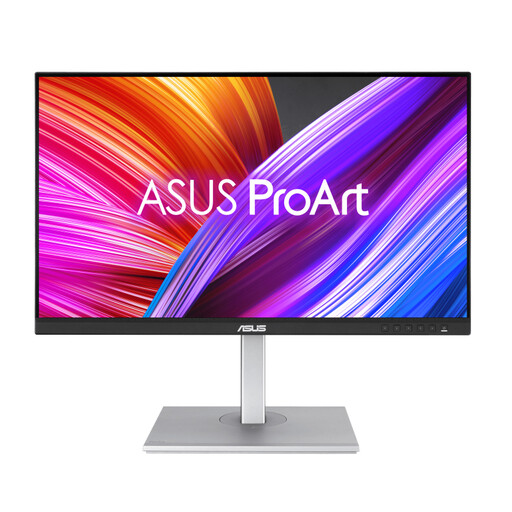 No image available
A QHD option worth comparing if text and general layout matter more than the extra pixel space of 4K.
The product name specifies 27 inches and 2560 × 1440 pixels. The product information mentions an adjustable stand and anti-glare finish.
Check that the resolution and display scaling work for your pages and software panels.
No. Resolution helps you see detail, but assessing colour also requires a calibrated and profiled screen, plus a soft proof using the profile for your intended output. Adobe describes these as separate steps.
Calibrate and profile the screen, then use the correct output profile for soft proofing. Adobe recommends using a measuring device and recalibrating regularly for colour-critical work.
Pay attention to screen position, reflections and large differences in contrast between the screen and its surroundings. The workplace guidance described by Arboportaal is aimed at employees and employers; it isn’t automatically a legal purchasing requirement for every private buyer.
Compare the EU energy label for the exact model. The European Commission lists a scale from A to G for computer monitors, along with separate information about energy consumption in HDR.
For an eligible distance purchase from a business, you generally have 14 days to change your mind. Products sold in the Netherlands must also be of satisfactory quality; if there’s a fault, contact the seller. There’s no fixed statutory guarantee period for all products.