What should you look for when choosing?
Start by working out the minimum width your catalogue windows need at your preferred text scaling. Then compare how easy scans are to read, the screen’s adjustability and the features available through the laptop connection.
| What to consider |
What should you check? |
Who might find this more important? |
| Two record windows side by side |
Compare the width each window needs at your chosen text scaling, and check whether your software lets you rearrange windows. |
If I want to keep two records, or a record and a scan, open at the same time, both windows need to fit at my chosen scale. Around 36% of consumers prioritise viewing things side by side. |
| Readability of metadata and scans |
View the same sample scan at your preferred text scaling; resolution alone doesn’t tell you whether the text is comfortable to read. |
When switching between small record fields and scans, I want to be able to read the details without the text becoming too small in a reduced window. Around 29% of consumers put detail readability first. |
| Adjustable workspace |
Check the height adjustment, preferred rotation, screen finish and the space available on your desk. |
If I’m cataloguing for long periods, I want to adjust the screen to suit my workspace and take reflections into account. Around 21% of consumers prioritise an adjustable workspace. |
| Connecting a laptop via USB-C |
Check your laptop’s video support, the monitor port’s features and power output, and which cable you need. |
If I use my laptop with peripherals, I want to know whether one connection provides the features I need. Around 14% of consumers prioritise the laptop connection. |
Joybuy products for this workspace
This selection from Joybuy includes wide screens for working with multiple windows, as well as a 27-inch QHD option for viewing records and scans.
 Image unavailable
Dell Pro P3426WEV 34.1-inch curved WQHD IPS USB-C hub monitor
The wide-screen layout is suited to viewing record windows side by side.
The product name lists a webcam, 100 Hz and 90 W Power Delivery.
View at Joybuy
 Image unavailable
Philips 34B2U5900C/00 34-inch curved Dual-Mode Business Monitor
The curved 34-inch screen is an option for viewing several work windows side by side.
The product name lists Dual-Mode; check that the available modes suit your needs.
View at Joybuy
 Image unavailable
iiyama G-MASTER 45-inch Dual QHD VA monitor
The wide format is designed for anyone who needs plenty of horizontal space for work windows.
The product name lists a KVM switch, USB-C dock, RJ45 (LAN) and a height-adjustable stand.
View at Joybuy
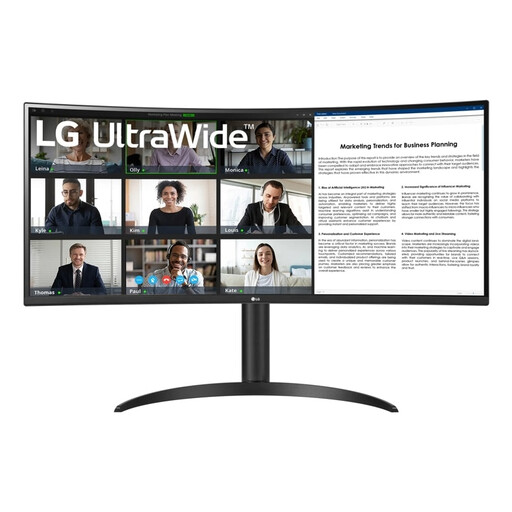 Image unavailable
LG 34WR55QK-B 34-inch 21:9 monitor
The wide aspect ratio is useful if you want to view records and source material at the same time.
The product name lists 3440 × 1440 pixels, Wide Quad HD and a black finish.
View at Joybuy
 Image unavailable
ASUS ProArt PA278CV 27-inch QHD monitor
A 27-inch QHD screen is an option for viewing records and scans without the width of an ultrawide.
The product name lists 2560 × 1440 pixels, LED and a black finish.
View at Joybuy
Frequently asked questions
Do I need special hardware to view two catalogue records side by side?
Not necessarily. Windows 11 offers Snap layouts, including via Win + Z. The available layouts depend on screen size and orientation, and some desktop apps don’t show them automatically. Test your catalogue software before choosing a monitor for this feature.
When is a rotatable screen useful?
A rotatable screen can be a good fit if you regularly read a long form or page in portrait orientation. BenQ lists 90° rotation for the GW2790QT; if you want to view two wide records at once, the available space in landscape orientation is an important consideration.
Can any USB-C monitor connect to and charge my laptop with a single cable?
No. Dell lists a USB-C downstream data port with a maximum output of 15 W for the P2425, while BenQ specifies DisplayPort Alt Mode and 65 W Power Delivery for the GW2790QT. Check the monitor port, laptop support, required power and cable.
Which Dutch regulations apply to a workspace where an employee catalogues for long periods?
Employers must meet requirements for display-screen work. Arboportaal states that when someone works at a screen for more than two hours a day, the screen and keyboard must not be attached to each other; the screen must also be height-adjustable. These requirements apply to relevant workplace setups and aren’t general purchasing conditions for every personal monitor.
What about the cancellation period and warranty when buying online in the Netherlands?
When you buy from a business online as a consumer, you generally have a statutory 14-day cancellation period from delivery, subject to exceptions. ACM ConsuWijzer and the Dutch Government explain the conditions. A product must also meet the standards you could reasonably expect under normal use. According to ACM ConsuWijzer, the seller must put things right free of charge if it doesn’t; this is a separate right from the cancellation period.


