First, choose a monitor whose screen and stand will fit on your desk. Then decide whether you mainly need extra room for page layouts, more pixels or colour management for print. Manufacturer specifications for colour reproduction or calibration are no substitute for colour management and, where your printer recommends it, a physical proof. Also check that the video connection and charging power are suitable for your laptop.
Who is this monitor guide for?
Catalogue designer checking print output
If you assess lots of photos and colours for print, colour management, calibration and agreeing requirements with your printer are important. EIZO lists colour specifications for the CS2400S, while Adobe recommends physical proofs for print details that a screen preview cannot show.
Layout designer with limited desk space
You want to edit catalogue pages without losing all your workspace. The listed screen and stand dimensions for models such as the ASUS PA248CRV and BenQ PD2506Q make it worth measuring your available space in advance.
Catalogue designer using a laptop
If you switch between text, images and files on a laptop, check whether a single USB-C connection can carry video and supply enough power. BenQ and ASUS list USB-C Power Delivery for the models mentioned; the power ratings need to be suitable for your laptop.
What should you look for when choosing?
First, measure the space available for the screen and stand. Then compare colour management, usable workspace and laptop connections according to your main task.
| What to consider |
What should you check? |
Who will find this important? |
| Colour checking for print |
Check the colour gamut and calibration options of the exact model. Ask your printer what kind of physical proof you need. |
I want to assess photos and print colours as part of my workflow and know what proofs to expect in advance; around 31% of consumers put colour checking for print first. |
| Fit on your desk |
Measure the available width and depth, then compare them with the dimensions of the monitor and stand. |
I want to leave room beside my screen for catalogue materials and other work essentials; around 31% of consumers make desk fit their top priority. |
| Layout and image detail |
Compare the native resolution, aspect ratio and physical screen size of the exact variant. |
I want to assess pages and images clearly without constantly switching between elements; around 23% of consumers put layout detail first. |
| Laptop and a single cable |
Check whether your laptop supports video over USB-C and compare its charging requirements with the monitor’s power output. |
I work on a laptop and want to keep the number of cables on my desk to a minimum; around 15% of consumers make video and power through one connection their top priority. |
Common buying mistakes
-
Measuring only the screen diagonal
The diagonal doesn’t tell you how much space the monitor and stand will take up. BenQ lists a stand depth of 256,9 mm for the PD2506Q; ASUS gives a depth of 19,04 cm for the PA248CRV.
Measure the space available and compare it with the dimensions of the exact variant, including the stand. If you’re considering a monitor arm, check its mounting space and weight capacity separately.
A suitable monitor arm may be a separate purchase, so measure the space needed for mounting and use as well.
-
Assuming a wide colour gamut guarantees an accurate print proof
A stated colour space or calibration feature doesn’t guarantee that the finished print will look the same. Adobe points out that some print details aren’t visible in a screen preview.
Agree on colour management and the physical proof you need with your printer before making a final decision about the print run.
-
Assuming USB-C guarantees laptop charging
The stated charging power will work only if your laptop supports the relevant USB-C feature and the power output is sufficient.
Check your laptop’s video and power requirements, then compare them with the ports and charging power of the exact monitor variant.
Brands to consider as a reference
EIZO
The ColorEdge CS2400S is a reference point for a compact workflow where colour management and print checking matter.
- EIZO specifies more than 99% Adobe RGB, hardware calibration and 1920 × 1200 pixels for this model.
- A physical proof is still important for print details that aren’t visible on screen; Adobe recommends discussing these with your printer.
ASUS
The ProArt PA248CRV is worth considering if you want to combine 16:10 layouts and USB-C on a desk with limited space.
- ASUS lists 100% sRGB, 97% DCI-P3 and 96 W USB-C Power Delivery for this model.
- Check that the listed dimensions and stand will fit your setup, and that the charging power is suitable for your laptop.
BenQ
The DesignVue PD2506Q is a reference point if you want more pixels for page and photo detail on a 25-inch screen.
- BenQ specifies 2560 × 1440 pixels, 100% sRGB, 95% P3 and 65 W USB-C Power Delivery.
- BenQ lists a stand depth of 256,9 mm; check that it will fit on a small desk and make sure the USB-C features are compatible with your laptop.
Dell
The UltraSharp U2424HE is a reference point for general catalogue work with a USB-C hub monitor.
- Dell lists a 23,8-inch screen, 1920 × 1080-pixel resolution and 120 Hz refresh rate for this model.
- These specifications alone don’t tell you whether the screen is suitable as a standalone reference for checking print output.
Philips
The 24E1N1300AE/00 is a reference point for text and general layout on a 23,8-inch Full HD monitor.
- Philips lists 1920 × 1080 pixels and USB-C with power delivery for this model.
- Check print colour requirements separately; the listed resolution and connection don’t show that a physical proof is unnecessary.
Joybuy products for catalogue layout
These Joybuy products range from a portable 16:10 monitor to compact Full HD models for laptop use and general layout work. For colour-critical print work, always check your workflow and proofing arrangements with your printer.
 No image available
TECLAST V16Q portable 2.5K monitor
This portable model could suit you if you need extra vertical screen space on a small desk. The product information lists a 16-inch, 16:10 IPS display with 2560 × 1600 pixels and 100% sRGB; this colour coverage alone doesn’t prove that it will match print output. Adobe recommends physical proofs for print details that aren’t visible in a screen preview.
View at Joybuy
 No image available
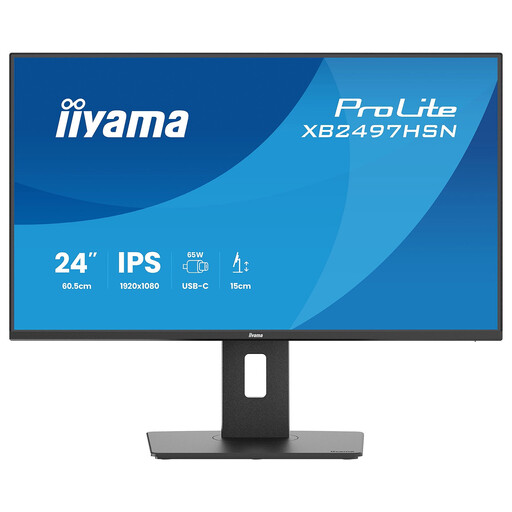
iiyama ProLite XB2497HSN-B1 24-inch Full HD IPS monitor
This monitor could suit you if you want to combine catalogue work with laptop docking. The product information lists a 23,8-inch screen with 1920 × 1080 pixels and USB-C docking with up to 65 W Power Delivery; check that your laptop supports the connection and can work with this power output. The listed dimensions, including the stand, are 539,5 × 343,0–493,0 × 209,5 mm.
View at Joybuy
 No image available
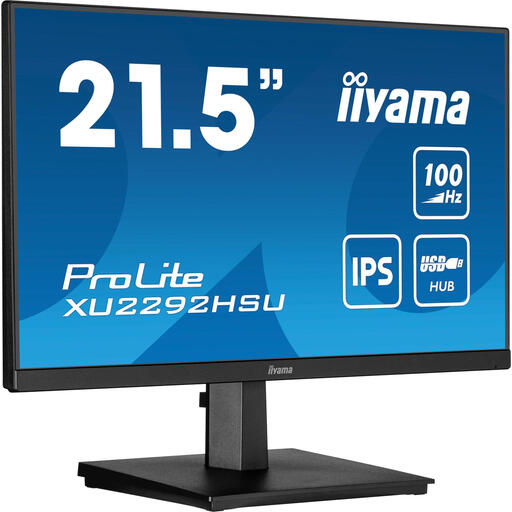
iiyama ProLite 21.5-inch IPS monitor
This smaller monitor could suit you if text and general layout take priority over a larger screen. The product information lists 1920 × 1080 pixels, a USB hub, and HDMI and DisplayPort connections; the listed width and depth are 489,5 mm and 199,5 mm.
View at Joybuy
 No image available
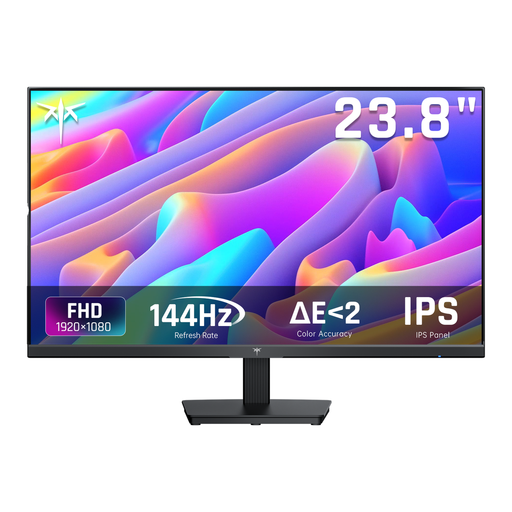
KTC H24B9S 24-inch Full HD IPS monitor
This model could suit you if you’re considering a 24-inch screen for catalogue images and an sRGB workflow. The product information lists Full HD, IPS, 116% sRGB and 95% DCI-P3; colour gamut figures alone don’t confirm what the finished print will look like. Discuss physical proofs with your printer.
View at Joybuy
 No image available
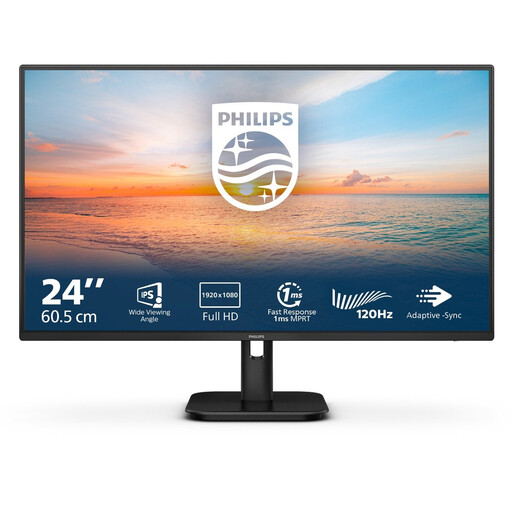
Philips 24E1N1100A 24-inch Full HD IPS monitor
This model could suit you if text and general catalogue layout matter more than a specialist colour workflow. The product information lists 1920 × 1080 pixels, an IPS panel and a 100 Hz refresh rate; HDMI and VGA connections are also mentioned.
View at Joybuy
Frequently asked questions
Can I judge the finished print using only the monitor?
No, not for every print detail. Adobe says that a screen preview doesn’t show details such as marks and halftone images, and recommends checking these with physical proofs from your printer.
What should I check when connecting a laptop?
Check that your laptop can output video through the relevant USB-C connection and how much charging power it needs. BenQ specifies 65 W for the PD2506Q and ASUS 96 W for the PA248CRV; these figures alone don’t prove that a monitor is suitable for your laptop.
What rights do I have as a consumer when buying online?
When you buy online as a consumer from a business, you usually have 14 days to change your mind, according to the Dutch government. If there’s a problem with a product, contact the seller to find a solution. Check the terms separately if you’re buying on behalf of a business.
Are there any requirements for monitors or display screen work in the Netherlands?
The European Commission states that energy labelling and ecodesign requirements apply to electronic displays, subject to applicable exemptions. Arboportaal also outlines employers’ obligations concerning healthy display screen work; these aren’t a general minimum screen size or mandatory colour coverage for every individual buyer.


