
Creator of a printed heritage guide
You’re assessing historic images and design colours for a planned print run. Adobe describes calibration, ambient lighting and the profile for the printer and paper as parts of colour management for printing.


Start by asking whether you’ll mainly be laying out pages and small map labels, or whether you’ll also need to assess colours for a print run. Then choose the resolution, screen setup and connections that suit your computer and evening workspace. For print work, a wide colour gamut and an HDR label alone are no substitute for calibration, ambient lighting and a suitable output profile.
You’re assessing historic images and design colours for a planned print run. Adobe describes calibration, ambient lighting and the profile for the printer and paper as parts of colour management for printing.
You work with map labels, captions and image details, and want a clear view of your workspace and fine detail. Compare the resolution and text scaling from your usual viewing distance.
You want to position your screen comfortably and read text in changing light, perhaps with a laptop connected. Arboportaal notes that reflections, light sources in your field of view, ambient light and small symbols can all affect readability.
| Factor to consider | What to look for when buying | Who is it important for? |
|---|---|---|
| Colour for print | Check the colour modes and calibration options. For print work, assess colours with the intended printer, paper and output profile in mind. | If you want to assess colours for a potential print run, the whole output workflow matters. Around 36% of consumers in this decision-making context prioritise print colours. |
| Fine detail and layout | Compare screen size and resolution, and check that your software is easy to read at a comfortable scale from your usual viewing distance. | If you work with small map labels and captions, check that both the details and tools remain easy to read. Around 29% of consumers give layout details top priority. |
| Readability in the evening | Look out for reflections, the position of light sources and options for adjusting the screen’s height and angle. | For an evening session, you’ll want to position the screen so text is readable from your usual distance. Around 21% of consumers prioritise readability and screen setup. |
| Connections | Check that your computer supports video through the port you’ve chosen, and compare the cable and required charging capacity with the monitor model’s specifications. | If you want to connect your laptop, monitor and peripherals in a way that suits your setup, check the features of both devices. Around 14% of consumers make connectivity their top priority. |
What you see on screen and in print also depends on ambient light and the specific printer and paper combination. Adobe describes these as parts of colour management.
If you’re planning a print run, establish the output workflow first, then assess colours using suitable profiles and a proof print.
This approach may take extra time for calibration, output profiles and proof prints.
A higher resolution doesn’t automatically make small labels and interface elements easy to read with your settings.
Check map labels, captions and tools from your usual viewing distance before choosing a resolution.
The ports on both your computer and monitor must support the video function and power delivery you need.
Before buying, compare the video output, cable specification and charging requirements with the details for the exact model.
Depending on the connection, you may need a different cable, an adapter or a separate laptop power supply.
BenQ’s Dutch product information describes the PD2705Q as a 27-inch QHD model and the PD2705U as a 27-inch 4K model for design work.
The ProArt PA279CRV is a 27-inch 4K model with colour modes and USB-C for a compatible laptop.
EIZO describes the 27-inch 4K ColorEdge CS2740 as a model for tasks including graphic design and colour management.
The UltraSharp U2724DE is a 27-inch QHD hub monitor for a workspace where connectivity matters.
This selection features 4K monitors for viewing fine detail and small text. Some product descriptions also mention colour management or screen positioning features; check whether they suit your own workflow.
 No image available
The 27-inch 4K resolution is well suited to viewing fine map details.
The product information lists an IPS panel, HDR10 and wide viewing angles. Connections listed include HDMI, DisplayPort and USB-C; check which features your computer supports through your chosen connection.
When assessing print work, calibration, ambient lighting and the profile for the printer and paper combination remain important.
 No image available
The product description mentions an integrated automatic colourimeter with a calibration function, which may be relevant if your workflow uses monitor profiles.
The description lists 100% sRGB, 94% Adobe RGB, an adjustable stand and a removable magnetic screen hood.
A stated colour gamut or calibration function doesn’t prove a match with a print; ambient lighting and the profile for the actual printer and paper combination also matter.
 No image available
The 27-inch 4K resolution is an option for viewing fine map details; check text scaling at your own viewing distance.
The product name lists 3840 × 2160 pixels, 60 Hz, 4 ms, HDMI and DisplayPort. The product description mentions an anti-reflective screen and a height-adjustable stand.
 No image available
The product description mentions factory calibration and adjustment options; check that the connections suit your computer and workspace.
The description lists 94% Adobe RGB, height, tilt and swivel adjustment, and USB-C with DisplayPort Alt Mode.
For assessing print work, ambient lighting and the profile for the actual printer and paper combination also matter.
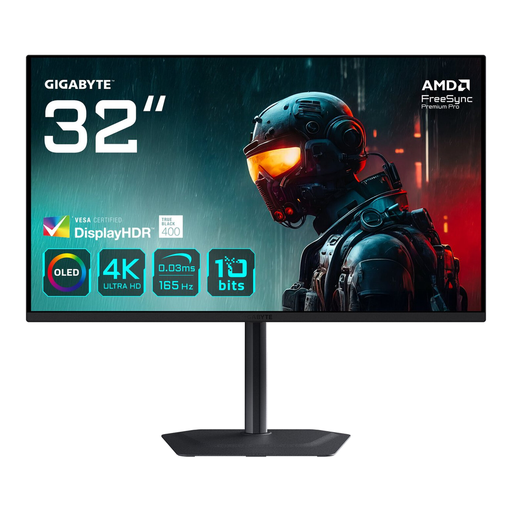 No image available
The product name lists a 31.5-inch OLED screen with 3840 × 2160 pixels, for work where you want to view fine image and map details.
Not as a general requirement. First establish the colour workflow and the requirements of the intended print output; calibration, a monitor profile and the profile for the printer and paper also matter. ASUS and EIZO list Adobe RGB coverage for specific models, but that specification alone doesn’t prove a match with a print.
Reduce distracting reflections and light sources in your field of view, make sure symbols are readable and position the screen comfortably. Arboportaal lists these factors in relation to readability; a screen mode alone isn’t a proven solution for eye or neck problems.
No, you can’t tell from the shape of the connector alone. Check the video function of the laptop port, the cable and the required charging power against the specifications of the exact monitor model.
According to the Dutch government, if you buy as a consumer and there’s a problem with the product, the seller must provide a solution. The manufacturer’s warranty or any additional warranty you buy comes on top of your statutory rights; read the terms of any extra cover before paying for it.
The obligations relating to screen work described by Arboportaal apply to employers and their employees; buying a monitor for a private design session doesn’t automatically make you an employer. EUR-Lex also describes EU rules on the ecodesign and energy labelling of electronic displays, with exceptions for certain screen types. These aren’t general requirements for private buyers to choose a particular resolution or colour mode.