Start by considering how much desk space you have and how you’ll use your canal booklet. A 24.1-inch 16:10 monitor keeps your setup relatively compact. For colour-critical print preparation, a managed colour workflow and the right print profile matter most. A 27-inch 4K monitor offers more pixels for checking detail, but takes up more space. Measure the area, including the monitor stand, and check the connections and printer’s output profile before you choose.
Which monitor is right for you?
Designer with a small desk
If you’re creating a canal booklet in a limited workspace, weigh up screen width, stand depth and adjustability against the space you have. For example, ASUS Netherlands publishes the dimensions of the PA248QV including its stand. Compare these measurements with your own workspace.
Editor of historical photos for print
When preparing photos for a printed booklet, colour management and the right output profile are important. Adobe explains that the active monitor profile should match the display setting; colour gamut alone won’t predict how the print will look.
Reviewer of fine page details
If you’re checking small text, image edges and layout details, you may want to weigh the extra pixels against the larger size of a 27-inch screen. ASUS and BenQ publish resolution and pixel density figures for the models in this comparison.
What should you look for when choosing?
Compact 24.1-inch 16:10 monitor
A good fit if: you mainly lay out pages at a smaller desk and an adjustable stand matters to you. ASUS Netherlands specifies a resolution of 1920 × 1200 pixels and 100% sRGB for the PA248QV.
Trade-off: its resolution and pixel density are lower than those of the 27-inch 4K option mentioned here. Also check which video connections you need.
24.1-inch monitor for more colour-critical print work
A good fit if: you’re preparing historical photos for print and a wide colour gamut and hardware calibration matter more to you than extra pixels. EIZO Netherlands specifies more than 99% Adobe RGB and hardware calibration for the CS2400S.
Trade-off: its resolution is 1920 × 1200; a wide colour gamut doesn’t guarantee a match with the finished print.
27-inch 4K monitor
A good fit if: you have room for a larger screen and want to assess fine photographic and typographic details. BenQ specifies a resolution of 3840 × 2160 pixels and 163 ppi for the PD2705U.
Trade-off: the stand takes up more space. If you’re using USB-C, check video support and the charging power your laptop needs.
When creating a canal booklet in a compact workspace, there are four things to consider: desk space, colour management, detail checking and connections.
| What to consider |
What should you check? |
Who should consider this? |
| Desk space |
Measure the available width and depth, then compare them with the dimensions including the stand. ASUS Netherlands lists the PA248QV at 53,30 × 50,50 × 21,10 cm. |
At a small desk, I want to leave room for my keyboard and reference materials; around 36% of consumers put desk space first. |
| Colour for print |
Ask the printer for its output profile and check that the monitor settings, profile and software all work together. EIZO Netherlands specifies more than 99% Adobe RGB and hardware calibration for the CS2400S; Adobe explains why a suitable active monitor profile matters. |
When editing historical photos for print, I want to match the colours to the printer’s workflow; around 29% of consumers put colour management first. |
| Fine detail |
Compare resolution and pixel density alongside the physical screen size. ASUS Netherlands specifies 1920 × 1200 pixels and 94 ppi for the PA248QV; BenQ Netherlands lists 3840 × 2160 pixels and 163 ppi for the PD2705U. |
When working with small text and fine photographic details, I want to assess the layout clearly; around 21% of consumers put checking detail first. |
| Connections and power |
Check the video output, monitor input and the charging power your laptop needs. BenQ Netherlands specifies USB-C with DisplayPort Alt Mode and 65 W Power Delivery for the PD2705U; ASUS Netherlands lists HDMI and DisplayPort for the PA248QV. |
For my laptop, I want to know that the video and power connections will work in practice, without relying on assumptions about USB-C; around 14% of consumers put compatible connections first. |
Things to watch out for when buying
-
Comparing screen size alone
The screen size doesn’t tell you how much desk space the stand takes up. The ASUS and BenQ models reviewed differ in width and stand depth.
Measure the space where you’ll put the monitor and compare it with the full dimensions, including the stand, before ordering.
If the stand doesn’t fit, you may need to rearrange your setup or find a suitable mounting option.
-
Assuming a wide colour gamut guarantees an identical print
A stated colour gamut won’t automatically determine how photos and illustrations will look in print. Adobe explains that the active monitor profile should match the display setting.
Ask the printer for its output profile and check your colour settings before sending over the final files.
Setting up a profile and checking a proof may take extra preparation time.
-
Assuming USB-C provides enough power for your laptop
According to BenQ, the PD2705U delivers up to 65 W via USB-C. Whether that’s enough depends on your laptop’s charging requirements.
Check that your laptop supports USB-C video and compare its power requirements with the monitor’s output.
If the power output isn’t enough, you may still need to use your laptop’s separate power supply.
Brands to consider
ASUS
The ProArt PA248QV is a 24.1-inch 16:10 option for a relatively compact workspace.
- ASUS Netherlands specifies a resolution of 1920 × 1200 pixels, 100% sRGB, factory calibration and an adjustable stand.
- The stated pixel density is 94 ppi; the specifications don’t list a USB-C video input for this model.
EIZO
The ColorEdge CS2400S is a 24.1-inch option for anyone considering colour management when preparing work for print.
- EIZO Netherlands specifies more than 99% Adobe RGB, more than 99% ISO Coated V2 and hardware calibration.
- The resolution is 1920 × 1200; the stated colour gamut doesn’t guarantee a match with a print.
BenQ
According to BenQ, the PD2705U is a 27-inch 4K option for detailed work with a compatible USB-C laptop.
- BenQ Netherlands specifies a resolution of 3840 × 2160 pixels, 163 ppi, 99% sRGB and USB-C with 65 W Power Delivery.
- BenQ lists a width of 61,4 cm and a stand depth of 25,68 cm; check whether your laptop can use 65 W.
LG
The UltraFine 27UP850K-W is a 27-inch 4K option if USB-C and an adjustable stand are important to you.
- LG Netherlands gives this model a typical DCI-P3 coverage of 95%, USB-C up to 96 W and height, tilt and pivot adjustment.
- DCI-P3 isn’t the same as a printer’s output profile; LG states that Calibration Studio software isn’t included.
Monitors at Joybuy
This selection includes models for page layout and detail checking, from a portable 16:10 screen to 27-inch 4K monitors. When choosing, also check the connections and how much space the monitor takes up with its stand.
 No image available
TECLAST V16Q portable monitor
A portable second screen may suit page layout in a workspace where you also want a display you can move around.
The product name lists 2.5K, 16:10, an IPS screen, 100% sRGB, 144 Hz, two USB-C connections and mini-HDMI.
View at Joybuy
 No image available
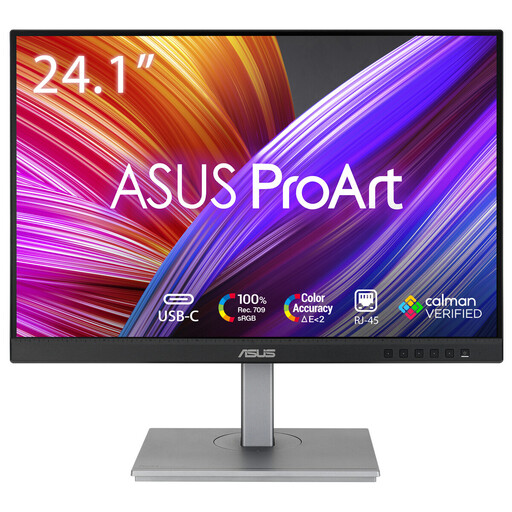
ASUS ProArt PA248CNV
A 24.1-inch model is worth considering if you have a smaller workspace and need a screen for page layout.
The product name lists a resolution of 1920 × 1200 pixels and a 16:10 aspect ratio.
View at Joybuy
 No image available
Dell Plus S2725QS
A 27-inch 4K model is worth considering if you want to view fine image and page details on a larger screen.
The product name lists a resolution of 3840 × 2160 pixels and 4K Ultra HD.
View at Joybuy
 No image available
Dell UltraSharp U2725QE
This 27-inch model is worth considering if you’re looking for a 4K screen to check detail while creating your booklet.
The product name lists a resolution of 3840 × 2160 pixels and 4K Ultra HD.
View at Joybuy
 No image available
LG 27UQ850V-W
A 27-inch 4K model may suit detailed work if you have room on your desk for a larger screen.
The product name lists a resolution of 3840 × 2160 pixels and 4K Ultra HD.
View at Joybuy
Frequently asked questions
Is a wide colour gamut enough to see how the booklet will look in print?
No. Use a colour-managed workflow and make sure the active monitor profile matches the display setting. Match the proof to the printer’s output profile; a stated colour gamut alone won’t predict the print result.
What should I consider when placing the monitor on my desk?
Compare the available space with the monitor’s full dimensions, including the stand, rather than just the screen diagonal. For employees who work at a screen for more than two hours a day, Arboportaal describes specific workplace requirements; these don’t automatically apply to every buyer.
Are you always limited to a two-year monitor warranty in the Netherlands?
No. ACM ConsuWijzer distinguishes between a manufacturer’s or seller’s warranty and your statutory guarantee. With normal use, a product must meet what you could reasonably expect; if there’s a fault, contact the seller.
Can I return a monitor bought online if it doesn’t fit on my desk?
For eligible online consumer purchases, ACM ConsuWijzer says you’ll generally have a statutory cooling-off period of up to 14 days after delivery. Before buying, check whether the rules apply to your purchase and measure the available space.


