
Vandaag of morgen in huis

Kwaliteit gegarandeerd

Welkomstaanbiedingen ontgrendelen: GRATIS bezorging | Tot 80% korting | Gratis 30 dagen JoyPlus-proefperiode
Download de app
Buying a monitor seems straightforward until you start comparing the specs. Full HD, QHD, 4K, IPS, VA, OLED, 100 Hz or 240 Hz: marketing terms only make sense when you know what they actually mean in practice. A screen that’s perfect for a gamer can be unnecessarily expensive for office work. Conversely, a budget monitor for long spreadsheets may lack enough screen space or adjustability.
The most common buying mistakes are:
Resolution determines how many pixels the screen displays:
Also consider your viewing distance. A 34-inch ultrawide monitor takes up considerably more space than a 24-inch screen. On a small desk, a 27-inch QHD monitor may be more practical.
An IPS monitor is known for wide viewing angles and consistent colours. That makes IPS suitable for office work, design software and general use. A VA panel often offers higher static contrast and deep dark tones according to the listed product specifications, which can be pleasant for films and games.
An OLED monitor or QD-OLED model uses individually controlled pixels. The product specifications therefore show very high contrast values and fast response times. Bear in mind that OLED models can be more expensive and that prolonged static images are a consideration. Features such as OLED Care are brand-specific; according to MSI’s own information, these are designed to protect the panel. Do not see this as a guarantee of unlimited lifespan.
Refresh rate is expressed in hertz:
Also check the video ports. DisplayPort is often relevant for a high refresh rate on a PC. The HDMI version and source device also determine which resolution and refresh rate are achievable. If you work with a laptop, you can choose a monitor with USB-C, but check beforehand whether the port supports video, data and charging.
For a monitor for home working or a monitor for the office, a monitor with an adjustable stand is practical. Look for height adjustment, tilt, swivel and possibly pivot. VESA support offers extra flexibility with a monitor arm.
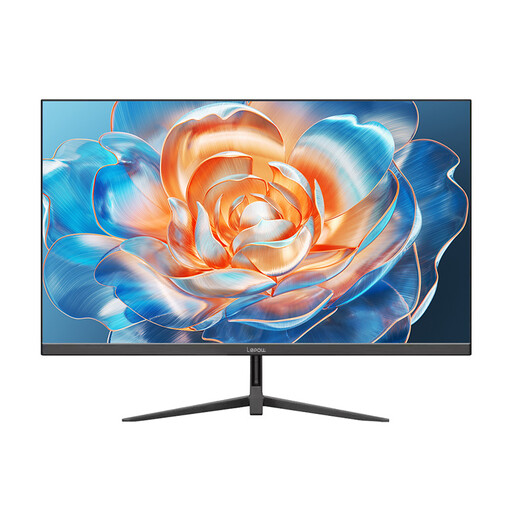
Why this fits the profile: The combination of 27 inches, Full HD and 100 Hz is suitable for daily work, web browsing and light gaming without jumping straight to a higher resolution class.
The product information clearly states the resolution, refresh rate and HDMI connection. Do check whether Full HD at 27 inches is sharp enough for your viewing distance.
27 inches, 100 Hz, 1920 × 1080 and HDMI connectivity.
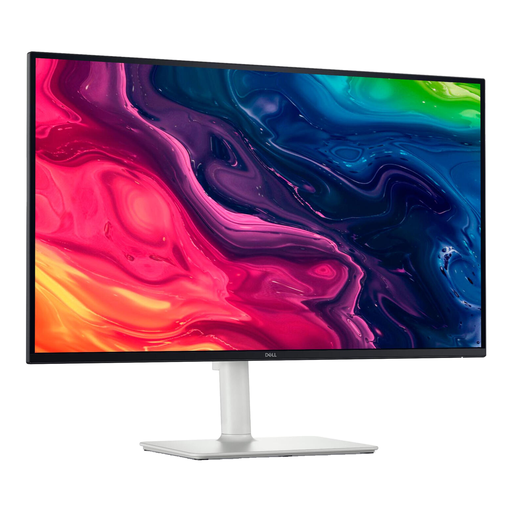
Why this fits the profile: This IPS screen combines 4K resolution with 120 Hz, adjustable height and pivot. That makes it suitable for productivity, entertainment and occasional gaming.
The high resolution comes with concrete HDMI and DisplayPort specifications. Check whether your laptop or PC supports 4K at your desired refresh rate.
27-inch IPS, 3840 × 2160, 120 Hz and 130 mm height adjustment.
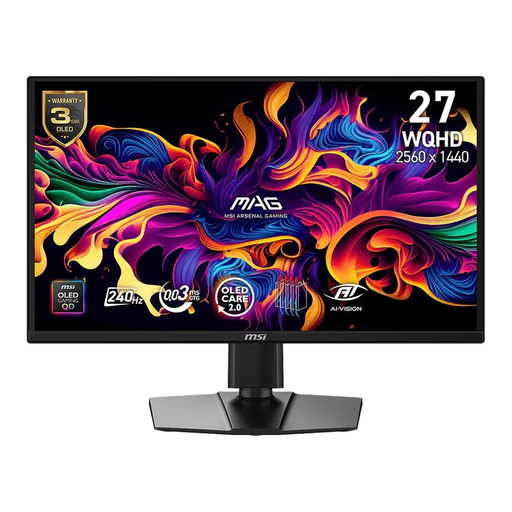
Why this fits the profile: For competitive gamers, 240 Hz, WQHD and a stated response time of 0.03 ms are relevant specifications. Adaptive Sync and compatibility should be checked against your graphics card.
The product listing specifies both the 240 Hz refresh rate and the WQHD resolution. Bear in mind OLED characteristics with prolonged static interface elements.
26.5-inch QD-OLED, 2560 × 1440, 240 Hz and DisplayHDR True Black 400.
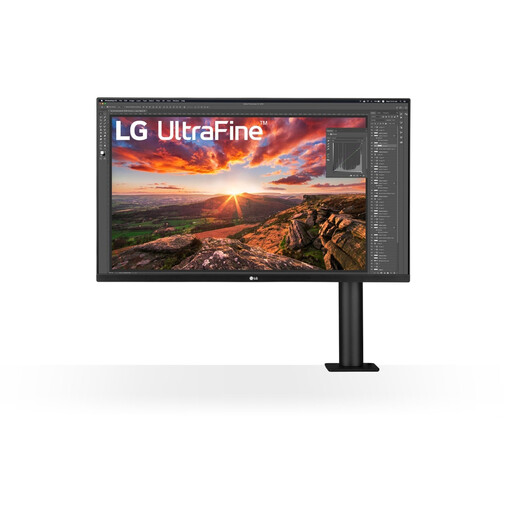
Why this fits the profile: The 32-inch 4K monitor offers plenty of workspace and a monitor arm that, according to the product information, supports height, depth, tilt and rotation.
The ergonomics are clearly described and USB-C supports 60 W Power Delivery according to the product data. Check your laptop’s charging requirements.
31.5-inch IPS, 4K resolution, USB-C with 60 W and a flexible monitor arm.
We’ve put together a full, up-to-date list of products that fully meet these strict selection criteria and comply with current European safety regulations.
That depends on your viewing distance and usage. For basic work and gaming, Full HD can be enough. If you read a lot of text or use multiple windows side by side, QHD can be beneficial at 27 inches. The higher pixel density generally gives you more space and sharper details.
Look for QHD or 4K, an adjustable stand, a matte finish and connections that match your laptop. A monitor with USB-C can reduce cable clutter, but always check the video function and the wattage of Power Delivery. For video calls, built-in camera and microphone are extra features, not a given.
Consumption varies by model, brightness, resolution and usage time. Check the EU energy label and the stated consumption in kWh per 1,000 hours. Higher brightness and HDR mode can increase consumption. Set the screen to switch off automatically when you’re not using it for a while.
