
Video caller with a busy background
You want to stop the shared space from drawing attention and first check whether your meeting app can blur the background.


You don’t necessarily need a new monitor to blur a busy background during video calls: Microsoft Teams, Zoom and Google Meet offer background effects when they’re available on your device and permitted by your organisation’s settings. Try the feature with your current camera and computer first. Microsoft notes that blurring or replacing your background won’t always prevent confidential information from being seen. Choose a conference monitor if a built-in camera and suitable connections would also make your shared workspace more practical, and treat people looking at your physical screen as a separate privacy issue.
You want to stop the shared space from drawing attention and first check whether your meeting app can blur the background.
You regularly connect a computer to the same desk and want a practical camera setup, suitable connections and a screen you can position comfortably.
You want to stop someone next to you from reading what’s on your screen. That’s different from hiding what’s visible behind you during a video call.
Choose this if: your current workspace and camera meet your needs and you want to try the background effect first.
Bear in mind: availability may depend on the app, device and organisation settings; blurring isn’t guaranteed to protect confidential information.
Choose this if: you also want an integrated camera and connections that suit your computer at the shared desk.
Bear in mind: a built-in webcam doesn’t replace your meeting app’s background effects; check the screen size and adjustability too.
Choose this if: colleagues are mainly able to see what’s on your physical screen.
Bear in mind: a privacy filter can limit viewing from the sides, but it won’t hide the background in your camera view.
| Key consideration | What to look for | Who it’s for |
|---|---|---|
| Background in video calls | Try your chosen meeting app with the camera and computer you actually use; check any organisation settings. | If my main aim is to keep the space behind me out of view, I’ll first try the effect in my meeting app. Around 40% of consumers primarily want to hide their background. |
| Connections at a shared desk | Compare your computer’s connections with those on the exact monitor model, and check how the webcam connects. | When I switch between computers or users at the same desk, I want a camera and connections that suit my setup. Around 31% of consumers prioritise this kind of shared-desk setup. |
| People looking at your physical screen | Work out whether the risk is the background in your camera view or the content on your screen; if you’re considering a filter, check the screen size and the viewing angle you need. | If people next to me can read information on my screen, I need a solution for viewing privacy, not the background in my camera view. This applies especially to the around 15% of consumers who put screen privacy first. |
| Adjustability for everyday use | Check the screen’s height adjustment and positioning; if the stand isn’t adjustable, see whether a suitable VESA arm can be fitted. | When I spend long periods working at a screen, I want to position it properly, even if other people use the workspace. Around 14% of consumers focus on viewing comfort for everyday use. |
Teams, Zoom and Google Meet offer background effects, but availability can vary depending on the device, app and organisation settings.
First, try your current camera and computer in the meeting app and check whether the feature is available.
With the ASUS BE24EQK, you also need a USB connection to your computer, in addition to the video connection, to use the webcam.
Follow the connection instructions for the exact model and check which cables you’ll need for your setup.
If the required USB cable isn’t included, the webcam may remain unusable until you set up the correct connection.
Background blur changes what the camera captures, not what someone next to you can read on your physical screen.
Decide separately whether you want to hide the space behind you from the camera or shield the information on your screen.
According to ASUS, the stand supplied with the ASUS BE24EQK isn’t height-adjustable. Arboportaal outlines requirements for applicable workplaces involving screen-based work.
Check whether the model is adjustable and, if you need a different height, whether a suitable VESA arm can be fitted at your workspace.
A non-adjustable stand may mean you need a suitable monitor arm or a different workspace setup.
The HP Series 5 Pro 527pm is described as a 27-inch QHD conference monitor with an integrated camera and USB-C.
The 27B1U5601H/00 is a 27-inch QHD conference monitor with a USB-C dock.
The Dell Pro P2726DEB is described as a 27-inch QHD conference monitor with an integrated webcam, speakers and microphone.
According to ASUS, the BE24EQK is a 23.8-inch Full HD monitor with a built-in webcam and VESA mounting.
These models combine a monitor with a built-in camera for a video setup at a shared desk. Background blur itself depends on the meeting app.
 No image available
The built-in webcam suits a video setup without a separate webcam.
34.1-inch curved WQHD IPS screen, 100 Hz and USB-C power delivery up to 90 W.
 No image available
The integrated webcam is useful if you want a monitor and camera in one setup.
27-inch QHD IPS screen, 100 Hz and webcam.
 No image available
The product name positions this model for conferencing with a USB-C hub; check that the connections suit your computer.
34-inch monitor with USB-C hub.
 No image available
The built-in camera and microphone are designed for a video setup without a separate webcam and microphone.
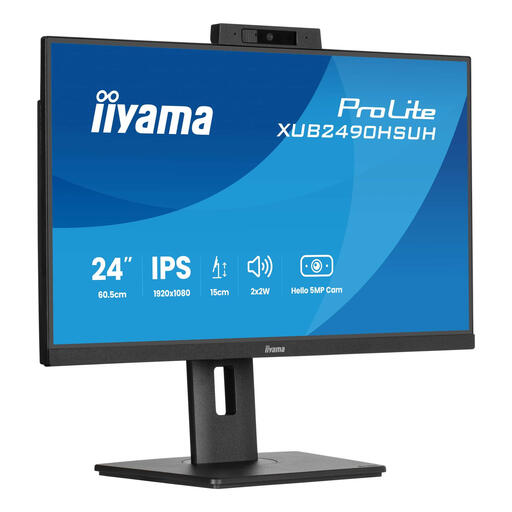
24-inch IPS monitor with built-in Windows Hello camera and microphone.
 No image available
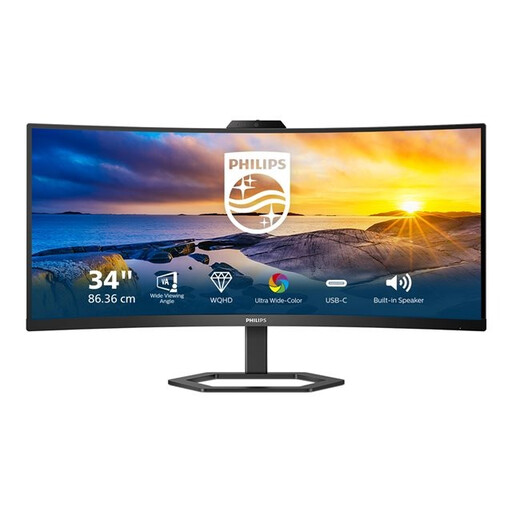
The built-in webcam is useful if you’re looking for a wide screen with an integrated camera.
34-inch screen, 3440 × 1440, 21:9, 300 cd/m² and 4 ms; connections: HDMI, USB and DisplayPort.
A monitor with a webcam doesn’t automatically blur the background in Teams, Zoom or Google Meet. Check the feature in your meeting app on the device and account you use; availability may also depend on your organisation’s settings.
A video connection alone isn’t enough to use the webcam on every model. For the ASUS BE24EQK, ASUS specifies a USB-A-to-USB-B connection to the computer as well as the video cable; follow the connection instructions for other models.
No, that isn’t guaranteed. Microsoft Support warns that blurring or replacing the background won’t always prevent confidential information from being visible during a call. So also check your camera angle and video preview.
For employees who spend more than 2 hours a day working at a screen, Arboportaal outlines requirements including using a separate screen and keyboard with a laptop, and having a height-adjustable screen. Whether these apply depends on the workplace situation; they aren’t product specifications for every individual buyer.
For a consumer purchase made at a distance, the Dutch government generally provides a 14-day cooling-off period, with some exceptions. Check the terms that apply to your purchase, especially if you’re ordering for business.