
Choosing from burst sequences
You review lots of very similar shots and want to compare the details before choosing a photo. In Lightroom Classic, Adobe describes Compare and Survey views for choosing from a sequence.


Choose a screen that lets you compare shots side by side, then zoom in on any you’re unsure about. Adobe describes this approach in Lightroom Classic. A 27-inch 4K monitor is one option for viewing fine detail, but colour management, USB-C power delivery and screen finish matter most when they suit the rest of your workflow. None of these features can make a blurry source photo sharp.
You review lots of very similar shots and want to compare the details before choosing a photo. In Lightroom Classic, Adobe describes Compare and Survey views for choosing from a sequence.
You start by choosing a sharp shot, then edit its colours, perhaps for printing. In that case, colour modes and calibration options may matter as well as resolution. Thijs Schouten discusses calibration as something to consider when editing photos.
You switch between photo work and using your laptop, so you’ll also want to consider connections, laptop charging and where to position the screen.
Start by thinking about how you compare shots. Then decide whether colour management or a laptop connection is important for your working day, and finally consider the light and how the monitor will sit on your desk.
| What to consider | What should you check? | Who is this most important for? |
|---|---|---|
| Fine detail and room to compare | Check the resolution and screen size of the exact model, and whether your computer can output that resolution. Compare the sequence in your photo software and zoom in on potential picks. | If I want to assess small differences between burst shots, I consider both the screen display and my software’s comparison features. Around 40% of consumers prioritise differences in sharpness and room to compare. |
| Colour reproduction after choosing | Check the colour mode and calibration method of the exact model, and see what tools your workflow requires. | If I also edit selected photos with colour accuracy in mind or print them, colour management matters alongside choosing a sharp shot. Around 30% of consumers make colour-accurate editing their top priority. |
| Laptop connection | Check whether the laptop port supports video and compare the power required to the monitor’s USB-C specification. | If I use my laptop at the same desk, I want to know whether the connection can carry both a picture and enough power. Around 20% of consumers prioritise convenient laptop connectivity. |
| Reflections and positioning | Check the screen finish and adjustability of the exact model, and take the position of your desk into account. | If light falls on the screen, I want to be able to position it so I can assess photos properly. Around 10% of consumers say reflection control is their main consideration. |
Resolution describes the screen, not the sharpness of the shot. Compare and enlarge images in your photo software.
Compare the sequence in your software first, then zoom in on any photos you’re unsure about.
Colour coverage and hardware calibration are designed for colour management; they don’t prove any advantage when it comes to spotting motion blur.
Choose these features based on whether you’ll also edit or print photos with colour accuracy in mind.
The monitors in this comparison have different stated maximum power delivery levels. Whether the connection works also depends on the video capabilities of your laptop’s port and the power it needs to charge.
Check your laptop’s specifications and compare them with the connection specifications of the exact monitor model.
The ProArt PA279CRV is a 27-inch 4K option for anyone looking to combine detailed viewing, colour modes and a USB-C home office set-up.
The 27UP850K-W is a 27-inch 4K option for choosing photos at a laptop workstation.
BenQ positions the PhotoVue SW272U for photography, with 4K display and colour management.
EIZO targets the ColorEdge CS2740 at photography and colour-critical image editing.
These Joybuy product picks focus on 4K monitors for viewing photos at a home desk, including models for viewing fine detail and options for colour-critical editing.
 No image available
An option if you’re looking for a 27-inch 4K monitor for viewing photos at your desk.
The product name lists a 27-inch screen, 4K resolution and IPS panel.
 No image available
A good fit if you’re looking for a 27-inch 4K screen with a height-adjustable stand.
The product name lists 3840 × 2160 pixels, 60 Hz, 4 ms, HDMI, DisplayPort and a height-adjustable stand.
 No image available
An option if you’re looking for a 27-inch 4K monitor for viewing photos at your desk.
The product name lists a 27-inch screen, 3840 × 2160 pixels and 4K Ultra HD.
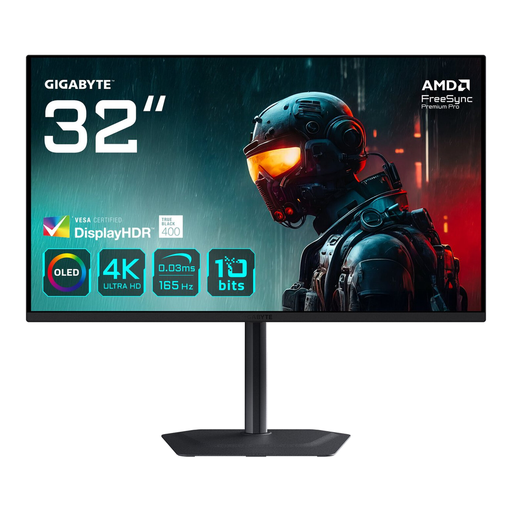 No image available
A good fit if you want a larger 4K screen for viewing photos at your desk.
The product name lists a 31.5-inch OLED screen, 3840 × 2160 pixels and 4K Ultra HD.
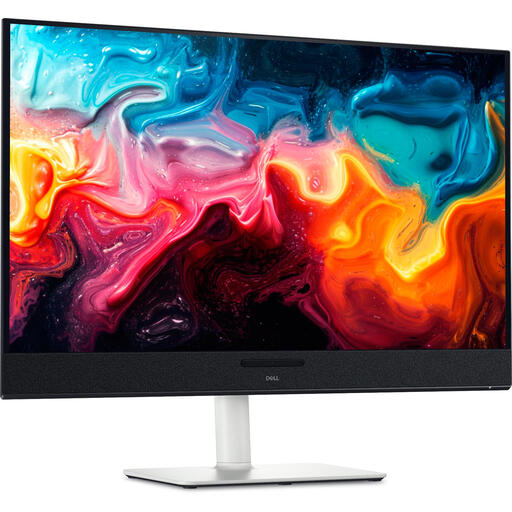 No image available
An option if you’re looking for a larger 4K screen for viewing photos at your desk.
The product name lists a 31.6-inch screen, 3840 × 2160 pixels, 4K Ultra HD and QD-OLED.
No. 4K isn’t the only way to compare photos: photo software can show shots side by side, and you can enlarge individual images. A 4K model gives you more screen pixels, but the right resolution also depends on your set-up and whether your computer can output it.
Check whether your laptop port supports video and whether the monitor’s USB-C power delivery is suitable for the charging power your laptop needs. Then compare shots in your photo software and enlarge any you’re unsure about to check the detail.
If you’re only choosing shots for sharpness, colour calibration isn’t the same as checking sharpness. If you also edit or print photos with colour accuracy in mind, check the calibration features of the exact model and see whether you need separate software or equipment.
When you buy online from a business as a consumer, you’re often entitled to a 14-day cooling-off period; check the terms of the specific purchase. You’re also entitled to a product that is fit for purpose. According to the Dutch government, there is no fixed statutory warranty period in the Netherlands. If a product is faulty, contact the seller.