
Developers who switch between sitting and standing
You want to be able to readjust your monitor after changing posture. The Arboportaal advises positioning the top of the screen slightly below eye level.


Start with screen positioning: at a sit-stand desk, you need to be able to position the monitor comfortably whether you’re sitting or standing. Then choose between a compact screen, more detail on a 27-inch display or extra horizontal space with an ultrawide. If you use a laptop, check that the connection and any USB-C power delivery are compatible too. An adjustable monitor doesn’t replace changing your working posture.
You want to be able to readjust your monitor after changing posture. The Arboportaal advises positioning the top of the screen slightly below eye level.
You want to keep code, development tools and a browser preview on screen at the same time. The available screen width and desk space will help determine whether an ultrawide suits your setup.
You want to connect your display and possibly power your laptop using as few cables as possible. Check that your laptop and cable support this, and check the power output of the specific monitor. For example, LG lists 65 W for the 34WR55QC-B.
Best for: a smaller workspace where you’d rather switch between windows than have them all open at once. The iiyama ProLite XUB2493HS-B6 is one example, with a 23.8-inch Full HD screen and a height-adjustable stand.
Bear in mind: you’ll get fewer pixels and less horizontal space than with the QHD, 4K and ultrawide models reviewed. iiyama lists the XUB2493HS-B6 as discontinued; check any successor models separately.
Best for: a main screen for code and browser previews. Philips lists the 27E1N1600AE/00 as having QHD resolution of 2560 × 1440; Dell lists the S2725QC as having 3840 × 2160 pixels and an adjustable stand.
Bear in mind: desk depth, readability at your viewing distance and your computer’s connection. Adjust the text and interface settings to make them comfortable to read.
Best for: keeping code, development tools and browser previews side by side. LG lists the 34WR55QC-B as having a 21:9 aspect ratio and 3440 × 1440 pixels.
Bear in mind: its physical width, and whether you can comfortably view windows at either end from your working position. The 65 W USB-C power delivery listed by LG for this model won’t necessarily suit every laptop.
| What to consider | What should you check? | Who is this important for? |
|---|---|---|
| Screen position | Check the height and tilt adjustment for your seated and standing positions. Make sure the stand or monitor arm is stable and suitable for your workspace. | When I change posture, I want to be able to position the screen comfortably in front of me each time. Around 27% of consumers give adjustable screen positioning the highest priority. |
| Windows side by side | Compare the screen width and aspect ratio with the space on your desk and where you sit or stand. | If I want to see code, development tools and a browser preview at the same time, horizontal workspace matters most to me. Around 33% of consumers prioritise viewing everything at once. |
| Readability | Consider text scaling, viewing distance, reflections and lighting; don’t look at resolution alone. | I want code and interface elements to be comfortable to read from my usual working distance. Around 27% of consumers make readability their top priority when choosing. The Arboportaal lists small text, reflections and poor ambient lighting as factors that can make a screen difficult to read. |
| Connecting a laptop | Check that your laptop and cable support video over USB-C, and that the monitor provides enough power if you want to charge your laptop through it. | If I want to connect my laptop using as few cables as possible, I also check which connections and power delivery my device supports. Around 13% of consumers prioritise laptop connectivity. |
The desk moves, but that doesn’t automatically put your monitor at the right height for both working positions.
Check the stand’s adjustment range when sitting and standing, and change posture regularly. The Arboportaal advises placing the screen directly in front of you, with the top slightly below eye level.
If the stand doesn’t adjust far enough, you may need a suitable monitor arm or riser. Check in advance that the mount is compatible with your monitor and desk.
An ultrawide needs more physical space; windows at either end may also be less comfortable to view from your working position.
Measure the available space and check that you can see the full width of the screen comfortably from both your seated and standing positions.
The HP E27 G5 FHD and HP E27k G5 4K are different models. Philips and the relevant Joybuy listings give different maximum refresh rates for the Philips models reviewed.
Compare the full model code and, if you’re considering a specific listing, ask the seller to confirm any specifications that differ between listings.
The Dell S2725QC is a reviewed 27-inch 4K USB-C monitor for anyone looking to combine fine screen detail with laptop connectivity.
The LG 34WR55QC-B is a reviewed 34-inch ultrawide for anyone who wants to arrange several windows side by side.
The 27E1N1600AE/00 is the reviewed QHD USB-C option; the 24E1N1300AE/00 is a separate, more compact Full HD model.
The ProLite XUB2493HS-B6 is an example of a compact 23.8-inch Full HD setup with a height-adjustable stand.
The E27k G5 is the reviewed 27-inch 4K USB-C option; the HP E27 G5 FHD is a different model.
This selection includes compact Full HD monitors, 27-inch QHD models, a 34-inch ultrawide and a portable 16-inch monitor. Compare the screen space with your workspace and, if you use a laptop, check which connection you can use.
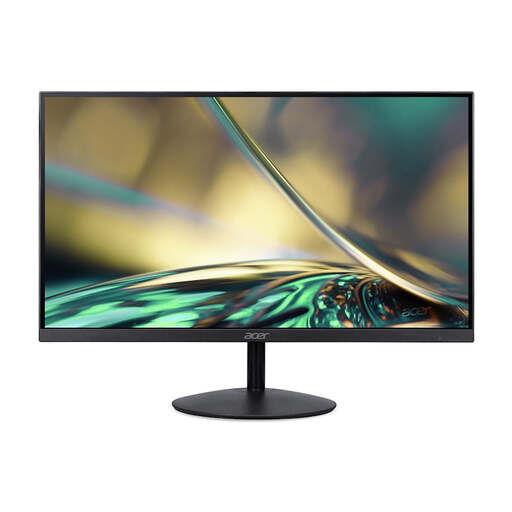 No image available
Suited to a compact desk setup if you’d rather switch between windows than have them all open at once.
24 inches, Full HD, 100 Hz and 1 ms; the product name lists HDMI and DisplayPort. The charger isn’t included as standard and must be bought separately.
 No image available
Suited to anyone looking for a 27-inch QHD main screen for code and browser previews.
The product name lists WQHD, 200 Hz and Rapid IPS. Check that the connections and screen settings suit your computer and the way you use it.
 No image available
Suited to anyone considering a 27-inch Quad HD screen for development work.
The product name lists 2560 × 1440 pixels, 180 Hz, 1 ms, FreeSync Premium, HDR10, two HDMI 2.0 connections and one DisplayPort 1.4 connection.
 No image available
Suited to anyone who wants to arrange several development windows side by side and has enough desk space.
The product name lists WQHD, VA, a curved 1800R screen and 120 Hz. Measure the available space beforehand and check the viewing angles from your working position.
 No image available
Suited to anyone considering a portable second screen for a workspace that also moves around with them.
The product name lists Full HD, IPS, 144 Hz, a 16:10 aspect ratio, two USB-C connections and mini-HDMI. Check which video connection your laptop supports.
Readjust your workspace and place the screen directly in front of you. The Dutch Arboportaal advises positioning the top just below eye level and looking slightly down at the screen. Depending on your setup, guidance from the Chartered Institute of Ergonomics & Human Factors suggests you may need a laptop stand, monitor riser or monitor arm. Remember to change posture regularly too.
No. Don’t assume it can just because the connection looks right. Check that your laptop and cable support the required video connection, and that the monitor provides enough power to charge your laptop. For example, LG lists 65 W for the 34WR55QC-B.
First check text scaling, brightness, contrast, lighting and reflections; a higher resolution alone won’t determine whether text is comfortable for you to read. The Arboportaal lists small text, reflections and poor ambient lighting as factors that can make a screen difficult to read.
Employers must follow regulations for screen-based workstations. According to the Arboportaal, when employees work at a screen for more than two hours a day, the screen and keyboard must not be attached to each other. There are also requirements covering factors such as adjustability and lighting. These are not universal product specifications for every private buyer; if necessary, discuss your workstation with your employer.
For online purchases made as a consumer, you generally have a statutory cooling-off period of up to 14 days after delivery, subject to legal exceptions. ACM ConsuWijzer explains the cooling-off period. The seller is responsible under the statutory guarantee if the product doesn’t meet what you could reasonably expect. Any manufacturer’s guarantee does not replace these statutory rights.