
Teacher working beside a bright window
Prepares lessons in a spot where daylight can cause reflections or glare. Screen position and controlling incoming light are important considerations.


Start with the setup: where possible, position yourself so you’re facing parallel to the window, and use blinds or curtains if incoming light is distracting. A higher stated brightness won’t automatically solve reflections. Next, choose a 27-inch QHD or 4K monitor if it suits your documents and desk, or consider an ultrawide if you regularly use several windows side by side and have enough space. If you’re considering USB-C, check that your laptop supports video output and that the charging power is right for your laptop.
Prepares lessons in a spot where daylight can cause reflections or glare. Screen position and controlling incoming light are important considerations.
Wants to view resources, lesson plans and communications side by side, and needs to weigh up the screen width they want against the space available on the desk.
Wants to connect an external monitor and possibly charge the laptop through the same USB-C connection. Whether this works also depends on the laptop’s capabilities.
Choose this option if: you want to view documents side by side but don’t need an ultrawide. Philips lists the 27E1N5600AE/00 as a 27-inch monitor with 2560 × 1440 pixels and USB-C for a compatible device.
Bear in mind: you’ll have less horizontal screen space than with a 34-inch ultrawide. QHD or USB-C doesn’t guarantee comfortable readability in the light by your window or compatibility with your laptop.
Choose this option if: you want more pixels on a 27-inch screen for detailed teaching materials, and the connections suit your laptop. Dell lists the P2725QE as offering 3840 × 2160 pixels and USB-C power delivery up to 90 W.
Bear in mind: more pixels don’t automatically mean more usable space for windows. Check text scaling, viewing distance, video output and the charging capacity you need.
Choose this option if: you regularly keep a lesson plan and resources open at the same time, and have room for a wide screen. LG lists the 34WR55QC-B as offering 3440 × 1440 pixels, an anti-glare surface and USB-C power delivery up to 65 W.
Bear in mind: LG specifies a width of 809 mm with the stand for this model. Measure your desk and check whether your laptop can charge at the stated power. An anti-glare surface is no substitute for blinds or curtains.
| Buying concern | What to look for | Who is this relevant to? |
|---|---|---|
| Readability in daylight | Look at where the screen sits in relation to the window and assess reflections. Arboportaal recommends positioning your viewing direction parallel to the window and using suitable blinds or curtains. | I want to read my teaching materials without incoming light making my workspace uncomfortable. Around 36% of consumers say daylight and readability are their top priority. |
| Space for documents | Work out which windows you use at the same time and measure the available desk width. Check the dimensions of your chosen model with its stand. | If I want to view lesson plans and resources at the same time, the screen needs to provide enough space without making the desk feel overcrowded. Around 29% of consumers put screen space first. |
| Connecting and charging a laptop | Check whether your laptop outputs video via USB-C, then compare its charging requirements with the power output of the exact monitor model. | I want to connect my work laptop and ideally avoid using too many cables. Both devices need to support the video and charging features I want. Around 21% of consumers make connectivity their main buying concern. |
| Posture and desk width | Measure the space needed for the monitor with its stand, and check what height and tilt adjustments the model offers. LG specifies these adjustments for the 34WR55QC-B. | I want to be able to position and adjust the screen on my desk to suit me, rather than choosing based only on screen size. Around 14% of consumers put positioning and adjustment first. |
A brightness specification won’t tell you whether incoming light will cause distracting reflections on your screen. For light coming in through a window, Arboportaal recommends considering factors such as your viewing direction and blinds or curtains.
First, assess the screen’s position in relation to the window and whether you can use blinds or curtains. Then compare the surface and specifications of the exact monitor model.
A wide screen needs physical space too. LG specifies that the 34WR55QC-B measures 809 mm wide and 260 mm deep with the stand.
Measure the space for both the screen and its stand, and decide whether a 27-inch model would give you enough room for your windows.
Video support and charging requirements also depend on your laptop. The stated USB-C power output varies between monitor models.
Before buying, check your laptop’s video output, the charging capacity you need and the specifications of your chosen screen.
You may also need a separate video connection or laptop power supply.
The Philips 27E1N5600AE/00 is an example of a 27-inch QHD monitor with USB-C for a compatible laptop.
The Dell Pro Plus P2725QE is an example of a 27-inch 4K option with a USB-C hub and stated power delivery of up to 90 W.
These examples from LG include a 34-inch ultrawide and a separate 27-inch 4K model.
This selection features 27-inch monitors for viewing teaching materials on a desk. Check the connections, dimensions and screen settings you need for each model.
 No image available
A 27-inch QHD option for viewing teaching materials on a standard desk setup. Check that your computer has the connections you need.
Product title lists 2K WQHD, Rapid IPS and 200 Hz.
 No image available
A 27-inch Quad HD model for viewing teaching materials on a desk. Check that its connections suit your computer.
Product title lists 2560 × 1440 pixels, 180 Hz, 1 ms, FreeSync Premium, HDR10, two HDMI 2.0 ports and one DisplayPort 1.4 port.
 No image available
A 27-inch 4K model for displaying detailed teaching materials. Consider the text scaling and whether the resolution suits the way you work.
Product title lists 3840 × 2160 pixels, 60 Hz, 4 ms, HDMI, DisplayPort and a height-adjustable stand.
 No image available
A 27-inch 4K UHD option for teaching materials. Check which connection and text scaling suit your computer and workspace.
Product title lists 3840 × 2160 pixels.
 No image available
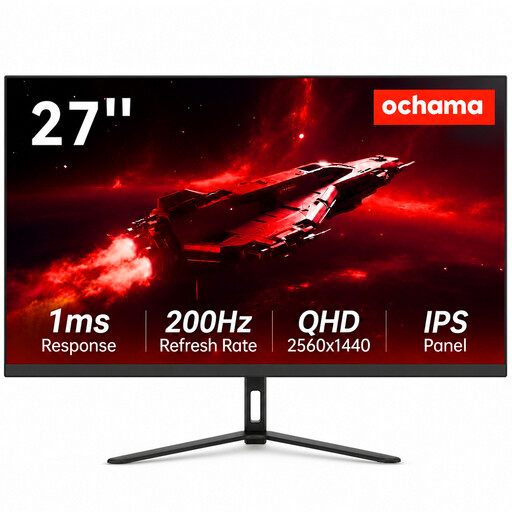
A 27-inch monitor for a desk setup. Check its connections and whether the stated screen specifications suit your teaching materials.
Product title lists 2K Ultra HD and a 200 Hz refresh rate.
No. Higher brightness won’t automatically prevent reflections or glare. Arboportaal recommends positioning your viewing direction parallel to the window and using suitable blinds or curtains, among other measures. Compare the brightness of the exact model in the context of your setup.
Arrange your screen to suit the space and take regular breaks from screen work. Arboportaal sets out additional requirements for employees, including rules for those who work at a screen for more than 2 hours a day. Whether these apply depends on the working situation.
Only if your laptop supports the required video output and charging function, and the monitor provides enough power. Manufacturers specify different power outputs for different models, so check the specifications of both devices.
In many cases, you have 14 days to change your mind when buying online from a business, according to the Dutch government. The Netherlands has no fixed statutory guarantee period. The cooling-off period and the rules for faulty products are separate matters.
The European Commission sets out energy labelling rules for electronic displays, including computer monitors, with ratings from A to G. Check the label or model information when you buy. These ratings don’t mean you have to choose a particular energy class.