What should you look for?
Arboportaal recommends positioning your viewing direction parallel to the window. According to RTINGS.com, incoming light, brightness and how a screen handles reflections all affect how clearly you can see the picture. Assess these factors separately from resolution and connections.
| What to consider |
What to look for |
Who is this important for? |
| Readability in window light |
Compare how the screen handles reflections and its SDR brightness separately. Check whether you can turn the screen or use window blinds. |
When I test a filter beside a window, I want to make sure reflections don’t hide the text and selected options. Around 36% of consumers prioritise readability in window light. |
| Text and filter details |
Compare screen size and resolution. Check that your computer supports the resolution, and view text using your usual scaling setting. |
When I assess filter options and windows at the same time, I want to be able to read the text clearly without missing important details. Around 29% of consumers prioritise interface details. |
| Connecting and powering a laptop |
Check USB-C video output, how much charging power your laptop needs, and which cables and ports you use. |
If I want to use my laptop with as few separate connections as possible, the monitor needs to suit its video output and charging requirements. Around 21% of consumers prioritise this connection. |
| Adjusting the screen position |
Check the height, tilt and swivel adjustments available on the exact model, and whether they’ll work on your desk. |
When my existing desk setup limits the viewing angle, I want to be able to position the screen where I need it. Around 14% of consumers prioritise adjustability. |
Joybuy monitors for filter testing
This Joybuy selection includes 27-inch 4K models for detail-rich interfaces, as well as a 31.5-inch 4K model. Compare reflections separately and choose according to how much screen space you need.
 No image available
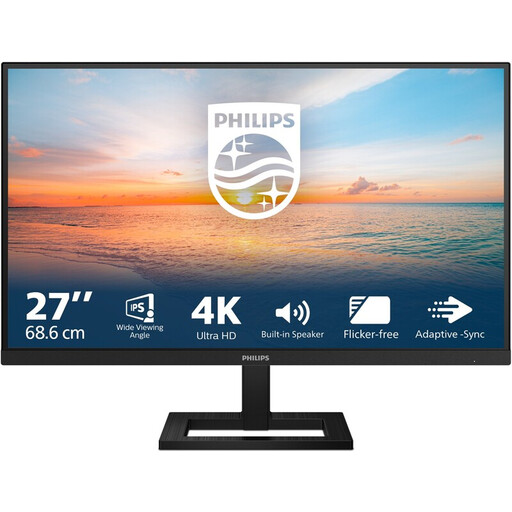
Philips 27E1N1800AE/00 27-inch 4K UHD IPS monitor
The 27-inch 4K resolution suits anyone who wants to assess filter text and interface details on a large screen.
3840 × 2160 pixels; 60 Hz; 4 ms; HDMI; DisplayPort; height-adjustable stand. Joybuy Netherlands lists a typical brightness of 350 cd/m² and an anti-glare screen; these don’t replace assessing the monitor in the light by your window.
View at Joybuy
 No image available
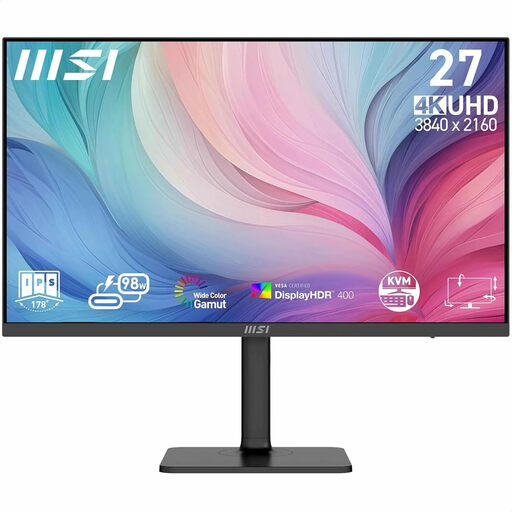
MSI Modern MD272UPHG 27-inch 4K monitor
The stated screen size and resolution suit anyone who wants to view filter details on a 27-inch screen.
68,6 cm (27 inch); 3840 × 2160 pixels; 4K Ultra HD.
View at Joybuy
 No image available
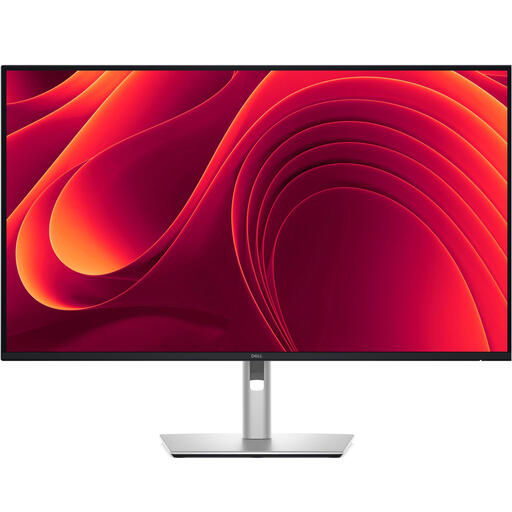
Dell Pro Plus P3225QE 31.5-inch 4K monitor
A 31.5-inch screen may suit a testing setup where you want more physical screen space to work with.
80 cm (31,5 inch); 3840 × 2160 pixels; 4K Ultra HD.
View at Joybuy
 No image available
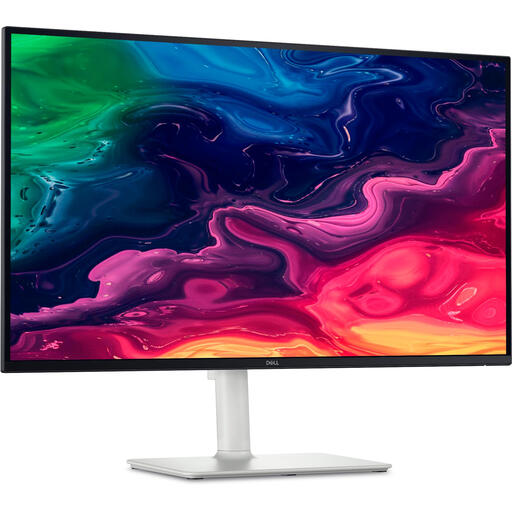
Dell Plus S2725QC 27-inch 4K monitor
This 27-inch model suits anyone considering a 4K screen for detailed filter text.
68,6 cm (27 inch); 3840 × 2160 pixels; 4K Ultra HD.
View at Joybuy
 No image available
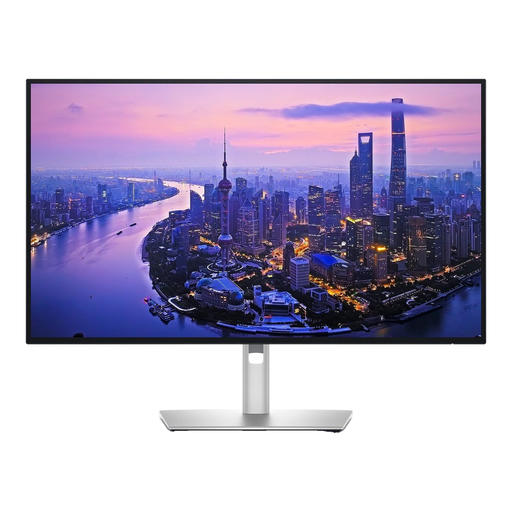
Dell UltraSharp U2725QE 27-inch 4K monitor
The 27-inch 4K resolution suits anyone who wants to assess lots of filter details on a separate screen.
68,6 cm (27 inch); 3840 × 2160 pixels; 4K Ultra HD.
View at Joybuy
Frequently asked questions
Is an anti-glare screen enough if the window is reflected on it?
Not necessarily. Visibility also depends on direct reflections, incoming light and SDR brightness. Where possible, turn the screen and use window blinds before relying on higher brightness as the only solution.
What should I adjust first when setting up beside a window?
Arboportaal recommends positioning your viewing direction parallel to the window and using suitable blinds to reduce reflections from daylight. Then adjust the screen position to suit the lighting conditions in which you use the search filters.
Will I still need a separate laptop charger with a USB-C monitor?
That depends on the laptop and monitor. Dell lists 90 W power delivery for the P2725QE; LG lists up to 96 W for the 27UP850K-W. Check that your laptop can output video over the same USB-C connection and that the power delivery is suitable for it.
What cooling-off period and warranty apply to an online purchase in the Netherlands?
According to the Dutch government, when buying at a distance you’re entitled to a 14-day cooling-off period in many cases. Statutory rights also apply, with no fixed statutory warranty period. If a product is faulty, contact the seller. Check which terms and exceptions apply to your order.
Are there extra rules for an employee’s workstation?
Yes. Arboportaal outlines employers’ responsibilities for display screen work, including for employees who work at a screen for more than two hours a day. This requirement doesn’t automatically apply to every individual buying a monitor for personal use.


