Start by checking how much desk space you have, then look at the resolution, adjustability and screen profiling options: extra screen space is no help if the stand won’t fit. If you print portraits, a suitable calibration and soft-proofing workflow is more useful than a high stated colour gamut alone; for mostly digital work, a simpler compact screen may be enough. Contrast figures are specifications, not proof that shadow detail is more visible on one model than another.
Who is this relevant to?
Precise black-and-white editor
If you assess shadow areas, light skin tones and subtle tonal transitions, look for screen profiling and calibration options. BenQ Netherlands, EIZO Netherlands and Adobe describe features and workflows that are relevant here.
Editor with limited desk space
If you’re setting up a monitor on a small desk, it’s worth checking the screen and stand dimensions in advance, without overlooking adjustability for retouching. BenQ Netherlands, ASUS Netherlands and Dell publish product specifications that can help.
Portrait photographer who prints
If you assess portraits on paper, look for screen profiling and soft proofing with the profile for your intended output condition. EIZO Netherlands and Adobe describe elements of this workflow.
What should you consider when choosing?
Compact photography monitor with print features
A good fit if: you want plenty of detail at around 24 inches and prepare portraits for print. BenQ lists a resolution of 2560 × 1600 pixels, hardware calibration, a black-and-white mode and print preview features for the SW242Q.
Consider: BenQ lists the stand depth as 262,6 mm, so measure your available desk depth.
Hardware-calibratable monitor focused on consistency
A good fit if: repeatable screen settings and uniformity correction matter to you. EIZO lists these features for the ColorEdge CS2400S, which has a resolution of 1920 × 1200 pixels.
Consider: its stated resolution is lower than that of the BenQ SW242Q; this difference alone doesn’t prove that it displays black-and-white detail better or worse.
Compact monitor for mostly digital work
A good fit if: you’re looking for an adjustable 16:10 monitor, consider the ASUS ProArt PA248QV. For a 23,8-inch Full HD setup with a USB hub, the Dell U2424H is another option.
Consider: ASUS lists 1920 × 1200 pixels and Dell 1920 × 1080 pixels; neither specification automatically makes a print match what you see on screen.
| What to consider |
What to check before buying |
Who is this important to? |
| Assessing black-and-white tones |
Compare resolution and calibration options; assess the screen under your own working light, too. |
If I want to assess shadow areas, light skin tones and subtle transitions carefully, I’m looking for a screen I can profile. Around 33% of consumers prioritise tonal assessment. |
| Fitting on a small desk |
Measure the available width and depth, including the stand and the space needed to adjust the screen. |
If desk space is limited, I want to know whether both the screen and stand will fit without making my workspace unusable. Around 27% of consumers give desk fit their highest priority. |
| Screen and black-and-white prints |
Check whether recalibration is possible and, when printing, use the profile for your intended output condition in suitable software. |
If I assess portraits on paper, I want to be able to maintain my screen settings and preview the output appropriately. Around 20% of consumers prioritise their print workflow. |
| Connections and cables |
Check your computer’s video output and, if charging via USB-C, the power required. |
If I want to keep my workspace tidy, I’m looking for connections that suit my computer and peripherals. Around 20% of consumers consider connectivity and cable space their top priority. |
Buying pitfalls
-
Looking only at the screen size
A monitor of around 24 inches can still take up a lot of desk depth once you include the stand. BenQ lists a depth of 262,6 mm for the SW242Q with its stand.
Measure the available width and depth, and check the dimensions of the exact version before ordering.
You may need a monitor arm or a different stand if the one supplied doesn’t fit your workspace.
-
Treating a contrast figure as proof of black-and-white quality
Without comparable measurements, the stated figures for different models don’t prove that shadow detail is more visible on one screen than another.
Treat contrast as just one specification. For critical work, also consider profiling and assessing the screen under your own working light.
-
Mistaking a black-and-white preset for a print proof
Adobe describes soft proofing as a preview under a specific output condition. A black-and-white mode doesn’t set that condition automatically.
For important print work, use the right output profile and, if needed, assess a proof print.
This workflow may require a calibration device and proof prints.
-
Ordering a version without a stand and no suitable arm
Alongside the U2424H, Dell also lists a separate version without a stand.
Check the full model and version designation, and confirm what’s included in the box.
Without a stand in the box, you may need a suitable stand or monitor arm.
Brands to consider
BenQ
The SW242Q is a 24,1-inch photography monitor for anyone looking for extra pixels, calibration options and print features.
- BenQ lists a resolution of 2560 × 1600 pixels, a black-and-white mode and hardware calibration.
- The stated stand depth is 262,6 mm; a black-and-white mode doesn’t replace profiling or proof prints.
EIZO
The ColorEdge CS2400S is aimed at photographers looking for a hardware-calibratable workflow on a 24,1-inch screen.
- EIZO lists uniformity correction, 1920 × 1200 pixels and USB-C with up to 70 W power delivery.
- The stated display benefits aren’t based on a direct, measured comparison with other models.
ASUS
The ProArt PA248QV is a 24,1-inch 16:10 option for a compact editing setup where adjustability matters.
- ASUS lists a resolution of 1920 × 1200 pixels, an adjustable stand and factory calibration for this model.
- The stated sRGB coverage alone doesn’t prove a match with a specific black-and-white print.
Dell
The UltraSharp U2424H is a 23,8-inch Full HD option for when workspace features matter more than extra screen height.
- Dell lists a resolution of 1920 × 1080 pixels, an IPS panel and a USB hub for this model.
- Check the version: the separately listed U2424H WOST comes without a stand.
Joybuy products
The options below are compact monitors around 24 inches. Check that the calibration and print features of each version suit your workflow.
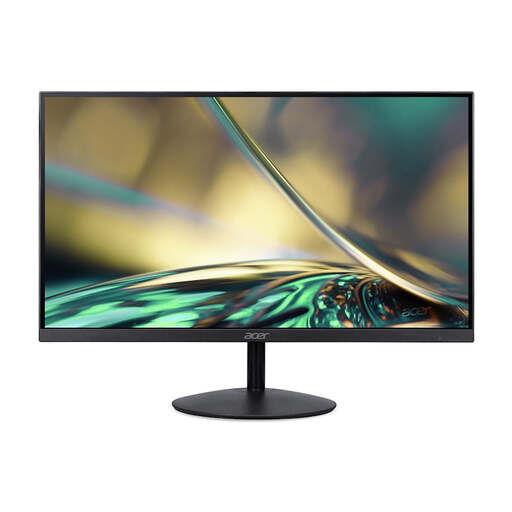 Image unavailable
Acer SA242YH1 24-inch Full HD monitor
A compact Full HD option; the product name lists 100 Hz and 1 ms. According to the product description, the power adapter isn’t included as standard.
View at Joybuy
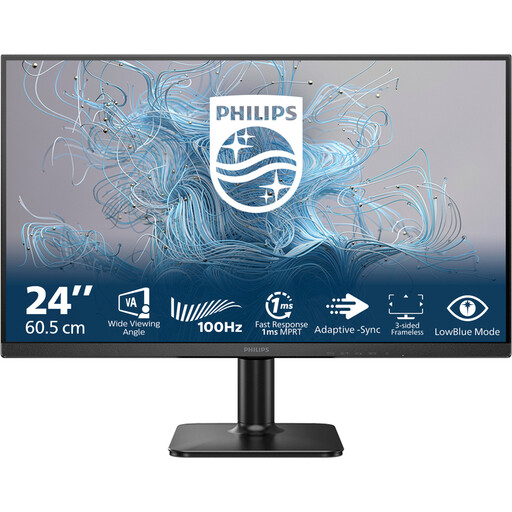 Image unavailable
Philips 1000 Series 24E2N1100LB/00
A compact Full HD monitor for anyone looking for a VA panel; the product name also lists 100 Hz.
View at Joybuy
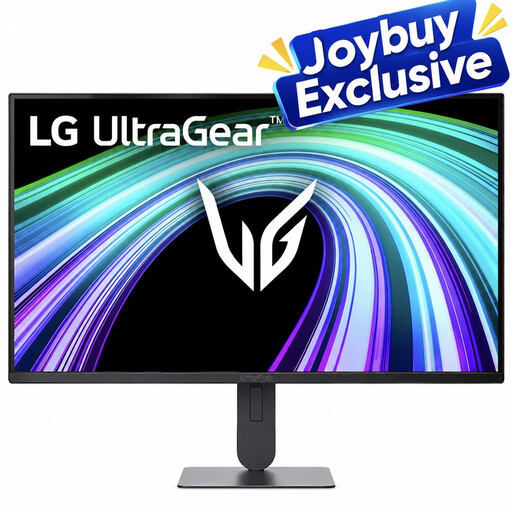 Image unavailable
LG UltraGear 24G414B-B Full HD gaming monitor
A compact Full HD monitor with an IPS panel, according to the product information.
View at Joybuy
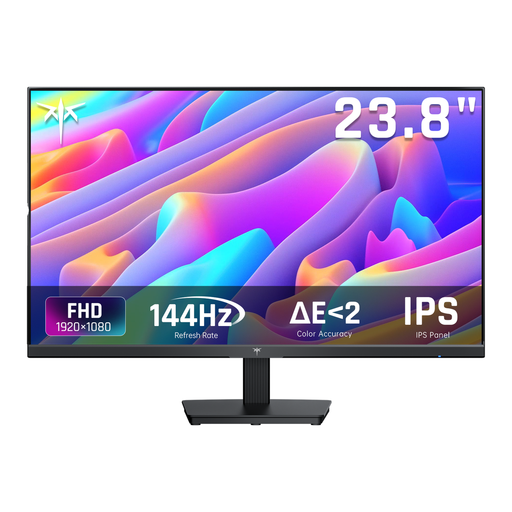 Image unavailable
KTC H24B9S 24-inch Full HD IPS monitor
A compact IPS monitor; the product name lists 144 Hz, while the product description gives a tilt range of −5° to 15°.
View at Joybuy
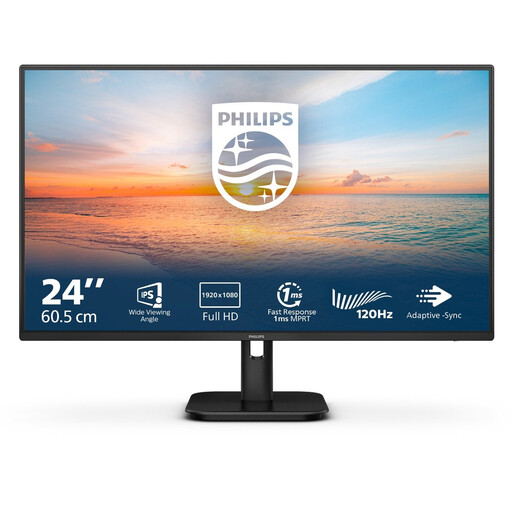 Image unavailable
Philips 24E1N1100A 24-inch Full HD IPS monitor
A compact IPS monitor for an editing setup; the product name lists 100 Hz and speakers. The product description mentions a height-adjustable, tilting stand.
View at Joybuy
Frequently asked questions
Is a dedicated black-and-white mode essential?
No, not as a general requirement when buying. BenQ lists this mode for the SW242Q, but when printing, screen profiling and previewing under the right output conditions remain separate steps.
How do I prepare a screen for assessing prints?
Calibrate or profile the screen for your own workspace. When printing, use a suitable soft proof in software that supports the profile for your intended output condition; what you see on screen won’t automatically match the print. Adobe describes soft proofing as a preview of how photos may look under that output condition.
What extra items should I check before buying?
Check whether you need a measuring device for your chosen calibration method, and whether any monitor arm and cables are compatible with the monitor and computer. Also check whether the stand and power adapter are included with the version you’ve chosen.
What warranty applies when a consumer buys a monitor in the Netherlands?
According to the Dutch government, there’s no fixed statutory warranty period in the Netherlands. If a product is faulty, it must meet the terms of the agreement; a manufacturer’s warranty may provide additional rights.
How do I check a monitor’s energy consumption?
Look up the exact model in the European EPREL database for electronic displays, and don’t use consumption figures for a different version.


