For black-and-white portraits you plan to print, a controlled lighting environment, calibration and soft proofing matter more than peak brightness alone. A compact photography monitor may suit a small desk; a larger 4K screen offers more workspace, but neither guarantees a good print on its own. Adobe stresses that screen calibration, ambient light and paper all affect how predictable your prints will be.
Who is this choice relevant to?
Portrait editor who prints
You want subtle shades of grey to appear predictably on paper, and you can set aside time for calibration, soft proofing and consistent room lighting. Adobe describes calibration, ambient light and paper as parts of a consistent print workflow.
Editor with a small desk
You need to fit the screen, stand and study materials into one workspace. So compare not only the screen size, but also its dimensions and adjustment options.
Student with a single-laptop setup
You also use the monitor for studying and want enough screen space and the right laptop connections. Don’t assume every USB-C port supports both video and power delivery.
What should you look for?
Compact photography monitor
A good fit if: you have limited desk space and regularly prepare portraits for printing. BenQ and EIZO list hardware calibration for the SW242Q and ColorEdge CS2400S respectively.
Bear in mind: the footprint and the calibration equipment you’ll need. According to EIZO, the CS2400S has a native resolution of 1920 × 1200 pixels; according to BenQ, the SW242Q has 2560 × 1600 pixels.
Larger 27-inch 4K screen
A good fit if: you want to keep the photo and editing panels on screen at the same time. ASUS lists a resolution of 3840 × 2160 pixels and USB-C power delivery up to 96 W for the PA279CRV.
Bear in mind: the space needed for both the screen and stand. ASUS’s stated factory colour accuracy doesn’t tell you how your individual monitor will look under the lighting at your desk.
4K screen for a laptop setup
A good fit if: an adjustable screen and practical connectivity are important for both studying and photo editing. LG lists a 27-inch IPS panel with 3840 × 2160 pixels and USB-C power delivery up to 96 W for the 27UP850K-W.
Bear in mind: the connection and calibration need to work with your own equipment. LG says that LG Calibration Studio software isn’t included with this model.
| What to consider |
What to look for |
Who it matters most to |
| Assessing greyscale |
Look for adjustment and calibration options; also consider reflections and the lighting in your workspace. |
If I want to assess shadows and highlights carefully, I look beyond contrast and brightness figures alone. Around 33% of consumers prioritise assessing greyscale. |
| Desk space |
Measure the available width and depth, and compare the stand’s footprint with the screen size. |
On a small desk, I also need room for my study materials, so the footprint matters as much as the screen size. Around 27% of consumers put desk space first. |
| Print workflow |
Check that you can use calibration and suitable soft proofing; keep lighting consistent and minimise reflections. |
If I want to assess portraits on paper, I take screen settings, viewing light and paper into account. Around 20% of consumers put preparing prints first. |
| Connecting a laptop |
Check the video output, USB-C mode, power requirements and cable for your laptop and the exact monitor model. |
When I use the same screen for studying and photo editing, I want to know whether my laptop can send a video signal and receive enough power. Around 20% of consumers prioritise their laptop setup. |
Common pitfalls
-
Assuming high brightness means better prints
Adobe explains that screen calibration, lighting and paper all help determine how predictable a print will be. Looking only at maximum brightness therefore won’t give you the full picture of your workflow.
Assess the screen in the workspace where you plan to use it, and adjust it to suit the conditions in which you’ll view your prints.
If your screen and viewing light aren’t matched, you may need to make extra proof prints.
-
Assuming one cable is enough for every USB-C monitor
A USB-C connection doesn’t automatically provide both video and enough power for every laptop. The supported features vary between laptop and monitor models.
Check the video output, USB-C mode, power requirements and cable for the combination you plan to use.
Depending on the combination, you may need a separate power adapter or another compatible cable.
-
Assuming there’s always a two-year legal guarantee in the Netherlands
The Dutch government states that there is no fixed statutory guarantee period in the Netherlands. So a fixed two-year period isn’t a general description of the Dutch legal rules.
If there’s a problem, contact the retailer. Distinguish your statutory rights against the retailer from any separate manufacturer’s warranty.
Brands to consider
BenQ
The SW242Q is designed for a compact photography workspace, while the PD2705U is a separate 27-inch 4K model. These specifications apply to each model, not to every BenQ monitor.
- BenQ lists 2560 × 1600 pixels, hardware calibration and a black-and-white mode for the SW242Q.
- For the PD2705U, BenQ lists 3840 × 2160 pixels and 65 W USB-C power delivery.
- The PD2705U’s stated 99% sRGB and Rec.709 coverage is not the same as the 99% Adobe RGB that BenQ lists for the SW242Q. Manufacturer specifications aren’t independent comparative measurements.
EIZO
The ColorEdge CS2400S is a compact model that EIZO positions for photography and print preparation.
- EIZO lists hardware calibration, uniformity correction and a typical contrast ratio of 1350:1 for the CS2400S.
- Its native resolution is 1920 × 1200 pixels, lower than that of the SW242Q and the 4K models mentioned here. The manufacturer’s specifications apply to this model.
ASUS
The ProArt PA279CRV is a 27-inch 4K option if workspace and laptop connectivity are high priorities.
- ASUS lists 3840 × 2160 pixels, factory colour accuracy of ΔE < 2 and 96 W USB-C Power Delivery for the PA279CRV.
- Its stated typical contrast ratio is 1000:1. Factory calibration alone doesn’t guarantee that your screen will match a print under changing room lighting.
LG
The 27UP850K-W is a 27-inch 4K model with USB-C that may suit an adjustable workspace for studying and photography.
- LG lists USB-C power delivery up to 96 W and support for hardware calibration for the 27UP850K-W.
- According to LG, LG Calibration Studio software isn’t included with this model. Check separately which software and measuring equipment you’ll need.
Joybuy monitors for this use
These models range from compact, portable screens to larger 4K monitors for photo editing and studying. Resolution, panel type and stated colour coverage don’t guarantee a calibrated print preview on their own.
 No image available
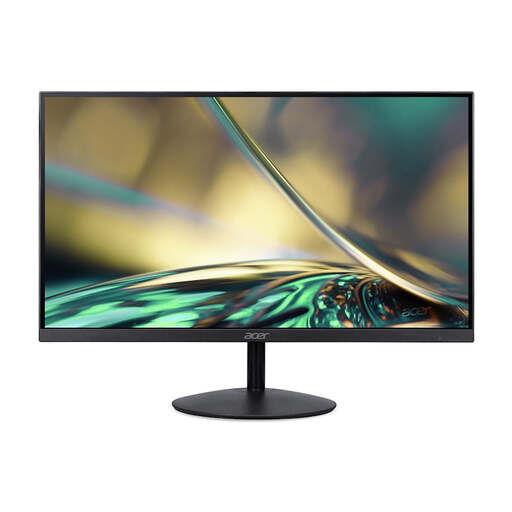
Acer SA242YH1 24-inch Full HD monitor
A compact option for a smaller workspace; check beforehand that the resolution suits your editing work.
The product information lists an IPS panel and 99% sRGB coverage. It also says the power adapter must be purchased separately.
Joybuy
 No image available
LG UltraFine 27U711B-B 27-inch 4K IPS monitor
The larger 4K workspace may suit you if you want to view your photo alongside your editing tools.
The product name lists a 27-inch 4K IPS screen. Those features alone don’t tell you whether a print will match what you see on screen.
Joybuy
 No image available
TECLAST V16H portable 16-inch Full HD monitor
A portable screen may suit a laptop workspace where space is limited.
The product name lists Full HD, IPS, a 16:10 aspect ratio, two USB-C ports and Mini HDMI. Check that the connections work with your laptop.
Joybuy
 No image available
TECLAST V16Q portable 16-inch 2.5K monitor
This portable monitor may suit you if you want extra vertical screen space alongside your laptop.
The product name lists 2.5K, IPS and a 16:10 aspect ratio. The product information lists 100% sRGB and 10-bit (8-bit + FRC); these specifications don’t guarantee calibration or a match with a print.
Joybuy
 No image available
Dell UltraSharp U3226Q 32-inch 4K UHD monitor
A 32-inch screen may suit you if you want to view your portrait and editing tools at the same time; measure your desk first to make sure it will fit.
The product information lists a built-in automated colourimeter, 100% sRGB and 94% Adobe RGB. These stated features don’t replace checking how the screen looks in your workspace.
Joybuy
Frequently asked questions
Do I need a monitor with a black-and-white mode for black-and-white portraits?
No. A black-and-white mode is an additional viewing option and doesn’t prove that a print will match your screen. BenQ lists this mode for the SW242Q; Adobe highlights calibration, ambient light and paper as factors to consider when printing.
How should I set up a screen for printing in a student room?
Where possible, work in even lighting, avoid direct sunlight and visible reflections, and recalibrate if your settings or lighting change significantly. This is in line with Adobe’s workflow advice for colour management.
Can I return a monitor bought online in the Netherlands, and what happens if it’s faulty?
For a standard online consumer purchase, there is generally a statutory 14-day cooling-off period from delivery, with exceptions that the retailer must explain in advance. You’re also entitled to a product that meets the required standard; the Dutch government says there is no fixed, general statutory two-year guarantee period in the Netherlands. Contact the retailer if your monitor is faulty.
Where can I take an old monitor?
According to the Dutch government, you can take an old, similar device to the shop or online retailer where you buy a new one, to a collection point or to your local council recycling centre.


