Who is this choice relevant to?

Video caller with a busy background

You want to stop the space behind you from becoming a distraction, and are comparing blur in your meeting app with a feature on the monitor’s camera. Microsoft Support warns that blur may not fully conceal confidential information; HP lists Background Blur on the 527pm.

Laptop user with limited plug sockets

You’re looking for a monitor that can power a compatible laptop via USB-C, potentially doing away with a separate laptop charger. Dell, LG and HP list USB-C power delivery on specific models, but the monitor itself still needs power.

Home worker with a small desk

You want to combine a camera and screen without immediately adding a large ultrawide display. LG’s 24BA850-B is a compact webcam monitor; the larger HP models offer different screen sizes and need more desk space.

What should you look for when buying?

What to consider What should you check? Who is this important to?
Concealing your background Check whether your meeting app offers blur on your device and whether the feature is available on the exact monitor model. If I have a busy background during calls, I want to know whether my app or monitor model can blur it, without relying on this for complete privacy. Around 36% of consumers prioritise background concealment.
Powering your laptop via USB-C Compare the video support of your laptop port, the power output required, the cable and the monitor’s power delivery. I want fewer cables on my desk and, ideally, not to use a separate laptop charger; my laptop, port and monitor need to be compatible. Around 29% of consumers give avoiding a separate laptop charger top priority.
Screen space Compare the screen size and resolution with the available desk width and the windows you want to use alongside your call. If I want to keep documents or other windows open during a call, I need enough workspace without the screen taking over my desk. Around 21% of consumers prioritise screen space.
Compact integration Check which camera and microphone are included, how you can adjust the monitor and whether you can cover the camera. On a small desk, I want as little separate equipment as possible, but I also want to know what camera options I retain with an integrated model. Around 14% of consumers give a compact, integrated set-up top priority.

Things to watch out for when buying

  • Assuming a webcam means you get background blur

    A webcam built into the monitor doesn’t automatically mean the monitor itself can blur your background. Microsoft Support explains that blur may only be available on certain devices; HP lists Background Blur on the 527pm.

    Check support in your meeting app and the camera features of the exact monitor model separately.

    If your set-up doesn’t include the feature you want, you may still need another camera or a software solution.

  • Expecting USB-C to power the monitor

    USB-C Power Delivery can power a compatible laptop, but it doesn’t replace the monitor’s mains power. Your laptop port and the available power output also need to be suitable.

    Count the plug sockets you’ll need for your whole work set-up, and check your laptop port, cable and the monitor’s power delivery before choosing.

  • Treating background blur as a privacy guarantee

    Microsoft Support warns that blurring or replacing your background won’t always prevent other people on the call from seeing confidential information.

    Check your camera view before the call and move sensitive information out of shot.

Brands to compare

HP

The 527pm and 534pm are conference monitors with integrated cameras; the 527pm is worth considering if background blur is one of your criteria.

  • According to HP, the 27-inch 527pm has a QHD screen, a Poly Studio pop-up webcam and Background Blur. HP lists a resolution of 3440 × 1440 and USB-C power delivery up to 100 W for the 34-inch 534pm.
  • The Background Blur listing is a claim by HP, not an independent assessment of blur quality. Check that the feature works with your computer and software.

Dell

The P3426WEB combines an ultrawide screen with a webcam, microphone, speakers and stated USB-C laptop power delivery.

  • Dell specifies a 34-inch, 3440 × 1440 screen and laptop power delivery up to 90 W for the P3426WEB.
  • Dell Support describes a webcam freeze under certain conditions when using background blur with person detection, and lists firmware M2T102 or later as the fix. Check whether those conditions apply to your model and use.

LG

The 24BA850-B is a compact webcam monitor; LG also offers larger webcam models, including the 34BA85QE-B.

  • According to LG, the 24BA850-B has a 23.8-inch Full HD screen, a built-in webcam and USB-C Power Delivery up to 90 W.
  • A built-in webcam doesn’t confirm that the monitor itself offers background blur. Check for this feature in your meeting app or in the specifications for the exact model.

Philips

The 329P1H/00 is a larger docking monitor for anyone looking for a 4K screen with a pop-up webcam.

  • Philips lists a 31.5-inch 4K screen, a pop-up webcam and laptop power delivery up to 90 W via USB-C.
  • A pop-up webcam alone doesn’t show that background blur is built in; check your meeting app or look for the feature listed explicitly for the model.

Joybuy monitors for video calls

These models offer options for video calls, from monitors with an integrated webcam to a USB-C screen for use with your existing camera. Background blur and laptop power delivery vary by model; check the specifications and your laptop’s connection.

INNOCN CB27U1 27-inch 4K UHD monitor

INNOCN CB27U1 27-inch 4K UHD monitor

A USB-C screen option if you want to keep using your existing camera and connect your laptop through the monitor.

27 inches, 3840 × 2160, IPS, 120 Hz and USB-C with 90 W Power Delivery. The monitor itself needs mains power.

View at Joybuy
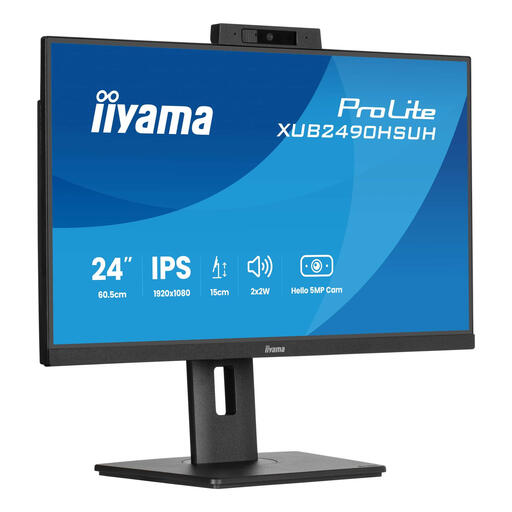
iiyama 24-inch IPS monitor with integrated Windows Hello camera and microphone

iiyama 24-inch IPS monitor with Windows Hello camera and microphone

A compact webcam monitor if you want to combine a camera and microphone in the screen; their inclusion doesn’t mean background blur is available.

24 inches, Full HD and a built-in 1080p autofocus webcam with microphone. The monitor itself needs mains power.

View at Joybuy
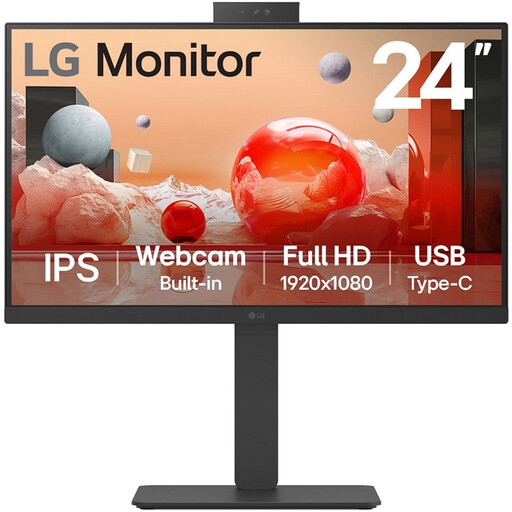
LG 24BA850-B 23.8-inch Full HD monitor with webcam

LG 24BA850-B 23.8-inch Full HD monitor

A compact option if you want a webcam in the screen and USB-C power delivery for a compatible laptop.

1920 × 1080, built-in webcam and microphone, and USB-C Power Delivery up to 90 W. The monitor itself needs mains power; check that the power output is suitable for your laptop.

View at Joybuy

Dell Pro P3426WEV 34.1-inch curved WQHD IPS USB-C hub monitor with webcam

Dell Pro P3426WEV 34.1-inch curved WQHD monitor with webcam

An ultrawide option if you want space for other windows during video calls; bear in mind how much desk width you’ll need.

Curved WQHD IPS screen, 100 Hz, USB-C hub and built-in webcam. The product information lists Power Delivery up to 90 W for a compatible laptop. The monitor itself needs mains power.

View at Joybuy
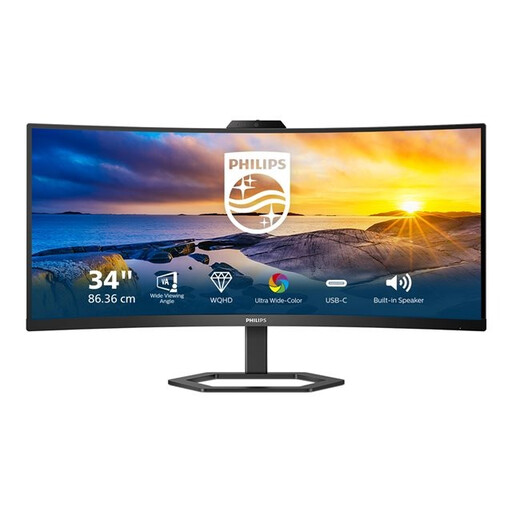
Philips 34E1C5600HE/00 34-inch monitor with Windows Hello webcam

Philips 34E1C5600HE/00 34-inch monitor with Windows Hello webcam

A larger webcam monitor if screen space matters more to you than a compact set-up. An integrated webcam doesn’t automatically mean background blur is available.

34 inches, 3440 × 1440 and a built-in Windows Hello webcam. The monitor itself needs mains power.

View at Joybuy

Frequently asked questions

Can every monitor with a webcam blur my background?

No, a webcam built into the monitor doesn’t guarantee background blur. Microsoft Support explains that blur in Teams may not be available on every device; HP specifically lists Background Blur on the 527pm. Check both your app and the exact model.

With USB-C Power Delivery, do I no longer need a plug socket?

No. With a compatible laptop, Power Delivery can replace a separate laptop charger, but the monitor itself still needs to be connected to a power supply. Also check that your laptop’s USB-C port supports video and that the power output is suitable.

How can I keep private information out of shot?

Check your camera view and chosen background before the call, and move sensitive information out of shot. Microsoft Support warns that blurring or replacing your background may not prevent other people from seeing confidential information.

What are my rights when buying a monitor online in the Netherlands?

For online consumer purchases, you generally have a 14-day cooling-off period after delivery, subject to legal exceptions. The seller must also resolve issues with a product that, under normal use, doesn’t meet what you could reasonably expect, in line with statutory guarantee rules; ACM ConsuWijzer explains these rights.

Which product safety rule is relevant when buying in the Netherlands?

For electrical equipment covered by the applicable EU rules, the required CE marking is a condition for placing it on the EU market. The marking is the manufacturer’s declaration of conformity, not an independent practical test of a particular monitor.
