
Developer testing enlarged text
You want forms, error messages and navigation to remain readable as text gets larger. Test the portal itself in your browser: monitor specifications can’t tell you whether the interface will remain usable.


Choose a monitor that lets you assess the art submission portal at your preferred text size. Then decide whether extra room for code, image assessment or a USB-C laptop connection matters most to you. A higher resolution won’t automatically make text larger, and a monitor can’t fix a portal that loses content or functionality when enlarged.
You want forms, error messages and navigation to remain readable as text gets larger. Test the portal itself in your browser: monitor specifications can’t tell you whether the interface will remain usable.
You switch between code, the admin interface and a browser preview. Extra vertical screen space and an adjustable screen position may be useful when planning your workspace.
You review submitted images as well as the portal. Compare the colour capabilities and any calibration features with your other tasks, but don’t assume that a stated colour gamut guarantees the accuracy of an individual screen.
First, test the portal at your preferred magnification. Then choose based on your everyday workflow, image-related tasks and laptop connection.
| What to consider | What should you look for? | Who is this important for? |
|---|---|---|
| Readability when enlarged | Test the portal using your usual display scaling and browser zoom. Check that text, labels and buttons remain visible and usable. | If I mainly want to know whether the enlarged interface stays readable and usable, this test comes first. Around 36% of consumers say readability is their top buying priority. |
| Code and preview on screen | Compare the available workspace at your usual scaling setting and check that the height adjustment suits your desk. | If I want to use code, forms and a preview side by side or stacked, I look at the space my actual workflow gives me. Around 29% of consumers prioritise space for coding. |
| Assessing submitted images | Check the colour specifications for the exact model and decide whether you actually want to calibrate the display. | If I review or edit submitted artwork, I want to know what colour capabilities and calibration my work requires. Around 21% of consumers give image assessment top priority. |
| Connecting a laptop | Check your laptop’s video output, the power delivery required and the features supported by the monitor port and cable. | For me, a USB-C connection is useful only if the laptop, cable and monitor all support the video and power features I need. Around 14% of consumers put laptop connectivity first. |
A sharp picture doesn’t tell you whether labels will be cut off or forms will remain usable when you enlarge the text.
Adjust the text size, display scaling or zoom on your computer, then test the portal at that setting. Assess the monitor using the same scaling setting.
A colour gamut specification and a calibration feature describe different things.
First decide whether you’ll simply display artwork or assess it critically for colour. Then check the capabilities of the exact model and whether calibration suits your work.
If accurate image assessment is essential, you may need a suitable calibration workflow or additional equipment.
The stated power output varies by model, and the features you need also depend on your laptop and cable.
Check your laptop, monitor port and cable before relying on a single connection for video and power.
Depending on the combination you choose, you may need a different cable or connection, or a separate laptop charger.
According to Philips Netherlands, the Philips 27E1N1800AE/00 is a 27-inch 4K IPS monitor with a height-adjustable stand.
BenQ describes the RD280U as a 28.2-inch programming monitor with a 3:2 aspect ratio and a resolution of 3840 × 2560 pixels.
According to LG, the 27UP850K-W combines a 27-inch 4K IPS screen with USB-C and a typical colour gamut of 95% DCI-P3.
According to its own product information, EIZO targets the ColorEdge CS2740 at photography, image editing and graphic design.
Dell describes the UltraSharp U2725QE as a 27-inch 4K productivity monitor with hub features.
These monitors may suit portal development, testing enlarged text, assessing images or connecting a laptop. Check how the features of each model fit your workflow.
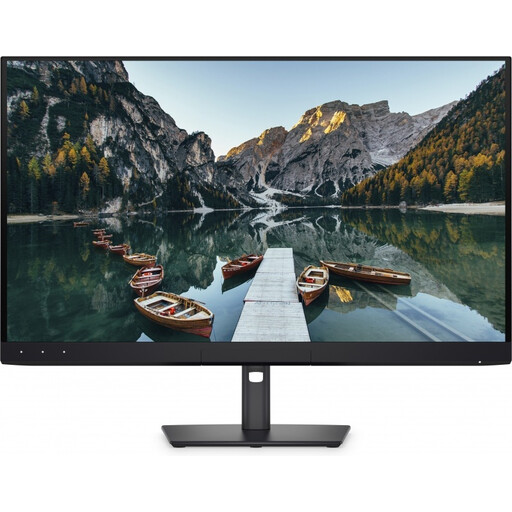 Image unavailable
An option to compare if you also assess submitted images as part of your portal work.
The product description lists an integrated automatic colourimeter with calibration for image work.
Stated colour gamut: 99% DCI-P3, 100% sRGB and 94% Adobe RGB. These are product specifications, not measurements of an individual unit.
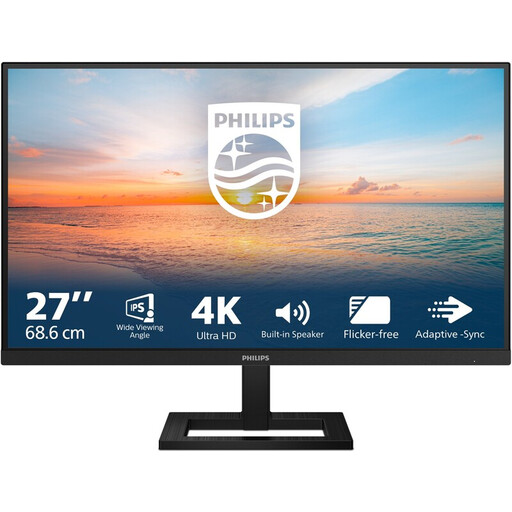 Image unavailable
A general-purpose monitor for visually checking the portal at a desktop workstation; adjust text enlargement on your computer.
27 inches, 3840 × 2160 pixels, 60 Hz and 4 ms.
The product description lists a height-adjustable stand, HDMI and DisplayPort.
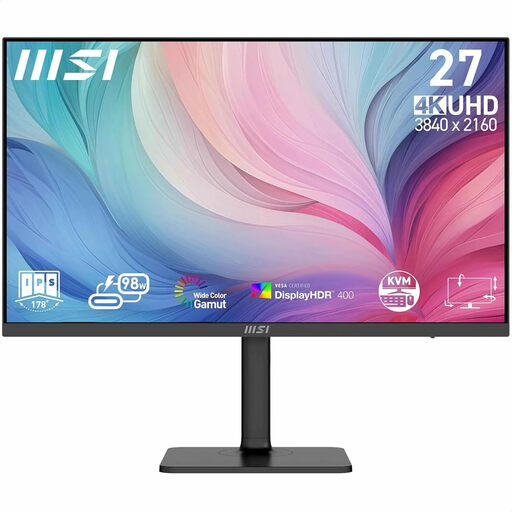 Image unavailable
The listed display and connectivity features may be useful if you combine portal work with image assessment and a laptop workstation.
The product description lists 4K, 97% DCI-P3, 94% Adobe RGB and factory calibration.
USB-C with DisplayPort Alt Mode and up to 98 W Power Delivery; check that your laptop and cable support the features you need.
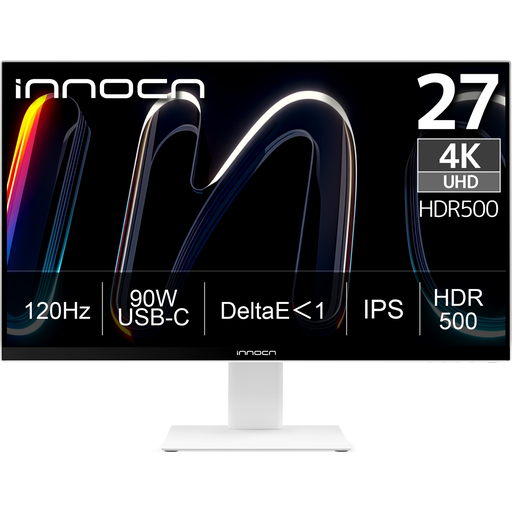 Image unavailable
An option to consider if you want to combine portal work with a USB-C laptop connection.
27 inches, 3840 × 2160 pixels, IPS and 120 Hz.
The product description lists USB-C with 90 W Power Delivery and a height-adjustable stand. Check compatibility with your laptop and cable.
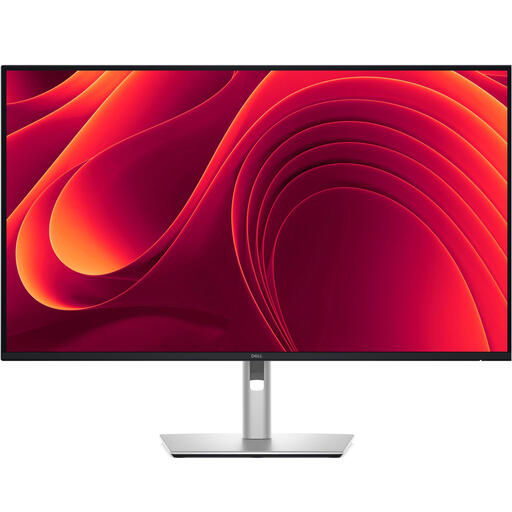 Image unavailable
A larger screen to consider if you want to view the portal at a laptop workstation.
31.5 inches, 3840 × 2160 pixels and IPS.
The product description lists USB-C with 90 W Power Delivery, an RJ45 port and an adjustable stand. Check the connection and charging power your laptop requires.
No. Adjust the text size, display scaling or zoom on your computer, then check the portal. Microsoft Support explains the separate settings for changing text size only and scaling the entire display.
Check that the content and controls remain usable when text is enlarged to 200%, and test how the page rearranges at a narrow viewport. These are website checks, not features you can buy with a monitor. For reflow, W3C specifies a width of 320 CSS pixels, equivalent to 400% zoom from 1280 CSS pixels.
Check that the laptop port you’re using outputs video, that the power delivery suits your laptop and that the cable supports the features you need. Then compare the screen position and text or image scaling with your workspace.
That depends on the provider and the portal’s purpose. Digital Government describes accessibility requirements for government websites and apps. The Netherlands Authority for Consumers and Markets also describes rules for e-commerce services that have applied since 28 June 2025, subject to the relevant conditions. The description ‘art submission portal’ alone doesn’t establish that it is a government website or an e-commerce service; a suitable monitor doesn’t prove compliance.
No. Arboportaal describes employers’ obligations and requirements for employees’ workstations. Whether the rules apply to your workspace depends on your employment context; they are not general minimum specifications for every monitor you buy.