
Vandaag of morgen in huis

Kwaliteit gegarandeerd

Welkomstaanbiedingen ontgrendelen: GRATIS bezorging | Tot 80% korting | Gratis 30 dagen JoyPlus-proefperiode
Download de app
A monitor arm can free up desk space and make it easier to position your screen at the right height and viewing angle. However, an attractive product photo doesn’t guarantee that the arm will suit your monitor, desk or needs. Choosing the wrong one can leave you with a wobbly screen, too little room for cables or a clamp that isn’t suitable for your desktop.
The most common pitfalls:
First, check the weight of your monitor without its original stand. Compare it with the stated maximum load capacity per arm. If you’re using a dual monitor arm, remember that each arm has its own weight limit.
For example, a dual monitor arm may support 7 or 8 kg per screen. The combined weight of both monitors and the arm will then be supported by your desk. A stable desk is especially important with a monitor arm for 3 screens or a monitor arm for 6 screens.
VESA refers to the distance between the mounting holes on the back of the screen. Many monitor arms support VESA 75 × 75 mm and 100 × 100 mm. Larger TVs and screens may use sizes such as 200 × 400 mm or 400 × 400 mm.
So check:
A VESA monitor arm won’t automatically fit every screen with the same diagonal measurement. The combination of screen size, weight and hole pattern determines whether the mount is compatible.
An adjustable monitor arm can vary in height, depth, tilt, rotation and swivel. A gas spring monitor arm is handy if you want to move your screen regularly. However, you’ll need to adjust the tension to suit the actual weight of your screen.
When installing, check:
A fixed monitor stand or desk monitor arm is fine if your screen will stay in roughly the same position. For a TV, a TV wall mount is another option: it attaches to the wall and is generally less flexible to adjust than a desk mount.
The selection below is based on verifiable features such as load capacity, VESA support, number of screens and adjustment range. Always check the latest product specifications and the details of your own screen before buying.
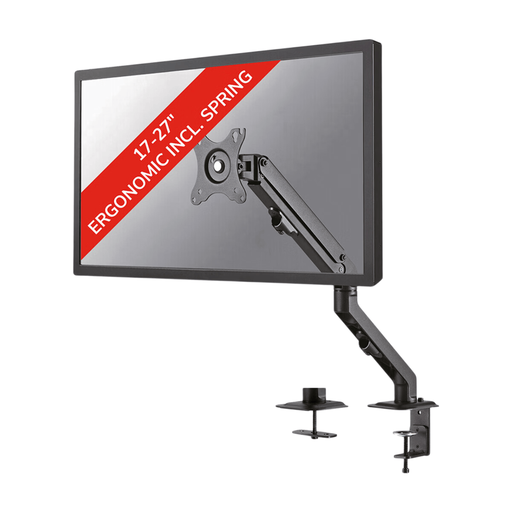
Why it suits this profile: This single monitor arm is suitable for screens from 17 to 27 inches and supports up to 7 kg. The combination of a desk clamp and grommet mount gives you a choice of installation options.
The product specifications clearly state the weight limit and VESA 75 × 75 and 100 × 100 mm support. This lets you check your screen against the specifications before buying, rather than choosing based on size alone.
Manual height adjustment from 11 to 42 cm, 360° rotation, 180° swivel and integrated cable management.
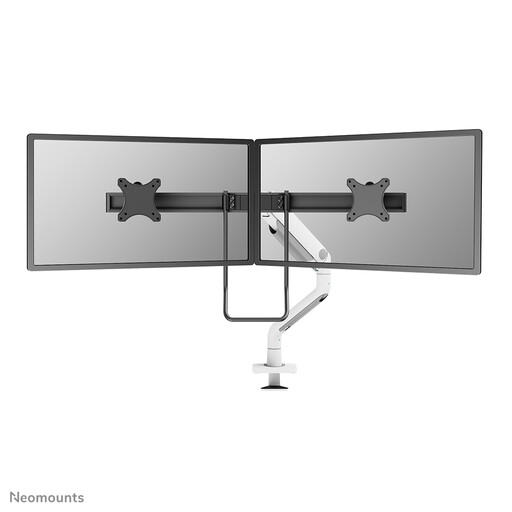
Why it suits this profile: This gas spring monitor arm is designed for two screens from 17 to 32 inches, supporting up to 8 kg per screen. You can adjust the height of each screen independently.
The 180° stop limits the direction of movement when the arm is close to a wall or partition. You can also check compatibility with VESA 75 × 75 and 100 × 100 mm in advance.
Height adjustment from 19.1 to 52.7 cm, depth adjustment up to 71 cm, cable management, plus tilt, rotation and swivel.
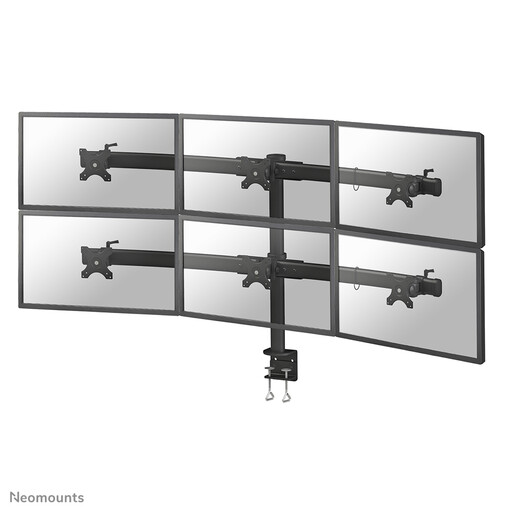
Why it suits this profile: This monitor arm for 6 screens is designed for screens from 19 to 27 inches and supports up to 8 kg per screen. It’s well suited to control rooms, trading floors and other setups that display a lot of information.
The load capacity is stated separately for each screen. Also check that your desk can support the total weight of the arm and all six monitors.
Manual height adjustment from 22 to 70 cm, VESA 75 × 75 and 100 × 100 mm, plus tilt, rotation and swivel.
We’ve put together a complete, up-to-date list of products that meet these strict selection criteria and current European safety regulations.
No. Check the VESA hole pattern, the screen’s weight and the arm’s maximum screen size. If your monitor has an unusual mounting hole pattern, you may need a separate VESA adapter. Always check that the manufacturer supports this combination.
No. A gas spring is most useful if you often adjust your screen’s height or depth. For a fixed workstation, a manually adjustable monitor stand or a spring-assisted arm may be enough. Adjust the tension to suit the screen’s weight, and don’t force the arm to move.
Use a sturdy, level desk and tighten the clamp according to the instructions. Position the screens evenly, check the load capacity per arm and leave enough slack in the cables. After installation, regularly check the screws, clamp and VESA mounts.
