
Vandaag of morgen in huis

Kwaliteit gegarandeerd

Welkomstaanbiedingen ontgrendelen: GRATIS bezorging | Tot 80% korting | Gratis 30 dagen JoyPlus-proefperiode
Download de app
A monitor arm can free up desk space and give you more flexibility in positioning your screen. However, not every desk-mounted monitor arm is suitable for every workspace. A heavy ultrawide screen has different requirements from a lightweight monitor on a compact home-working desk. A monitor stand with a base isn’t necessarily less flexible, either: it may be a better fit for a desk you don’t want to drill or clamp onto.
The most common mistakes come down to three simple things:
According to Neomounts’ product information, models also vary considerably in height range, range of movement, cable management and maximum load. So first, compare your screen and desk with the product specifications.
Always check the maximum weight per screen, not just the total weight capacity. The monitor’s weight is usually listed without its stand. With a dual monitor arm or triple monitor arm, each screen must stay within the limit.
As a guide:
Consider more than just the screen’s weight. A heavy monitor arm and a large screen also put strain on the desk and its mount.
VESA refers to the distance between the mounting holes on the back of your monitor. Measure this distance or check your screen’s manual. A VESA monitor arm with a 75 × 75 mm or 100 × 100 mm fitting won’t necessarily work with a different hole pattern.
Also check:
An adjustable monitor arm usually offers height, depth, tilt, rotation and swivel adjustments. A gas spring or spring mechanism makes frequent adjustments easier, but the tension must be suitable for the weight of your screen.
Also check the distance from the wall. A short arm is useful with a shallow desk or one positioned close to a wall. According to the product description, a 180° stop mechanism can help prevent contact with a wall or partition, but it doesn’t replace secure mounting.
A monitor arm with cable management is handy when you need to route power and display cables down the arm. Check that the cable channel has enough room for your cables and that the connections won’t be under strain.
The selection below is based on verifiable details such as weight capacity, screen size, VESA fitting, number of screens and adjustment range. See the product page for full mounting information and current availability.
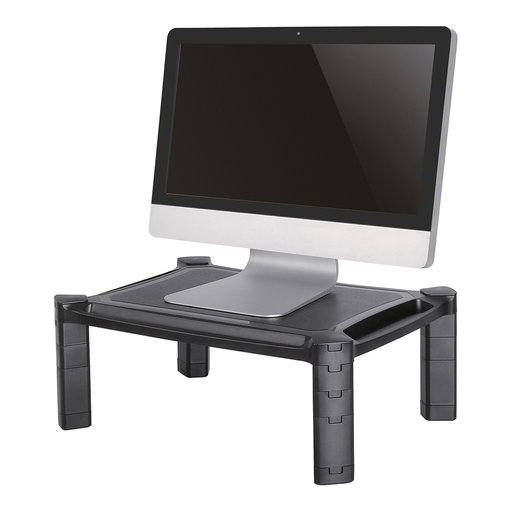
Why it suits this user: This laptop and monitor stand is a good choice if you want to raise a screen or laptop without attaching a clamp to your desk. Its height adjusts from 4.6 to 16.8 cm.
You don’t need a VESA fitting or a suitable desk edge. However, the maximum load is 10 kg, and the stand must be placed on a flat, stable surface.
Supports screens and laptops weighing up to 10 kg, with storage space and cable management at the back.
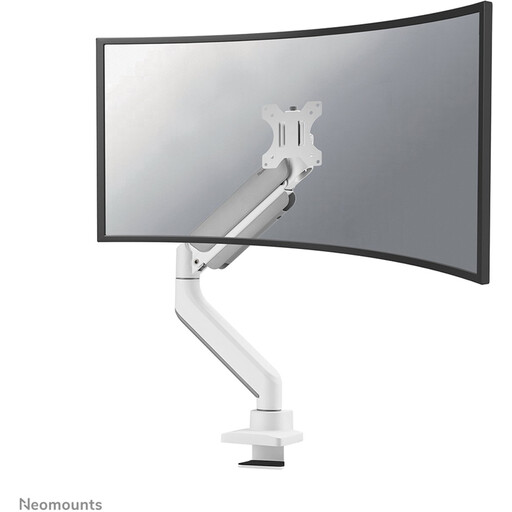
Why it suits this user: With a large curved ultrawide screen, weight capacity and a suitable mount matter more than a wide screen-size range alone. According to the product information, this model is designed for screens up to 49 inches.
The specifications state a maximum load of 18 kg for flat screens and 14 kg for curved screens. Always check your monitor’s actual weight.
Gas-spring height adjustment from 26.1 to 55.5 cm, VESA 75 × 75 and 100 × 100 mm, cable management and a 180° stop mechanism.
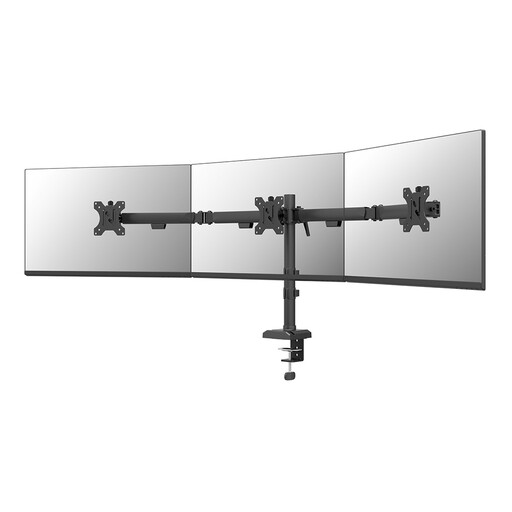
Why it suits this user: This triple monitor arm is designed for three screens ranging from 10 to 27 inches. It’s ideal for multitasking, dashboards and workspaces where you need several windows in view at once.
The specified weight capacity is 6 kg per screen. This lets you check the load for each monitor rather than looking at the total alone.
Full range of movement, manual height and depth adjustment, cable management, and a choice of clamp or grommet mounting.
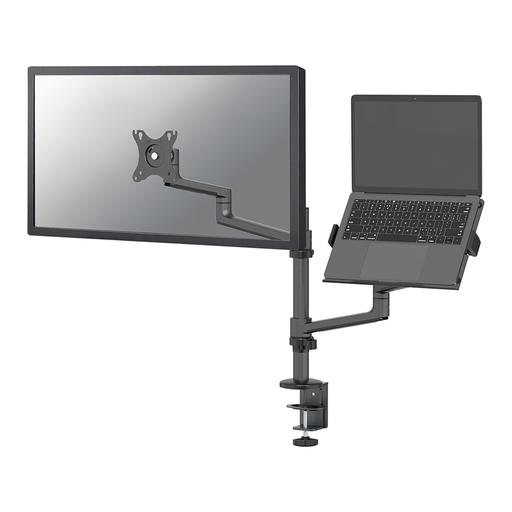
Why it suits this user: This model combines a monitor arm with a holder for laptops up to 17.3 inches. It’s a practical choice for hybrid workspaces where a laptop is used as a second screen.
You won’t need a separate laptop stand and desk-mounted monitor arm if one combined solution will do. The screen limit is 8 kg and the laptop limit is 5 kg.
Supports a monitor up to 27 inches and a laptop up to 17.3 inches, with a full range of movement and internal cable routing.
We’ve put together a complete, up-to-date list of products that meet these strict selection criteria and the applicable European safety requirements.
Before you buy, measure the thickness and depth of your desk. For a clamp, you’ll need access to the edge; a grommet mount requires a suitable hole. Don’t mount the arm on glass or an unstable desktop. Tighten all screws according to the manual, then check that the screen doesn’t tilt forwards after installation.
With a gas-spring or spring-assisted monitor arm, adjust the tension to suit the screen’s weight. Take care, and keep your fingers away from the joints. Leave enough slack when routing cables along the arm, so turning or swivelling the screen doesn’t put pressure on the connections.
No. Check the VESA pattern, weight and size. Many models support VESA 75 × 75 mm and 100 × 100 mm. If your monitor has a different pattern, you may need a separate adapter plate. Also check that the monitor casing won’t obstruct the mounting plate.
That depends on the mounting method and the arm’s reach. A short arm with limited depth can save space when your desk is close to the wall. A monitor stand with a base or a height-adjustable monitor stand may be a better choice if you don’t want to use a clamp. Measure the available space behind and beside the desk before you order.
Its lifespan depends on how it’s mounted, the load it carries and how often you move the screen. Stay within the stated weight capacity, check the screws regularly, and stop using the arm if it’s damaged or becomes loose. The stated warranty varies by product, so check the individual product page as well as your statutory consumer rights.
