
People who read notes, scans and indexes side by side
You compare source notes, scans or architectural drawings with a searchable index and want to be able to read the text clearly on screen.


Choose a monitor that lets you view source notes and an index side by side at a text size that feels comfortable. Compare QHD and 4K using your scans and screen layout as a guide. A USB-C hub can bring your connections together, but it won’t back up your files. For that, you’ll need a separate storage location, a backup routine and a restore test.
You compare source notes, scans or architectural drawings with a searchable index and want to be able to read the text clearly on screen.
You want to connect your laptop and peripherals easily, and set up and check your backup separately on your computer.
You regularly read and process notes, and want to adjust your screen position, lighting and readability to suit your workspace.
A good fit if: you mainly work on notes and an index side by side, and want to bring your laptop connections together.
Bear in mind: Dell specifies a resolution of 2560 × 1440 pixels and USB-C power delivery of up to 90 W for the P2725DE. Check that your laptop and cable are compatible.
A good fit if: small labels on scans or drawings matter, and you can assess the display using your preferred text settings.
Bear in mind: a higher resolution doesn’t guarantee you can fit more windows on screen with larger text. Check the connections and text scaling for each model too.
A good fit if: your computer and backup drive are already connected properly and you’re mainly looking for a suitable screen.
Bear in mind: arrange laptop power and peripheral connections separately if needed; the monitor won’t replace your backup drive.
| What to consider | What to check before buying | Who is this important for? |
|---|---|---|
| Readability alongside the index | View one of your own scans alongside the index at your preferred text size; compare 27-inch QHD with 27-inch 4K. | When I read scans and an index side by side, I want to assess small characters without giving up my preferred text settings. Around 31% of consumers put readability first. |
| Connections and local backup | Check the video and data connections, and the charging capacity of your laptop, monitor and cable; set up your backup and test the restore process. | I want to connect my laptop and local drive easily, while setting up and testing the backup separately. Around 25% of consumers put ease of connection first. |
| Adjustability and workspace | Check the height and tilt adjustment and, if you need it, the pivot function; also assess the lighting and screen position. | For regular reading and data entry, I want to adjust the screen to suit my desk and viewing angle. Around 25% of consumers put posture first. |
| Simple setup | Work out which ports and adjustment options you’ll use, and whether you can leave the drive connected directly to the computer. | I want to keep my existing computer and backup setup, and choose only the features I need. Around 19% of consumers put simplicity first. |
Connections on a monitor won’t automatically protect your files from loss.
Choose a monitor for its connections and arrange local backup separately. The Digital Trust Center advises checking regularly that you can restore a backup.
Allow for a separate storage location and time to set up and test your backup and restore process.
Small characters, reflections and poor contrast can still make reading difficult. Changing the text size also affects how much content fits on screen at once.
Try one of your own documents and indexes using the text size and lighting you actually use.
The stated USB-C charging capacity applies to the specific monitor model; your laptop and cable must also be compatible.
Check the port specifications for all three before relying on a single cable.
Depending on the combination, you may still need a separate charger, a compatible cable or an additional connection.
A stated manufacturer’s warranty period doesn’t automatically mean that your statutory rights in the Netherlands for a faulty product expire afterwards.
ACM ConsuWijzer distinguishes between a manufacturer’s or seller’s warranty and statutory rights. Keep your proof of purchase and contact the seller if there’s a fault.
The P2725DE and P2725QE are specific 27-inch product lines you can compare for QHD and 4K with a USB-C hub.
The 27UP850K-W is a 27-inch 4K model to consider if detail and adjustability matter to you.
The business-focused FlexScan EV2740X is a 27-inch 4K model to compare if you need several docking features.
The 27E1N1800AE/00 is a 27-inch 4K model to compare if image quality and height adjustment are your priorities.
This selection includes 27-inch QHD and 4K monitors for working with documents. Compare the resolution and panel type with your own screen layout, and check which adjustment options you need for your workspace.
 Image unavailable
An option to consider if you’re looking for a 27-inch 4K IPS screen for notes and indexes.
 Image unavailable
A 27-inch 4K IPS option to compare for displaying notes and indexes.
 Image unavailable
A QHD screen to compare if you want to view notes and indexes on a desktop monitor.
The product name lists 2560 × 1440, Fast IPS and an adjustable tilt stand.
 Image unavailable
A 27-inch 4K screen to compare if detail and screen height matter to you.
The product name lists 3840 × 2160, 60 Hz, 4 ms, HDMI, DisplayPort and a height-adjustable stand.
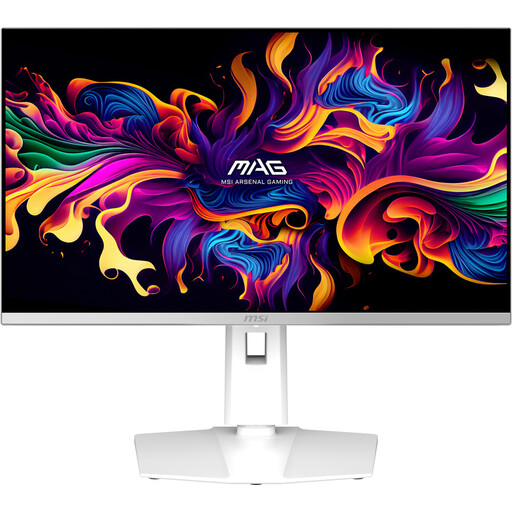 Image unavailable
A 27-inch QHD model to compare with other screens for displaying source notes and indexes.
The product name lists QD-OLED, 2560 × 1440 and 280 Hz.
No. A hub provides connections; you also need a storage location and a backup routine. The Digital Trust Center advises checking regularly that you can restore a backup.
Microsoft explains how to connect and select an external drive or network location for File History. Check which folders are included and try restoring a file. Microsoft notes that support for Windows 10 ended on 14 October 2025; don’t use this guidance as a reason to keep using an unsupported system.
For employees, Arboportaal outlines employers’ obligations; how they apply depends on the work and workplace situation. This isn’t a universal product specification for every individual buyer.
If an organisation processes personal data, the Dutch Data Protection Authority says it must determine appropriate security measures based on the risks involved. A monitor or local drive alone doesn’t prove that this obligation has been met.
No. ACM ConsuWijzer distinguishes between any manufacturer’s or seller’s warranty and your statutory rights. If a product is faulty despite normal use, the seller is responsible for providing an appropriate solution. How long you’re covered depends on what you could reasonably expect from the product, and isn’t automatically two years.