
Writer of long-form documentation
You mainly read and edit text. A comfortable text size, an adjustable setup and minimal glare may matter more than extra screen width.


For long documents, an adjustable screen with text that’s comfortable to read matters more than resolution alone. A 27-inch QHD or 4K monitor could suit you if you mainly write; choose an ultrawide if you often use documentation and test windows side by side and have the space for it. USB-C makes connecting and charging simpler, but only if the monitor and laptop are compatible.
You mainly read and edit text. A comfortable text size, an adjustable setup and minimal glare may matter more than extra screen width.
You keep specifications, code examples and a test preview open side by side. Extra window space is most useful if your desk and viewing distance are suitable.
You regularly connect and disconnect your laptop. A monitor hub can reduce cable clutter if your laptop’s video output and charging capabilities are compatible with the monitor.
Suitable for: mainly writing, with the occasional browser or code window alongside.
Trade-off: the QHD models mentioned have fewer pixels than the 27-inch 4K examples and less width than the 34-inch ultrawide model.
Suitable for: anyone who wants plenty of pixels on a 27-inch screen and is happy to adjust the text size.
Bear in mind: assess the text at your preferred scaling and viewing distance. Resolution alone doesn’t tell you how much text will remain comfortable to read.
Suitable for: regularly using documentation, a terminal and a preview side by side.
Trade-off: the extra width requires enough desk space. Also check text size and window layout from your usual sitting position.
| What to consider | What should you look for? | Who should give this more weight? |
|---|---|---|
| Readability of long documents | Compare resolution and text size at your usual viewing distance; adjust the scaling before you decide. | When I read documentation for long periods, I want to be able to read the text without judging by pixel count alone; around 33% of consumers make readability their top priority. |
| Working posture | Check the height adjustment and glare in your own workspace; an adjustable monitor doesn’t replace a suitable setup. | During long writing sessions, I want to position the screen comfortably and reduce distracting glare; around 27% of consumers prioritise an adjustable working position. |
| Room for windows | Measure the available desk width and think about which windows you actually want to see side by side. | When I look at documentation, code and a test result at the same time, I want enough space to place them side by side; around 20% of consumers primarily choose a monitor for this window space. |
| Connecting a laptop | Check for video output over USB-C and compare your laptop’s charging requirements with the monitor’s power output. | When I regularly connect and disconnect my laptop, I want to know whether one cable will provide both a picture and enough power; around 20% of consumers make ease of connection their top priority. |
A higher resolution doesn’t automatically mean a comfortable text size. Scaling and viewing distance also play a part.
Assess the text at the size you’ll actually want to write at before treating resolution as the deciding factor.
A 34-inch ultrawide model takes up more desk width than the 27-inch models mentioned.
Measure the available space and decide in advance which windows you want to use side by side.
Connecting everything with one cable depends on support from both the laptop and the specific monitor.
Check your laptop’s video output, its charging requirements and the connection and power specifications of the exact monitor model. If they don’t match, you may need a separate charger or another connection.
The models mentioned include both a 27-inch QHD hub monitor and a 27-inch 4K USB-C monitor.
The models mentioned include a 27-inch USB-C screen and a 34-inch ultrawide option.
The LG 27UP850K-W is an example of a 27-inch 4K USB-C monitor.
The product selection below includes 27-inch QHD and 4K monitors, plus a 34.1-inch ultrawide model. Compare the resolution, screen space, adjustability and laptop connectivity with your workspace.
 No image available
Could suit you if you often use documentation and test windows side by side and have enough desk space.
21:9 format with 3440 × 1440 pixels; USB-C with DisplayPort Alt Mode and up to 90 W Power Delivery; built-in USB hub and KVM.
Charging requires a compatible laptop with USB Power Delivery and DisplayPort Alt Mode; charging performance depends on the connected device.
 No image available
A 27-inch 4K option if you want to view text on this screen size and adjust the scaling yourself.
3840 × 2160 resolution; USB-C with DP Alt Mode and 98 W Power Delivery; KVM switch and PIP/PBP modes.
Check that your laptop’s video output and charging requirements are compatible with the monitor.
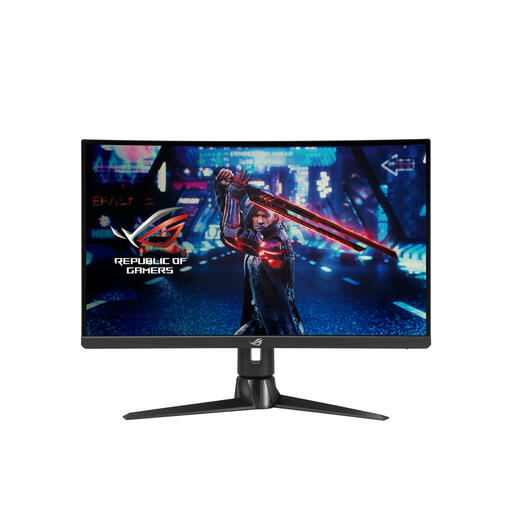 No image available
Could suit you if you’re looking for a 27-inch QHD screen and want to adjust the monitor’s position.
2560 × 1440 resolution and matte anti-glare coating; the stand mentioned offers height, tilt, swivel and pivot adjustment.
 No image available
Could suit you if you’re looking for a 27-inch 4K screen with USB-C and an adjustable viewing position.
3840 × 2160 resolution, IPS panel and USB-C with 65 W Power Delivery; the stand offers height and tilt adjustment.
Check that the power delivery meets your laptop’s requirements.
 No image available
Could suit you if you’re looking for a 27-inch 4K screen with an adjustable position.
3840 × 2160 resolution; USB-C with 90 W Power Delivery; the stand offers height, tilt and swivel adjustment.
Check that your laptop’s video and charging capabilities are compatible.
Adjust the screen and workspace to suit your body, reduce glare, make sure there’s enough lighting and take breaks from screen work. Arboportaal distinguishes between requirements for applicable employees’ work and general practical advice.
No. Don’t assume this just because there’s a USB-C port. Philips describes single-cable use with compatible devices; check your laptop’s video output and charging requirements, then compare them with the specifications of the exact monitor.
According to the Rijksoverheid, when you buy online from a business you’ll often have a 14-day cooling-off period. You’re also entitled to a product that works properly; in the Netherlands, there’s no fixed statutory warranty period. If there’s a fault, contact the seller.
Not for every private buyer. Arboportaal outlines requirements for applicable employee screen workstations, including height adjustment in the specified work situation, and notes the employer’s duty of care for home working. The rules that apply depend on your employment and working situation.