What should you consider when choosing?
First, decide which matters most to you: workspace, colour assessment or a practical laptop setup.
| What to consider |
What to look for |
Who should pay particular attention? |
| Viewing frames and panels |
Compare screen size and 3840 × 2160 resolution with your desk space, viewing position and computer scaling settings. |
If I want to view frames, my timeline and panels at the same time, I compare the workspace with my desk and preferred scaling. Around 40% of consumers put having a clear overview first. |
| Colour that suits your delivery requirements |
First, decide whether you work in sRGB or Rec. 709, for example. Then compare colour modes and calibration options; coverage does not measure how accurately your individual screen displays colour. |
When I assess colour for a particular delivery format, I want the screen settings to suit my workflow. Around 40% of consumers give colour assessment their top priority. |
| Laptop and positioning |
Check your laptop’s video output, the charging power it needs and the adjustment options on the exact monitor variant. |
If I want to connect my laptop via USB-C and position the screen comfortably at my workstation, I check both before choosing. Around 20% of consumers put connectivity or positioning first. |
Joybuy monitors for animation and working from home
These Joybuy products offer a range of screen sizes and connections to compare for working with frames and setting up a home workstation. For each model, check that the stated resolution, connections and adjustment options suit your workflow.
 No image available
LG UltraFine 27U711B-B 27-inch 4K IPS monitor
A 27-inch 4K option worth comparing if you want to organise frames and work panels on an IPS screen.
The product information lists 3840 × 2160 pixels, 60 Hz, a 16:9 aspect ratio and HDR10.
Joybuy
 No image available
KTC M27P6 27-inch MiniLED monitor, White, 4K 160Hz/FHD 320Hz
A 27-inch monitor worth comparing if you want to assess the listed connectivity and adjustment options as well as working with frames.
The title lists Fast IPS, Type-C with 65 W, KVM, VESA mounting, and height, swivel and tilt adjustment. The stated Type-C power delivery may not be enough if your laptop needs more power.
Joybuy
 No image available
BenQ PD3225U 32-inch 4K monitor
A 32-inch 4K model worth comparing if you want to assess a larger workspace and connections for your devices.
The product information lists 3840 × 2160 pixels, KVM and Thunderbolt 3 with 85 W power delivery. Calman Verification, Pantone Validation and daisy chaining are also mentioned. The stated power output may not be enough for a laptop that needs more power.
Joybuy
 No image available
BenQ PD3205U 31.5-inch 4K monitor
A 31.5-inch 4K model worth comparing if you organise frames and use an sRGB or Rec. 709 workflow.
The product information lists 3840 × 2160 pixels, 99% sRGB and Rec. 709 coverage, 90 W USB-C power delivery, KVM, and height and tilt adjustment. The stated power output may not be enough for a laptop that needs more power.
Joybuy
 No image available
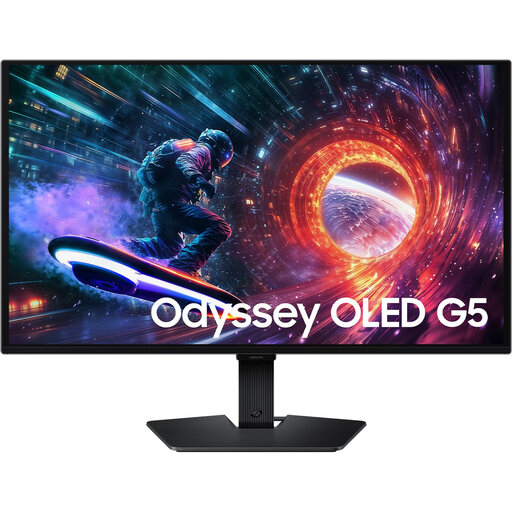
Samsung LS27FG500SUXEN 27-inch QHD OLED monitor
This 27-inch monitor is a QHD option worth comparing if you also want to consider the listed gaming specifications.
The product information lists OLED, 2560 × 1440 pixels, 180 Hz, a 178° viewing angle, tilt adjustment and VESA 100 × 100 mounting. Compare the QHD resolution with the 4K models if you want to view lots of frames and panels at the same time.
Joybuy
Frequently asked questions
Do I need an Animation mode to organise animation frames?
No. Organising frames is mainly about having the screen space and layout that work for you. BenQ lists an Animation mode on the PD2705U, but for colour assessment the screen mode and colour management need to suit your delivery requirements; the mode’s name does not guarantee that they will.
Can a single USB-C cable connect and charge my laptop?
Only if your laptop supports the required video signal through that port and the monitor provides enough power. BenQ lists 65 W for the PD2705U; ASUS and LG list up to 96 W for the PA279CRV and 27UP850K-W respectively.
How should I set up a monitor for long hours working from home?
Check that the stand or mount offers enough adjustment for your desk and working posture. The Dutch Arboportaal offers guidance on working with display screens. For employees working from home, employers have a duty of care, the extent of which depends on what can reasonably be expected of them.
What information about power consumption can I compare?
According to the European Commission, computer monitors are covered by an energy label scale from A to G. Compare the energy label and product information sheet for the exact version.
What cooling-off period applies to a monitor bought online?
According to the Dutch government, when you buy remotely from a business, a 14-day cooling-off period applies in many cases, subject to exceptions. The seller must tell you about the terms and conditions; also check who the seller is and what warranty and service information they provide.


