
Multitasker who keeps windows side by side
You keep adoption profiles, source material and input fields in view at the same time, so horizontal workspace is your top priority.


If you often work with adoption profiles, source pages and input fields at the same time, compare a 34-inch ultrawide screen with a more compact 27-inch screen. The extra width can keep windows side by side, while a smaller screen takes up less desk space. Also consider text size and readability, the dimensions including the stand and, if you use a laptop, video connection compatibility and any USB-C power delivery.
You keep adoption profiles, source material and input fields in view at the same time, so horizontal workspace is your top priority.
You read and check a lot of text, but want to keep the screen and stand within your workspace. You can adjust text scaling in Windows via Microsoft Support.
You want to connect your display and peripherals, and possibly power your laptop, through a suitable connection. Check the capabilities of both your laptop and monitor.
Start by deciding whether you mainly want to see several windows at once, or whether a more compact screen and a clear separation between work windows matter more to you.
A good fit if: you regularly want to view browser windows side by side and have enough desk width.
Bear in mind: it needs more horizontal space than a 27-inch screen; ports and USB-C power delivery vary by model.
A good fit if: you usually read or edit one main window and have a more compact desk.
Bear in mind: you may need to switch between windows more often; a high resolution may call for adjusted text scaling.
A good fit if: you want to keep, for example, the input system and source pages on separate screens.
Bear in mind: check your computer’s ports and support, the cabling and the total desk space required.
| What to consider | What should you check? | Who is this important for? |
|---|---|---|
| Multiple windows | Compare the screen width, resolution and dimensions including the stand with your own window layout. | If I want to see profiles, sources and input fields at the same time, I want to switch between windows less often. This applies to around 36% of consumers who prioritise window space when choosing. |
| Readable text | Assess the text at your usual viewing distance and check the text scaling and height adjustment. | When I check lots of profile names and descriptions, I want the text to be comfortable to read, even if fewer windows fit on screen at once. Around 29% of consumers prioritise readability. |
| Connecting a laptop | Check the video output, charging requirements, monitor port and whether you have the right cable. | For a permanent laptop workspace, I want to connect my display and peripherals appropriately and possibly charge my laptop too. Around 21% of consumers put laptop connectivity first when choosing. |
| Size and placement | Measure the desk width and depth, and check the dimensions including the stand and the adjustment options. | With a smaller desk, I want a screen that fits without taking up the workspace I need. Around 14% of consumers prioritise finding the right size and placement. |
A 34-inch ultrawide screen and a 27-inch 4K screen differ in the balance between window width, detail and the desk space they need.
Compare the resolution and physical dimensions with your own window layout before choosing a size.
A USB-C connection alone does not guarantee that your laptop can output video through it or receive enough power. Dell lists up to 90 W for the P3425WE; HP lists 100 W for the 527pu.
Check your laptop’s video output and charging requirements, as well as the specific monitor port and cable.
According to the Dutch government, statutory guarantee in the Netherlands has no fixed duration and is separate from a manufacturer’s warranty or an additional warranty product you buy.
Read what damage an additional cover package includes and compare it with your rights as a consumer buying from the seller.
The Pro 34 Plus P3425WE reviewed here is a 34-inch ultrawide USB-C hub monitor for a multi-window workspace.
The 34U650A-B reviewed here has a 34-inch IPS screen with an ultrawide aspect ratio.
The E27k G5 reviewed here is a 27-inch 4K option; the 527pu is a separate 27-inch QHD model with USB-C.
The ViewFinity S6 S65TC reviewed here is a 34-inch ultrawide option for anyone who specifically needs Thunderbolt 4.
The B Line 346B1C/00 reviewed here combines a 34-inch ultrawide screen with USB-C.
These Joybuy products are 34-inch ultrawide monitors for anyone who wants to place browser windows side by side. Check the connections, dimensions and any extra features for each model.
 No image available
The 34-inch 21:9 display suits anyone who wants to place several browser windows side by side.
The product description lists a resolution of 3440 × 1440 pixels, a VA panel, a curved 1800R screen and a 120 Hz refresh rate. Bear in mind that it needs enough desk width.
 No image available
The 34-inch 21:9 format is worth considering if you want to use several applications side by side.
The description lists USB-C power delivery up to 140 W, a USB hub, KVM and 2.5 Gigabit Ethernet. The Dual Mode resolutions are alternative settings: WUHD 5120 × 2160 at 120 Hz or WFHD 2560 × 1080 at 240 Hz.
 No image available
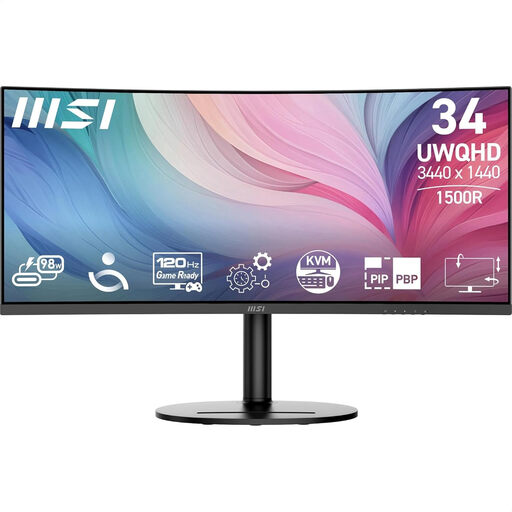
The 34-inch 21:9 display is designed to provide a wide workspace for several applications.
The product description lists a resolution of 3440 × 1440 pixels, a VA panel, 1500R curvature and a 120 Hz refresh rate. Connections: USB-C, HDMI and DisplayPort; the stand is height-adjustable and offers tilt and swivel. Make sure you have enough desk space.
 No image available
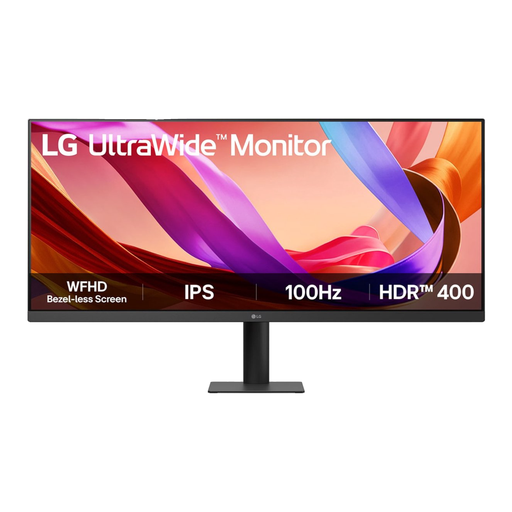
The 34-inch 21:9 display suits anyone who wants to arrange several windows on one wide screen.
The product description lists an IPS panel, a resolution of 2560 × 1080 pixels, a 100 Hz refresh rate and HDMI and DisplayPort connections. The stand offers height adjustment and tilt. Bear in mind that it needs enough horizontal space.
 No image available
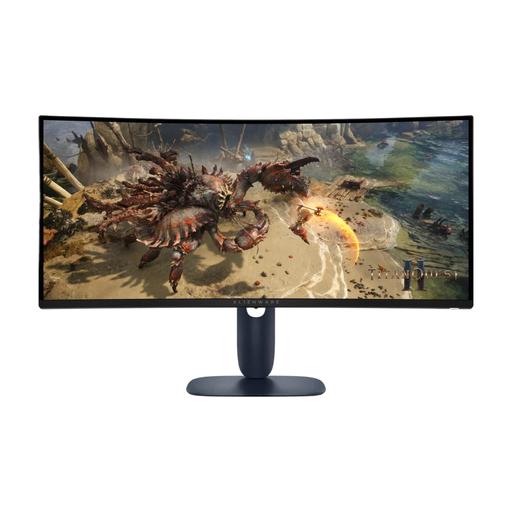
The 34-inch 21:9 display provides a wide workspace for anyone who wants to use windows side by side.
The product description lists a resolution of 3440 × 1440 pixels, a 180 Hz refresh rate, HDMI and DisplayPort. The stand is adjustable. Make sure you have enough desk space.
No, not necessarily. If you usually edit one profile at a time, a 27-inch screen may be suitable. Consider an ultrawide screen if you often need sources and input fields in view at the same time. In Windows, you can arrange windows using the Snap feature.
In Windows, use the display settings to arrange multiple screens and the Snap feature to position windows. On a Mac, once connected, you can choose an extended desktop or mirrored display. Check in advance which displays your Mac supports.
If energy use is part of your decision, look up the energy label for the exact monitor model in EPREL. Follow the manual for the model you buy when cleaning it and ensuring ventilation, rather than the instructions for a different screen.
According to the Dutch government, you are entitled to a product that meets reasonable expectations, and there is no fixed statutory guarantee period in the Netherlands. For an eligible online consumer purchase, a 14-day cooling-off period generally applies. Check the terms if you are buying for business: these consumer rights do not automatically apply to business purchases.
Employers have obligations regarding screen work carried out by employees. The Arboportaal lists, among other things, requirements for employees who work at a screen for more than 2 hours a day. These rules are not automatically a statutory product specification for every consumer buying a monitor.