First, choose a mini PC that can power both monitors at the same time and has video outputs that match their connections. For a small website, a code editor, modern browsers and, if needed, a local test server are important parts of your workflow. Then choose an operating system and configuration to suit. This is selection advice, not a measured performance comparison of the models mentioned.
Who is this choice for?
Website builder using two monitors
You want to use your code and browser side by side. Check that the model you choose supports both monitors at the same time and has the right video outputs. Lenovo and Apple describe these connection options for the product ranges mentioned here.
Builder using several development tools
You may use an editor, modern browsers and a local test server. MDN Web Docs describes these as basic software for a development environment. You should also check the requirements of the tools you choose.
Builder with a small desk
You want to keep your computer compact and may also be considering fan noise and the included peripherals. ASUS describes the ExpertCenter PN42 as fanless; check which connections and components are included with each model.
What should you look for when buying?
| What to consider |
What to look for |
Who should pay particular attention? |
| Connecting two monitors |
Check that the exact model supports two monitors at the same time and has the right outputs. Compare these with the inputs and desired resolutions of both monitors. |
If I want to see my code and browser at the same time, the connections need to work with both monitors. Around 36% of consumers give dual-monitor compatibility their top priority. |
| Development environment |
Check the operating system, memory and SSD configuration against the editor, browsers and any local test server you plan to use. |
If I use several development tools at once, I want a configuration that suits the software I’ve chosen. Around 29% of consumers put their development workflow first. |
| Complete setup |
Make a note of which monitors, cables, keyboard and mouse you already have, and which connections you still need. |
If I want to know in advance what else I’ll need for my workstation, I look beyond the computer itself. Around 21% of consumers prioritise a complete setup. |
| Compact, quiet working |
Check the dimensions and whether the exact model is fanless. Make sure the required monitor support is still in place. |
At a small desk, I want to save space and keep fan noise in mind. Around 14% of consumers prioritise a compact, quiet workspace. |
Buying pitfalls
-
Assuming every USB-C port can power a monitor
For the ThinkCentre neo 50q Gen 4, Lenovo describes USB-C as a port for data transfer and charging, and lists HDMI and DisplayPort separately as video outputs. So a USB-C port isn’t automatically a video output.
Use the documented video outputs for the exact model as your starting point. Only rely on USB-C video if that feature is explicitly listed for the model.
-
Confusing a product family with the model sold in store
The configurable port on the ASUS ExpertCenter PN42 can vary by SKU. A product family description doesn’t necessarily confirm which connections are available on a particular model.
Compare the full model number and its ports with the connections on your two monitors.
-
Looking only at the mini PC
Lenovo states that the monitor and keyboard are sold separately with the ThinkCentre model reviewed. So the computer alone won’t always make a complete workstation.
Make a note of the peripherals and connections you already have, then check what else you need for your setup.
Brands to compare
Lenovo
The ThinkCentre neo 50q Gen 4 is a compact Windows option. Lenovo Netherlands lists 16 GB RAM and a 512 GB SSD for model 12LM006LEZ.
- Lenovo PSREF describes HDMI and DisplayPort for the range, as well as support for up to three independent displays.
- The monitor and keyboard are sold separately with the model reviewed. Lenovo PSREF marks the range as ‘Withdrawn’, so check whether the model is available to order.
Apple
The Mac mini with M6 is a macOS option if its connections suit your monitors and workflow.
- Apple describes support for external displays via HDMI and Thunderbolt.
- Check the requirements for your preferred combination of resolution, refresh rate and connections. The specification isn’t a performance test for building websites.
ASUS
The ExpertCenter PN42 is a fanless product range worth considering if keeping fan noise down at your workstation is important to you.
- ASUS states that it supports two 4K displays at the same time.
- Configurable ports vary by SKU, so check the connections on the exact model.
HP
The Pro Mini 400 G9 is a compact Windows option. The model reviewed, 9H6Z2ET#ABH, lists 16 GB RAM and a 512 GB SSD.
- The configuration gives you details to compare memory and storage.
- Support for two monitors hasn’t been confirmed for this model. HP Store Netherlands lists the model reviewed as unavailable, so don’t assume it’s a confirmed dual-monitor option without checking the ports.
Joybuy products
This selection includes compact desktops for building websites with two monitors. For each model, check that the connections on the exact version are suitable for your monitors.
 No image available
Apple Mac mini M6, 16 GB, 256 GB SSD
An option for a compact macOS setup; check that the connections and display settings work with your two monitors.
Apple M6 chip with 12-core CPU and 12-core GPU, 16 GB memory and 256 GB SSD.
View at Joybuy
No image available
Apple Mac mini M6, 16 GB, 512 GB SSD
An option for a compact macOS setup; check that the connections and display settings work with your two monitors.
Apple M6 chip with 12-core CPU and 12-core GPU, 16 GB memory and 512 GB SSD.
View at Joybuy
No image available
Apple Mac mini M6, 24 GB, 512 GB SSD
An option for a compact macOS setup; check that the connections and display settings work with your two monitors.
Apple M6 chip with 12-core CPU and 12-core GPU, 24 GB memory and 512 GB SSD.
View at Joybuy
 No image available
Lenovo Yoga Mini 01IPH11 Copilot+ PC
A compact desktop option for a dual-monitor workstation; check that the video outputs on this model work with both monitors.
Intel Core Ultra 5 325, 16 GB LPDDR5X, 512 GB PCIe 4.0 SSD and Windows 11 Home.
View at Joybuy
 No image available
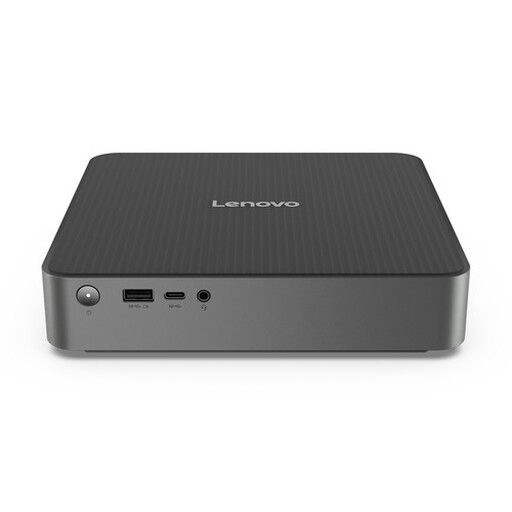
Lenovo IdeaCentre Mini Mini PC
A mini PC for a compact dual-monitor workstation; before you choose, check the ports on the exact model and the connections on both monitors.
View at Joybuy
Frequently asked questions
Do I need a separate graphics card for a small website?
Not just to use an editor, browsers and a local test server. Do check that the mini PC supports two monitors at the same time, and that its outputs match your monitors.
How do I connect two monitors to a mini PC?
Compare each monitor’s input, desired resolution and refresh rate with the video outputs on the exact model. Lenovo describes HDMI and DisplayPort for the ThinkCentre neo 50q Gen 4 range; Apple describes HDMI and Thunderbolt options for the Mac mini. Check that you have the right cables, then set up your display layout in the operating system.
What software do I need to start building a website locally?
MDN Web Docs lists a code editor, modern browsers and a local test server as parts of a basic environment. Also check the requirements for the specific software you choose.
Who can help if there’s a fault, and do online purchases come with a cooling-off period?
For a consumer purchase in the Netherlands, the Dutch government says the seller must provide a solution if something goes wrong; this is separate from support from the manufacturer. For many online distance purchases from a business, a 14-day cooling-off period applies. The Dutch government lists exceptions and distinguishes between buying from a business and buying from a private individual.


