An all-in-one suits a shared desk that needs a screen, especially if you’d prefer fewer separate components. A mini PC or small business desktop is a more obvious choice if you already have a suitable screen. Before buying, check the software required for lessons, the connections and the peripherals included. If you handle pupil data, make sure access and security also comply with the school’s policies.
Who is this buying guide for?
Creator of reading exercises
You put together texts and activities and want a dedicated workspace where you can use documents and online resources. Kennisnet and MediaMarkt Nederland cover learning resources and computer use for school or work; check the requirements of the software you use.
User of a shared school PC
You share the workspace with colleagues. If you access pupil data, access management and security need separate consideration. The Dutch Data Protection Authority advises schools to take appropriate measures and restrict access to pupil records.
Reusing an existing desk screen
You already have a screen, so you’re considering a separate compact PC. Lenovo and ASUS describe configurations where you need to check the screen connection and included peripherals for each model.
What should you consider when choosing?
All-in-one
A good fit if: you also need a screen for the shared desk and want a single, integrated setup.
Bear in mind: the screen remains part of the computer setup if you later want to replace just the PC.
Separate mini PC or Tiny desktop
A good fit if: you already have a suitable screen or want to choose the screen and computer separately.
Bear in mind: you may need to buy a screen, keyboard and mouse separately. A kit may also come without memory, storage or an operating system.
Mac mini
A good fit if: you want to use an existing screen and have confirmed that your reading software works with macOS.
Bear in mind: check the required macOS version and connections. Specifications alone don’t confirm that school software or a printer will work.
| What to consider |
What should you check? |
Who is this important for? |
| Space and screen |
Measure the available space and check whether you already have a suitable screen, how to connect it and what comes with the computer. |
If I use a shared desk, I want to know whether the whole setup will fit and whether a screen is missing. Around 33% of consumers prioritise a practical workspace when desk space is limited. |
| Access and privacy |
Ask which accounts, access rights and supported systems the school requires; a security feature on the computer doesn’t replace these arrangements. |
If pupil data is stored on the shared PC, I want to make sure only the right people can access it. Around 25% of consumers put access and privacy first. |
| Software and equipment |
Check the required programmes, sign-in method, printer and screen cable for the exact configuration. |
If I create reading exercises using documents and digital learning resources, I want my programmes and existing equipment to work with the computer. Around 25% of consumers make software and equipment their main priority. |
| Complete workspace |
Compare what you’ll need for a ready-to-use setup, including any peripherals and, for a kit, memory, storage or an operating system. |
If I still need to buy or install components, I want to know what a complete workspace will require in advance. Around 17% of consumers prioritise the complete purchase and aftercare. |
Common pitfalls
-
Comparing only the standalone PC with an all-in-one
A mini PC or kit isn’t automatically a complete, ready-to-use workspace. A screen or input devices may be missing. According to ASUS, the ASUS NUC 14 Pro Kit also comes without memory, storage or a pre-installed operating system.
Check what’s included with the exact configuration, and only factor in components you still need to buy.
-
Assuming every computer works with school software
The connections and general specifications don’t prove that a particular learning method, sign-in method or printer is compatible.
Before you choose, check that the required programmes, printer and existing screen connection work with the exact configuration.
-
Treating a shared PC with pupil data as a hardware decision alone
The Dutch Data Protection Authority advises schools to protect pupil records and limit access to those who need it.
If you use pupil data on this workspace, agree on accounts and access rights with the school.
Brands to consider
HP
The product ranges described include both an HP all-in-one and a separate compact business desktop.
- For the 24-cr0050nd, HP Netherlands lists a 23.8-inch FHD screen, height adjustment, Windows 11 Home, 8 GB RAM and a keyboard and mouse combination.
- These specifications apply to the models reviewed, not all HP desktops. The separate Pro Mini 400 G9 requires a suitable screen.
Lenovo
The ThinkCentre M70q Gen 5 Tiny is a compact business PC. Lenovo also describes a configuration with a TIO27 screen.
- Lenovo lists servicing and expansion options for the Tiny.
- With the standalone PC, the screen, keyboard and mouse are sold separately. The TIO27 bundle reviewed was listed as out of stock on Lenovo’s website.
ASUS
The NUC 14 Pro is available as a Mini PC and as a Kit for use with a separate screen.
- ASUS lists connections including HDMI, Thunderbolt and Ethernet.
- According to the specifications table, the Kit comes without memory, storage or a pre-installed operating system. Check the configuration you choose.
Apple
The Mac mini (2024) with M4 may be worth considering if you’re reusing a screen and your software supports macOS.
- For the M4 base model, Apple lists 16 GB of unified memory and HDMI and Thunderbolt video output.
- These features don’t confirm that a specific school application or existing printer will work.
Dell
The Dell Pro Micro Plus QBM1250 is a compact business desktop with configurable options.
- Dell lists Windows 11 Pro as the selected operating system for the configuration described.
- The product page offers several processor configurations, so compare a specific configuration. Security benefits are claims made by Dell.
Joybuy products for this workspace
This selection of Joybuy products includes desktop PCs, mini PCs and an all-in-one, so you can compare options for different dedicated workspaces. Check the software, connections and included components you need for each model.
 No image available
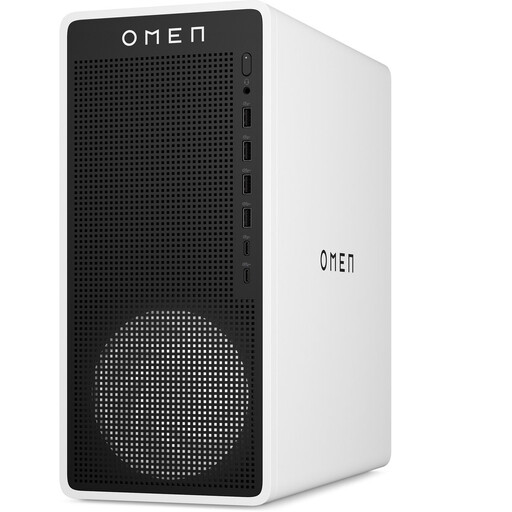
OMEN 16L Gaming Desktop TG03-0057nd C3YP0EA#ABH
A desktop PC to consider for a dedicated workspace. Check that the configuration suits your school programmes and arrangements for shared use.
Windows 11 Home, 16 GB DDR5 memory and a 1 TB SSD.
The product description lists Wi-Fi 6, a 16-litre case and connections for monitors and peripherals.
View at Joybuy
 No image available
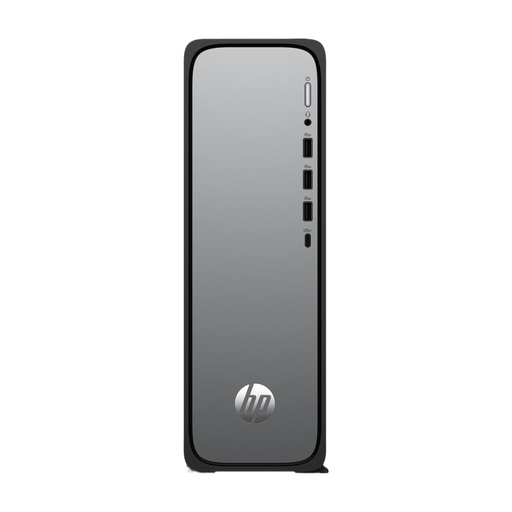
HP OmniDesk Slim S03-0006nd D49HREA#ABH
A compact desktop to consider if you want to connect a screen and input devices separately.
Windows 11 Home, 8 GB DDR5 memory and a 512 GB SSD.
The product description lists Wi-Fi 6, HDMI and USB-C. It’s 10 cm deep; check that the connections suit your existing screen and peripherals.
View at Joybuy
 No image available
SOYO Y5Pro Mini PC, Intel Core i5 8250U/8350U
A mini PC to consider if you want to reuse a suitable screen. Check the exact processor configuration and how your equipment connects.
Windows 11, 8 GB DDR4 memory and a 256 GB SATA SSD.
The product description lists Wi-Fi 5, two HDMI outputs and Type-C video output. Dimensions are 105 × 113 × 45 mm.
View at Joybuy
 No image available
Acer Aspire C24-A WI5418 NL All-in-One PC
An all-in-one to consider if you also need a screen for the desk. The product description lists a wireless keyboard and mouse.
23.8-inch Full HD IPS screen, Intel Core 5 120U, 16 GB DDR5 memory and a 1 TB PCIe NVMe SSD.
Windows 11 Home. Check that the required reading software and connections suit the shared workspace.
View at Joybuy
 No image available
Lenovo Yoga Mini 01IPH11 Copilot+ PC Mini Desktop
A mini desktop to consider if you want to connect a suitable screen. Check the video connection and whether your software is supported.
Intel Core Ultra 5 325, 16 GB LPDDR5X memory and a 512 GB PCIe 4.0 SSD.
The product description lists Windows 11 Home, HDMI 2.1, Thunderbolt 4, Wi-Fi 7 and a 0.65-litre case. It supports up to four screens.
View at Joybuy
Frequently asked questions
Do you need a separate screen with a mini PC?
For the standalone ThinkCentre M70q Gen 5 reviewed, Lenovo lists the screen, keyboard and mouse as sold separately. Check what’s included with each configuration and whether the connections suit the screen you want to use.
Will every computer work with my school software and printer?
You can’t tell from the general computer specifications alone. Check that the required programmes, sign-in method, printer and screen connection are supported for the exact configuration.
What do you need to arrange if colleagues access pupil data on the computer?
Make sure the setup follows the school’s privacy and security policies. The Dutch Data Protection Authority recommends appropriate technical and organisational measures for schools, as well as restricting access to pupil records. Ask the school administrator to decide how accounts and permissions should be set up for this workspace.
What should you check with a mini PC kit?
Before comparing it as a complete workspace, check which components are included with the exact kit. According to ASUS’s specifications table, the NUC 14 Pro Kit comes without memory, storage or a pre-installed operating system.
Can you still choose a desktop with Windows 10 for this work?
Windows 10 will still work, but Microsoft ended standard support, including security updates, on 14 October 2025. Check which supported configuration is suitable, especially if the shared workspace is used with other people’s data.


