If you already have a suitable monitor, a mini PC or another desktop without a built-in screen is an obvious choice. Just check that its connections and software suit your workspace. If you also need a screen, compare all-in-ones by their screen specifications, adjustability and included accessories. If you share presentations, it’s also important to check that your software and fonts work properly on the recipient’s computer.
Who is this relevant to?
Presentation creator with an existing monitor
Wants to use their current monitor, so checks for compatible video connections and any additional peripherals they might need. For example, Lenovo documents HDMI and DisplayPort for the ThinkCentre M70q Gen 5 series; check the specific configuration you’re considering.
Remote worker looking for a complete workspace
Also needs a screen, and compares all-in-ones by their screen specifications, adjustability and what’s included. The Dutch government outlines employers’ responsibilities for providing a good and safe home-working environment.
Presentation creator who shares files
Shares slides with others and wants the software and formatting to work with the devices used to open the files. Microsoft Support notes that some custom fonts can’t be saved in a presentation.
What should you look for when choosing?
Start with your workspace: are you reusing a monitor, or do you need one? Then check that the exact computer configuration is suitable for your presentation software and the way you share slides.
| What to consider |
What should you check? |
Who is this most relevant to? |
| Software and files |
Check the requirements for your presentation software and the RAM and SSD capacity of the exact configuration. Microsoft 365 lists compatibility requirements; these are not a performance guarantee. |
If I create slides while other programmes are open, I want a configuration that suits my software and files. Around 40% of consumers prioritise smooth performance with presentations and other programmes when making this choice. |
| Screen and desk |
Check which screens and connections you already have, whether the cable will fit, and whether a built-in screen offers the resolution and adjustability you need. |
I want to know whether my current screen is compatible, or whether an integrated screen would suit my desk better. Around 30% of consumers prioritise their screen and workspace setup. |
| Sharing presentations |
Check which operating systems are supported and test your slides on another device. Find out whether custom fonts can be embedded. |
When colleagues open my slides, I want to avoid unexpected formatting changes. Around 20% of consumers prioritise sharing and displaying files. |
| Accessories and service |
Compare what’s included and which software you already use. Distinguish between warranty terms and your consumer rights. |
I want to know in advance which accessories and software I’ll still need, and what service applies to my purchase. Around 10% of consumers start by looking at total cost and service. |
How to avoid common buying mistakes
-
Assuming a mini PC is a complete workspace
A standalone computer isn’t the same as an all-in-one: you may need to buy a screen and peripherals separately.
Compare what’s included in the offer with what you already have, and check whether you’ll also need a suitable cable, keyboard or mouse.
-
Assuming every product in a range has the same configuration
Components and included software can vary between configurations. For example, the ASUS NUC 14 Pro Kit described by ASUS Store UK is listed without an operating system; that doesn’t automatically tell you anything about UK offers.
Check the full model number and the components included with the specific configuration.
-
Assuming shared slides will look identical everywhere
Microsoft Support says that some custom fonts can’t be saved with a presentation. This can make the formatting look different on another device.
Test the file on the recipient’s device and check whether the font you’ve used can be embedded.
-
Confusing the manufacturer’s warranty with your statutory rights
A manufacturer’s warranty is not the same as the statutory rights that apply to a qualifying consumer purchase. ACM ConsuWijzer also distinguishes between consumer purchases and agreements used mainly or exclusively for business.
First establish whether you’re buying as a consumer, then check which additional warranty terms apply.
Brands to compare
HP
Worth considering if you’re comparing an all-in-one with a built-in screen.
- For the OmniStudio 27-cu0630nd, HP Store Nederland lists a 27-inch FHD screen, 8 GB RAM, 512 GB SSD, Windows 11 Home, and a wireless keyboard and mouse.
- These details apply to this configuration, not every HP desktop. Consider whether the screen and memory suit the way you’ll use it.
Lenovo
The ThinkCentre M70q Gen 5 is a compact desktop range that you can use separately from the screen.
- Lenovo PSREF documents connections including HDMI and DisplayPort for the series.
- Available connections and accessories depend on the configuration. Check the exact specifications.
Apple
The Mac mini is a compact desktop without a built-in screen, for those who prefer working with macOS.
- Apple Nederland lists 16 GB of memory and a 256 GB SSD for an M6 base configuration.
- The computer doesn’t include a screen. Check that your monitor and software are compatible with your work files.
Dell
The Pro Micro QCM1250 is a compact business desktop range that you can compare by complete configuration.
- Dell provides manuals and specification resources for the QCM1250.
- The Dell specification page referenced is for a US configuration. For an offer in the Netherlands, check the configuration and applicable terms.
ASUS
The NUC 14 Pro range is worth considering if you’re looking at a configurable mini PC.
- The ASUS NUC 14 Pro Kit offers a compact computer setup to consider when comparing offers.
- The ASUS Store UK kit described doesn’t list an operating system as included. For each configuration, also check whether memory and storage are included.
Desktops at Joybuy
This Joybuy selection consists of desktops without a built-in screen. Compare the specific configuration, connections and included accessories with your existing workspace and presentation software.
 No image available
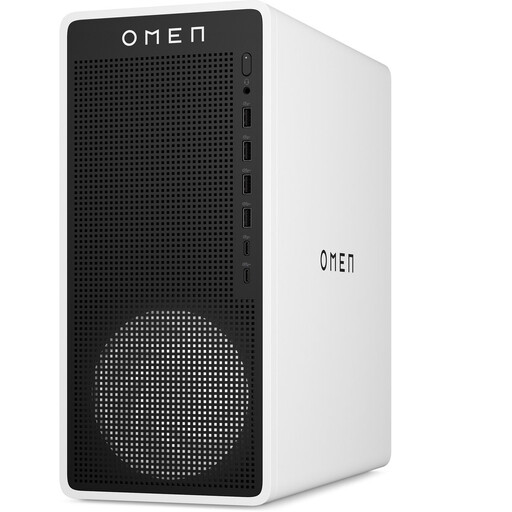
OMEN 16L Gaming Desktop TG03-0057nd C3YP0EA#ABH
An option if you’re looking for a standalone desktop. Before buying, check the connections and accessories included with this exact configuration.
View at Joybuy
 No image available
SOYO Y5Pro Mini PC, Intel Core i5 8250U/8350U
A compact option if you’re looking for a standalone computer. Check that the listed processor option and connections are suitable for your existing screen.
The product name lists 8 GB DDR4, a 256 GB SATA SSD and Windows 11.
View at Joybuy
 No image available
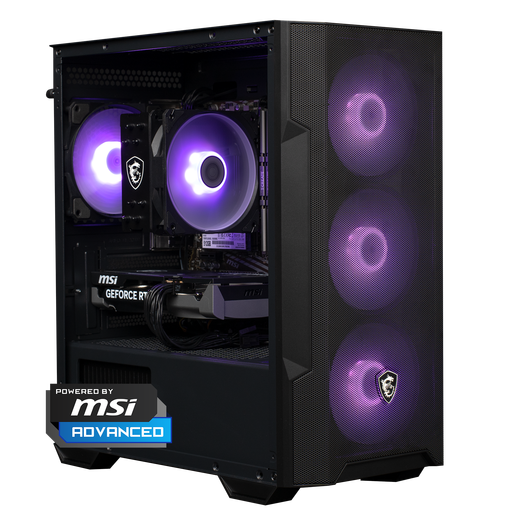
Shark Max Bite R500 Gaming PC RTX5060/R5/16GB/500GB
A standalone desktop to compare if you’re looking for a computer without a built-in screen. Check that the exact connections are compatible with your monitor.
The product name lists RTX5060, R5, 16 GB and 500 GB.
View at Joybuy
 No image available
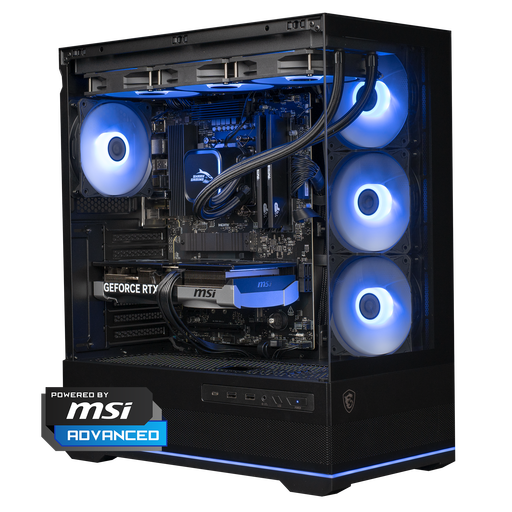
Shark Ultimator R700 Gaming PC RTX5070/R7/16GB/1TB
A standalone desktop to compare if you want to store files on your computer. Check that the configuration suits your programmes and workspace.
The product name lists RTX5070, R7, 16 GB and 1 TB.
View at Joybuy
 No image available
Gaming Desktop PC Ryzen 7 7800X3D, GeForce RTX 5080, 32GB DDR5, 1TB NVMe SSD, Windows 11 Trial
A standalone desktop to compare if you use several applications and locally stored files. Check the software terms before choosing.
The product name lists Ryzen 7 7800X3D, GeForce RTX 5080, 32GB DDR5, 1TB NVMe SSD and Windows 11 Trial.
View at Joybuy
Frequently asked questions
Does a desktop for PowerPoint have to run Windows?
No. Microsoft lists both Windows and macOS for Microsoft 365 for home use. However, check the requirements for your software version and test shared files, especially if you use custom fonts.
How do I connect a second screen?
First check which video outputs the exact computer has and which input your screen uses. Microsoft explains how to detect and arrange screens in Windows; Apple explains how to connect screens using compatible Thunderbolt or HDMI ports. The number of supported screens varies by model.
Do I need to buy presentation software with my desktop?
Not always: Microsoft Support says that PowerPoint for the web is available without an installation or subscription. Before deciding whether you want to use an installed version, compare the features you need.
Which warranty applies when buying in the Netherlands?
For a qualifying consumer purchase, statutory rights apply alongside any manufacturer’s or seller’s warranty. ACM ConsuWijzer distinguishes between consumer purchases and agreements used mainly or exclusively for business; check which situation applies to your purchase.
Does the law specify a particular desktop model for working from home?
The government advice mentioned focuses on the workspace and security, not on a specific desktop brand or model. The Dutch government outlines employers’ duty of care to provide a good and safe home-working environment; the Dutch Data Protection Authority recommends using a secure working environment and equipment provided by your organisation where possible.


