What should you look for?
On a small desk, the whole workstation matters: the computer case, screen, cables and input devices. Start by choosing the setup that suits your existing equipment and school use.
| What to consider |
What should you check? |
Who should pay particular attention? |
| Workspace |
Measure the space for the monitor stand, cables and papers. If you’re considering a mini PC, check that the intended mounting option is suitable for the exact model. |
If you need to keep your desk clear for books and teaching materials, consider the whole setup, not just the computer case. Around 36% of consumers prioritise saving space. |
| School software and management |
Ask which applications, operating systems and rules for personal devices your school supports. Also discuss where pupil data can be stored. |
If you want to use the desktop for schoolwork or pupil data, it must be compatible with your school’s software and management arrangements. Around 29% of consumers make this their top priority. |
| Memory and files |
Work out which programmes you use at the same time and how many photo or video files you store locally. Then compare the memory and SSD configurations. |
If you often use several programmes or work with large teaching files, choose a capacity that suits your needs rather than simply opting for a smaller computer. Around 21% of consumers give this the most attention. |
| Complete setup and service |
Check the contents list for the exact version, including the screen, keyboard and mouse, and review the applicable service terms. |
If you don’t yet have all the components for a complete workstation, find out in advance what you’ll need to buy separately and which service terms apply. Around 14% of consumers make this their main consideration. |
Joybuy products
This selection includes both all-in-ones and compact desktops that you can pair with a separate screen.
 No image available
HP 24-cr0050nd all-in-one, 895R0EA#ABH
An option if you want to combine your computer and screen in one device; check that it fits your desk.
23.8-inch matt screen, 8 GB of memory, 512 GB SSD and Windows 11 Home. The description says the power adapter must be purchased separately.
Joybuy
 No image available
Apple Mac mini M6, 24 GB, 512 GB SSD
A compact desktop with a separate screen, provided the school software you need and your school’s device management support macOS.
M6 chip, 12-core CPU, 12-core GPU, 24 GB of memory and 512 GB SSD. Check that the connections suit your screen and peripherals.
Joybuy
 No image available
Lenovo Yoga Mini 01IPH11 Copilot+ PC, Intel Core Ultra 5 325
A mini PC for anyone who wants to place the computer separately from the screen; check beforehand that you have a suitable monitor and peripherals.
16 GB LPDDR5X memory, 512 GB SSD, Intel Graphics and Windows 11 Home. The description lists a 0.65-litre case.
Joybuy
 No image available
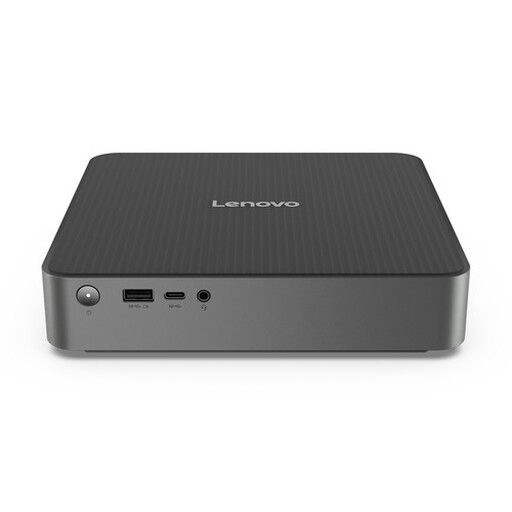
Lenovo IdeaCentre Mini Mini PC
A compact desktop for use with a separate screen; check that its connections suit your setup.
According to the product description, this version has a 1-litre case, an Intel Core 5 210H, 16 GB DDR5 memory, a 512 GB SSD and Windows 11 Home.
Joybuy
 No image available
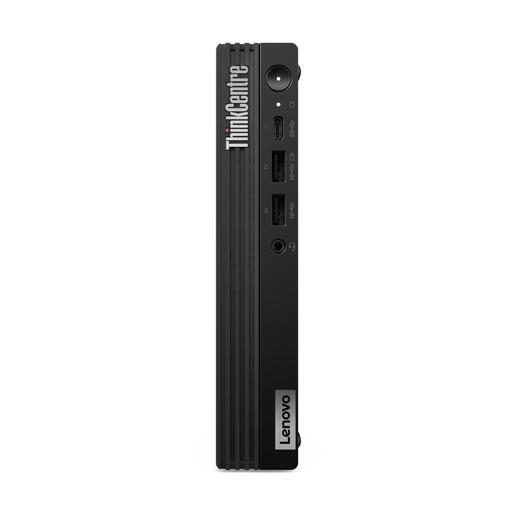
Lenovo ThinkCentre M70q Gen 5, Intel Core i7-14700T
A mini PC for anyone who wants to place the computer and screen separately; check the mounting options, ventilation space and cable layout for your desk.
16 GB DDR5 memory, 512 GB SSD and Windows 11 Pro. The description says a monitor and power adapter are not included.
Joybuy
Frequently asked questions
How do I choose between a mini PC and an all-in-one if I already have a monitor?
A mini PC lets you keep your existing monitor and place the computer separately. An all-in-one has an integrated screen, so compare the connections and measure the complete setup for both options, not just the computer.
What should I consider when choosing a desktop for a small desk?
Check where the screen, keyboard, mouse and papers will go. Arboportaal lists specific workplace requirements for employees who work at a screen for more than 2 hours a day. If this applies to you, discuss your setup with your employer.
Can I store pupil data on a desktop I’ve bought myself?
You can’t tell from the desktop’s specifications. Schools must comply with the GDPR, so ask whether personal devices are allowed, how they should be managed and where pupil data can be stored.
What purchase and warranty rights apply in the Netherlands?
Online consumer purchases generally come with a cooling-off period of up to 14 days after delivery, subject to exceptions. ACM ConsuWijzer also says that the retailer remains responsible to the consumer for the statutory guarantee; a manufacturer’s warranty does not replace it. If you’re buying on behalf of a school or business, check which terms apply to that purchase.
How can I work out what I need for a complete workstation?
Make a list of the components you already have, then check for each exact version whether a monitor, keyboard, mouse and power adapter are included. Don’t rely on the product range alone: the Lenovo IdeaCentre page we looked at gives conflicting information about the input devices.


