
Running several VMs at the same time
You need enough memory, processing power and storage for the host and the virtual machines running simultaneously. The Proxmox documentation distinguishes between memory for the host and memory for guests.


First, make sure you have enough memory and processing power for the VMs you want to run at the same time. Then check that the exact mini PC has two suitable video outputs for your monitors. A complete business PC needs less configuration, while a kit or barebone gives you more flexibility but may not include memory, storage or an operating system. Before ordering, also check the specification, included power adapter and any applicable product requirements.
You need enough memory, processing power and storage for the host and the virtual machines running simultaneously. The Proxmox documentation distinguishes between memory for the host and memory for guests.
You want to connect both monitors directly and need to compare the ports on the exact specification with the inputs on your monitors. Lenovo’s PSREF lists HDMI and DisplayPort for the ThinkCentre M75q Gen 5 family.
You want to choose the memory and storage yourself, and need to allow for components that may not be included with a kit or barebone. ASUS and MINISFORUM describe configurations with different items included.
Start by considering the VM workload you expect, then compare the connections for your two monitors and finally check exactly what’s included in the box.
A good fit if: you want a base configuration with Windows 11 Pro pre-installed.
Bear in mind: 16 GB RAM won’t necessarily be enough for every workload involving multiple VMs; also check the ports on the exact model.
A good fit if: you want to choose the memory and storage yourself.
Bear in mind: RAM, an SSD or an operating system may not be included; also check that the power adapter is suitable for the intended delivery in the Netherlands.
A good fit if: you want to decide whether to work locally on the desktop or manage VMs mainly remotely.
Bear in mind: Microsoft warns that other virtualisation applications may encounter problems when the Hyper-V hypervisor is active.
| What to consider | What should you check? | Who should give this more weight? |
|---|---|---|
| Memory and processing power | Allow for memory for both the host and guests; the Proxmox documentation covers these needs separately. Compare the installed and upgradeable RAM on the exact specification. | If I want to run several VMs at once, I want to know in advance how much memory will be available for the host and guests. An estimated 36% of consumers say VM capacity is their top priority. |
| Connecting two monitors | Compare the input, cable and display requirements with the physical outputs on the exact model. Lenovo’s PSREF lists HDMI and DisplayPort for the family; optional ports vary by specification. | With two existing monitors, I want to be sure that both will work with the specification I choose. Around 29% of consumers put support for two monitors first. |
| Hypervisor and VM storage | Check the requirements of your chosen hypervisor, the BIOS/UEFI settings and the available SSD storage. Proxmox VE for x86-KVM requires a suitable processor and motherboard with Intel VT or AMD-V; check IOMMU separately for passthrough. | If I need a specific hypervisor or local VM storage, I want to check support and room for expansion in advance. An estimated 21% of consumers make this their main consideration. |
| Complete configuration and aftercare | Check whether RAM, an SSD, an operating system and a power adapter are included, and who the seller is. ASUS and MINISFORUM describe configurations with different items included. | When I’m looking for a ready-to-use workstation and clear service terms, I want to know which components and support are included. Around 14% of consumers make the complete configuration and aftercare their top priority. |
A stated maximum doesn’t necessarily mean the ports on a specific specification will work with the cables and inputs on your two monitors or deliver the display you want. Lenovo notes that some ports are available only on selected models.
Compare the physical connections on the exact product number with both monitors, and don’t assume optional ports are standard.
You may need an adapter or a different specification.
A configuration without RAM, an SSD or an operating system isn’t a complete host for your VMs straight out of the box. You should also check the power adapter and regional specification.
Before buying, check what’s included and make a list of any components and software you still need.
You’ll need to source and install any missing memory, storage or software yourself.
Virtualisation depends on the requirements of your chosen hypervisor, as well as the motherboard and BIOS/UEFI configuration. Proxmox distinguishes between the requirements for x86-KVM and the additional IOMMU requirements for PCI(e) passthrough.
First choose the hypervisor and features you need, then check the processor, motherboard and BIOS/UEFI settings on the exact specification.
These examples illustrate how configurations can differ; a brand being mentioned doesn’t indicate its availability on Joybuy.
The ThinkCentre M75q Gen 5 is worth considering if you’re looking for a complete business mini PC with an operating system pre-installed.
The NUC 14 Pro family includes both complete mini PCs and kits for those who want to choose their own components.
The UM790 Pro is worth considering if you want to choose the memory and storage yourself.
The Elite Mini 800 G9 is a business product family with configurations offering different memory capacities.
The Joybuy options below are compact mini PCs whose product titles mention multiple monitors. For each exact specification, check that the connections are suitable for your two monitors and that the configuration meets your VM workload.
 No image available
Could suit a compact workstation with multiple monitors for VM use; the stated 16 GB RAM alone doesn’t determine how many VMs can run comfortably at the same time.
The product title lists a Ryzen 5 7430U, 16 GB RAM, a 512 GB SSD and support for up to three 4K monitors. Check the actual outputs for your monitors.
 No image available
Could suit anyone looking to combine VM use with local storage in a compact mini PC; check the configuration against your planned VM workload.
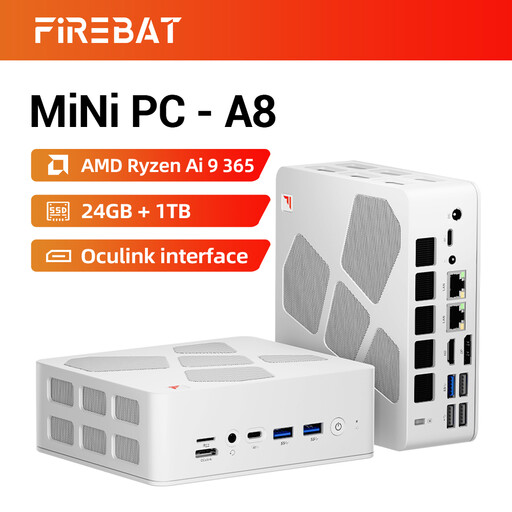
The product title lists 24 GB DDR5, a 1 TB SSD, HDMI 2.1 and support for up to four 4K monitors. Check how many outputs are available and whether they’re suitable for your monitors.
 No image available
Could be worth considering if you want to connect two monitors, but bear in mind that the memory has to be shared between the host and VMs.
The product title lists Windows 11, 8 GB DDR4 and a 256 GB SATA SSD. The product description mentions two HDMI outputs and a Type-C video output; check that the exact specification and connections are suitable for your monitors.
Allow for memory for the host separately from the memory needed for the VMs running at the same time. The Proxmox documentation makes this distinction; don’t assume that a 16 GB listing tells you how many VMs you’ll be able to run.
No. The number of physical video outputs doesn’t determine how a VM is displayed. Check the capabilities of your hypervisor; Proxmox specifies additional IOMMU requirements for passing hardware directly through to a VM.
Check whether RAM, an SSD, an operating system and a suitable power adapter are included. MINISFORUM describes the UM790 Pro barebone as a specification without RAM, an SSD or an operating system; also check the adapter and the intended delivery specification.
No. Also check the requirements of the hypervisor, the motherboard and the BIOS/UEFI settings. Proxmox VE for x86-KVM requires a suitable processor and motherboard with Intel VT or AMD-V; passthrough may require additional IOMMU support.
The Government of the Netherlands states that electronic devices in the EU must carry a CE marking. Check this for the exact specification; the general requirement alone doesn’t confirm that a particular model complies.