
Users running multiple VMs
You run a host and several test or development environments at the same time. Memory, storage and verifiable expandability all help determine which configuration is right for you.


First, choose a mini PC that suits your hypervisor, processor architecture and the number of VMs you want to run at the same time. Allow for the memory and storage needed by both the host and the virtual machines. For Hyper-V, Microsoft specifies Windows 11 Pro or Enterprise, as well as the required hardware features. A mini PC won’t prevent screen glare: Arboportaal recommends positioning your viewing direction parallel to the window when working at a screen. Before buying, it’s also worth checking the configuration and applicable conformity information for the exact model.
You run a host and several test or development environments at the same time. Memory, storage and verifiable expandability all help determine which configuration is right for you.
You want to use Microsoft Hyper-V, so you’ll need to check the Windows edition and hardware requirements for the exact model. Microsoft Learn lists Windows 11 Pro or Enterprise as suitable editions.
You want to be able to read your external display comfortably without distracting reflections. Screen position and window blinds are just as relevant as the mini PC. Arboportaal recommends positioning your viewing direction parallel to the window.
A good fit if: you want to use Hyper-V on Windows and the exact model meets the edition and hardware requirements.
Bear in mind: a Windows listing or fast processor alone doesn’t confirm compatibility. Check the Windows edition, SLAT and whether hardware virtualisation is enabled, too.
A good fit if: Hyper-V isn’t essential and you’ve checked the combination of host, hypervisor and guest operating systems in advance.
Bear in mind: with a barebone, you may need to choose the memory, storage and operating system yourself.
A good fit if: you want to use macOS and your VM software and guest operating systems are compatible with the Apple silicon configuration you choose.
Bear in mind: Parallels describes x86 emulation as a limited technology preview for certain licences, not as a general, like-for-like replacement for x86 virtualisation.
| What to consider | What to check before buying | Who should pay particular attention |
|---|---|---|
| Memory and storage for VMs | Check the RAM and included SSD for the exact model; allow space for the host and VM files. | If I run several test VMs at the same time, I want enough space for the host, guests and their files. Around 33% of consumers say the capacity to run VMs simultaneously is their main reason for buying. |
| Host and VM compatibility | Check the Windows edition, CPU requirements and guest operating system type; assess x86 VMs on Apple silicon separately. | If I need to use a specific hypervisor or existing VMs, I want to know in advance whether the host and architecture are compatible. Around 25% of consumers put compatibility first. |
| Screen readability beside a window | Check that the PC’s video output is compatible with your external display’s connection; plan the position and window blinds, too. | If I work beside a bright window, I want to see my screen clearly without reflections getting in the way. Around 25% of consumers give workplace readability their top priority. |
| Noise, cooling and positioning | Read the positioning and ventilation instructions for your chosen model; don’t assume a compact size means it will be quiet. | If I want a small, quiet workspace, the PC still needs room to expel heat. Around 17% of consumers focus mainly on noise, cooling and positioning. |
A configuration may list memory but no storage, or include a Windows edition that doesn’t meet the edition requirement for Hyper-V.
Before choosing, check the full model code, Windows edition, memory, storage and your hypervisor’s requirements.
The mini PC itself won’t eliminate reflections on your external display; its position in relation to the window matters, too.
First decide where to put the screen and whether you’ll need window blinds. Arboportaal recommends positioning your viewing direction parallel to the window when working at a screen.
A barebone may be sold without RAM, an SSD or an operating system. For the GMKtec NucBox K8 Plus, GMKtec EU also lists both an upgrade capacity of up to 48 GB and a 64GB model; don’t assume this confirms a fixed maximum memory capacity.
Check which components are included with your chosen variant and confirm the supported memory configuration before choosing upgrade parts.
Parallels describes x86 emulation on Apple silicon as a limited technology preview, not as general, like-for-like virtualisation.
Before switching, check the guest operating system, boot method, software edition and any limitations that apply to your VM.
The ThinkCentre M75q Gen 5 Tiny is a compact business Windows PC worth comparing.
The ExpertCenter PN54 is a compact Windows mini PC to compare by model.
According to GMKtec EU, the NucBox K8 Plus is available as a barebone and as a configured model.
The Mac mini with M4 or M4 Pro is worth exploring if you want a macOS host.
The Elite Mini 800 G9 is a compact business PC to compare with other Windows configurations.
These Joybuy picks are compact mini PCs to compare for VM use and connecting an external display. Check your hypervisor’s requirements, the exact configuration and the ventilation instructions for each model.
 No image available
The listed video outputs are useful if you want to connect an external display; consider the memory in relation to the number of VMs you want to run at the same time.
8 GB DDR4, 256 GB SATA SSD and Intel Core i5 8250U/8350U option.
Two HDMI outputs, Type-C video and Gigabit Ethernet.
 No image available
Windows 11 Pro is an edition worth checking if you’re considering this PC for Hyper-V. Also assess the hardware requirements and your VM needs.
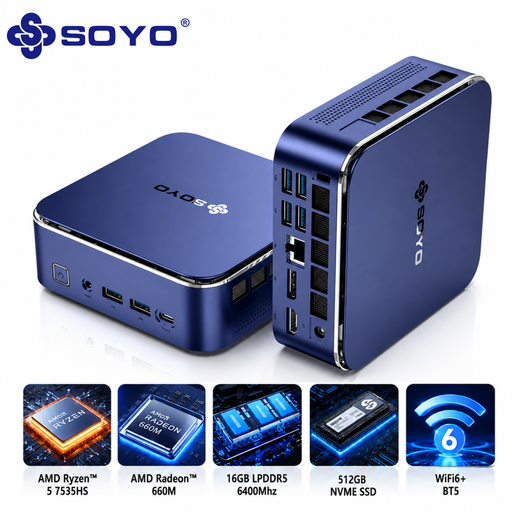
16 GB LPDDR5 and 512 GB NVMe SSD.
HDMI, DisplayPort and Type-C video outputs.
 No image available
Windows 11 Pro is an edition worth checking if you’re considering this PC for Hyper-V. Also check the hardware requirements and the demands of your VMs.
16 GB LPDDR4 and 512 GB SSD.
HDMI, Type-C and DisplayPort outputs.
 No image available
Windows 11 Pro is an edition worth checking if you want to use Hyper-V. Assess the processor requirements and VM workload separately against your needs.
Intel Core Ultra 7 155H, 16 GB DDR5 and 1 TB SSD.
The product description lists support for up to four displays. When positioning or VESA-mounting the PC, keep the vents clear and allow sufficient airflow; avoid direct sunlight.
Not with that edition of Windows as it is: Microsoft Learn lists Windows 11 Pro or Enterprise for Hyper-V. Also check the required processor features and the UEFI setting for your chosen model.
It depends on which VMs you run at the same time and how much memory the host needs. Microsoft recommends allowing enough memory for both the host and running guests, so check your VMs’ requirements first.
No. The external display and where you place it are separate considerations. Arboportaal recommends positioning your viewing direction parallel to the window when working at a screen, and using window blinds if necessary. Also check that the connections on your display and mini PC are compatible.
Only if the position and ventilation comply with the instructions for that specific model. An HP maintenance guide specifies air intake and exhaust when a computer is used in a separate enclosure; check the requirements for your PC.
No. Business.gov.nl explains that CE marking is not a quality mark. Check the conformity information for the exact model separately from its suitability for your hypervisor and VMs; the applicable product rules also depend on the model.