
Local VM lab builder
If you run several VMs at once or keep different VM images, compare the available RAM and SSD space with what the host itself needs. Proxmox recommends memory for host services in addition to the memory allocated to guests.


Start by choosing a host based on your software and how many VMs you want to run at once: an x86 mini PC is more likely to suit existing x86 VMs or specific Hyper-V and Proxmox workflows, while Apple silicon is an option if your guest software runs on Arm. When choosing memory, add together what the host and active guests need; Proxmox recommends at least 2 GB for host services, plus memory for guests. Also check that the ports, mounting, cables and ventilation remain practical when you adjust your desk height.
If you run several VMs at once or keep different VM images, compare the available RAM and SSD space with what the host itself needs. Proxmox recommends memory for host services in addition to the memory allocated to guests.
If you want to run VMs on a Windows host, check the Windows edition and virtualisation requirements for the configuration you choose. Microsoft Learn specifies Windows 11 Professional or Enterprise for enabling Hyper-V.
A compact Mac host could be a good fit if the guest operating systems and applications you need run on Apple silicon. Also check in advance whether your existing VMs and features such as nested virtualisation will work.
First, assess your VM software and simultaneous workloads. Then check storage and where the mini PC will sit on your desk.
| What to consider | What to look for when buying | Who is this important for? |
|---|---|---|
| Memory for running multiple VMs | Add the memory used by active guests to the host's requirements, then compare the total with the installed RAM. Proxmox recommends at least 2 GB for host services, plus memory for guests. | If I want to use several guests at once, I need to know how much memory will be left for them after the host. Around 28% of consumers prioritise RAM for simultaneous VMs. |
| Host and hypervisor | Choose Hyper-V or, for example, Proxmox first. Then check the Windows edition, CPU support and firmware settings; Microsoft Learn lists SLAT and enabled hardware virtualisation among the requirements for Hyper-V. | If you need to get a specific hypervisor up and running, check the software and firmware requirements first to avoid discovering an incompatibility later. Around 22% of consumers prioritise host compatibility. |
| Storage for VM images | Add up the space needed for the host, VM images and planned snapshots. Check the SSD capacity of the exact configuration and what expansion options it offers. | If I want to keep several VM images, I need enough space beyond what the operating system uses. Around 22% of consumers prioritise storage space for VMs. |
| Positioning on a sit-stand desk | Check the dimensions, ports and any VESA mounting options. Check the cables at both the lowest and highest desk settings, and keep the ventilation grilles clear. | If you want to keep your desktop clear, look for a setup that keeps the ports accessible and prevents cables from being pulled when the desk moves. Around 17% of consumers prioritise positioning and cable routing. |
| Architecture and existing VMs | Note whether your guests use x86 or Arm, then check each hypervisor's support for migration and the features you need. Parallels requires a supported Arm installation image for a new Windows VM on Apple silicon. | If I want to keep using existing x86 VMs, I need to know how their architecture and features might change before I buy. Around 11% of consumers prioritise keeping their existing VMs. |
A maximum of, say, 64 GB doesn't tell you how much memory the configuration you choose actually includes. Lenovo lists different configurations of the ThinkCentre M75q Gen 5 Tiny.
Compare the full model number and installed memory with your plans for running multiple VMs at once.
A barebone may not include components such as RAM and an SSD, and you may also need to install your own operating system.
Check what's included with the configuration you select and which components you need to choose and install yourself.
VMs and features won't necessarily work in the same way on a different processor architecture. Parallels lists limitations on Apple silicon, including for nested virtualisation.
Check how each guest operating system and required feature will work or can be migrated.
Setting up a new Arm VM or migrating a VM may take extra time.
A small case can save space, but the ports, power supply and cables may still be awkwardly positioned when you raise or lower the desk.
Check the mounting options, access to the ports and cable routing at both desk heights, and make sure ventilation isn't blocked.
Depending on your setup, you may need a suitable mount or a longer cable.
The IT15 is a compact option to look into if you're after a Windows 11 Pro host for VM use.
The ThinkCentre M75q Gen 5 Tiny is worth considering if you want to compare a Netherlands-market business x86 configuration with Windows 11 Pro.
The ExpertCenter PN54-S1 is worth a look if memory expansion and desktop network connections are important to you.
The UM890 Pro is worth considering if you want to configure an x86 host yourself or compare different memory capacities.
The Mac mini (2024) with M4 is a compact macOS option if your guest software runs on Apple silicon.
This selection includes Mac mini versions with Apple silicon and MSI Cubi NUC models, including a barebone for anyone who wants to configure an x86 host themselves and a version with Windows 11 Pro.
 Image unavailable
An Apple silicon host to consider if your guest software runs on Arm. With Parallels, a supported Arm installation image and limitations on certain features, such as nested virtualisation, are important considerations.
Specifications in the product title: 16 GB memory and 256 GB SSD.
Image unavailable
An Apple silicon host to consider if your guest software runs on Arm. Check whether your existing VMs and the features you need will work with your chosen hypervisor.
Specifications in the product title: 16 GB memory and 512 GB SSD.
Image unavailable
An Apple silicon host to consider if your guest software runs on Arm. Compare the memory with the needs of the host and guests, and check your VM software's compatibility in advance.
Specifications in the product title: 24 GB memory and 512 GB SSD.
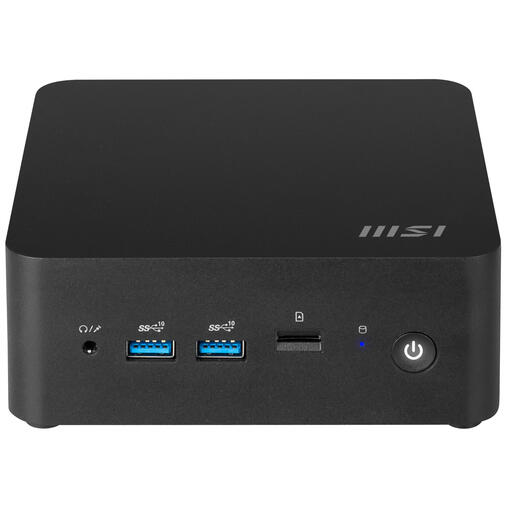 Image unavailable
A barebone to consider if you want to build your own x86 host for a custom hypervisor.
Check which components are included with the version you select; for this barebone, you'll need to provide your own memory, storage and operating system.
 Image unavailable
With Windows 11 Pro, this version is worth comparing if you want to use Hyper-V on Windows. Microsoft Learn lists Windows 11 Professional as a requirement for enabling Hyper-V; also check the hardware and firmware requirements.
Specifications in the product title: 16 GB DDR5 and 1 TB SSD.
No. Microsoft Learn specifies Windows 11 Professional or Enterprise for enabling Hyper-V, along with requirements such as a 64-bit processor with SLAT and hardware virtualisation enabled in BIOS or UEFI. Check that the version you choose meets these requirements, and allow for the memory needed by the host and active VMs combined.
It depends on the version you choose. MINISFORUM offers the UM890 Pro as a barebone and in configurations with RAM and an SSD, so check exactly what's included with the model you're considering. For a production host, Proxmox recommends at least 2 GB of memory for system services, plus memory for guests.
Not necessarily in the same way: it depends on the architecture and features you use. According to Parallels, a new Windows VM on Apple silicon requires a supported Arm installation image, and certain features, including nested virtualisation, are limited. Check each existing VM and required feature separately.
Check the mounting options and make sure the ports remain accessible. Route cables so they aren't under tension at either desk height, and keep the ventilation clear. Arboportaal recommends a properly set-up workstation; choosing a compact mini PC alone won't automatically make your workspace ergonomic.
For a consumer purchase in the Netherlands, the seller is your point of contact for a solution if the product is faulty, according to the Dutch government. This is separate from any cooling-off period for distance selling: the Dutch government says this is 14 days in many cases. Check the terms that apply to your specific purchase.