
Editor with lots of source footage
You manage long recordings, project files and media cache, and want to decide whether internal, external or shared storage best suits your workflow. Adobe recommends fast storage for media and cache.


Start with the codec and resolution of your theatre footage, your editing software, and the combined space needed for source files, cache and exports. No single specification can predict how quickly your project will run. A Mac setup could suit you if macOS and its stated media support match your workflow. A Windows PC with a dedicated GPU or an expandable system may be worth considering for more graphics-intensive work or extra storage and networking respectively. Always check the exact configuration and what’s included.
You manage long recordings, project files and media cache, and want to decide whether internal, external or shared storage best suits your workflow. Adobe recommends fast storage for media and cache.
Your choice depends on the codec, software, resolution and graphics processing involved, not just the size of the computer. Adobe sets out different system requirements for Premiere depending on the type of footage.
You want to choose the memory and storage yourself, or upgrade them later, and factor in any extra components and setup a kit or barebone system may require. ASUS and MINISFORUM offer versions with different items included.
First, note the source format and software you use. Then work out how much storage space and which components your project needs.
| What to consider | What should you check? | Who is this important for? |
|---|---|---|
| Source footage and cache | Compare the size of your project with the available SSD space and check the options for adding more storage. Adobe recommends fast storage for media and cache. | If I need to keep long recordings and cache files alongside my project, I want to know in advance where they’ll fit. Around 36% of consumers make storage their top priority. |
| Codec and timeline | Note the codec, resolution and software version, then compare them with the relevant software requirements and stated media support. | If my recording format and editing software determine my workflow, I want to check that specific combination. Around 29% of consumers prioritise codec and timeline performance. |
| Graphics processing | Check the GPU and graphics memory of the exact model against your software and editing requirements. | If my editing involves more graphics-intensive work, I want to know which GPU is actually included in the version I’m choosing. Around 21% of consumers make graphics processing their top priority. |
| Complete system or kit | For each version, check whether memory, SSD, operating system and required adapter are included. | If I’d rather choose the components myself, I also want to know in advance what I’ll need to add and install. Around 14% of consumers start by building and upgrading their own system. |
Display support doesn’t tell you which timelines, codecs or effects a configuration can handle comfortably. Requirements depend on the footage and editing software.
Compare your software’s requirements with the memory, GPU and source format of the exact configuration.
Source footage, media cache and exports all use the available storage space. An SSD that’s large enough for the system may not leave enough room for your editing project.
Plan ahead for project files, cache and any additional drives.
Large projects may need extra internal or external storage, so also consider the space and connections required.
A kit or barebone system may not include the same components as a ready-to-use mini PC. Memory, an SSD or an operating system may be missing.
Check the full model name and the included components before comparing configurations.
You may need to choose and install missing components separately.
Mac mini models for anyone considering a compact macOS setup.
ThinkCentre neo Ultra Gen 2 for anyone looking for a compact Windows system with a dedicated GPU.
The NUC 14 Pro range includes versions for anyone who wants to configure their own compact PC.
The MS-01 is worth comparing if storage expansion or network connections are important to you.
Joybuy product options to consider for a compact editing setup with large source files.
 No image available
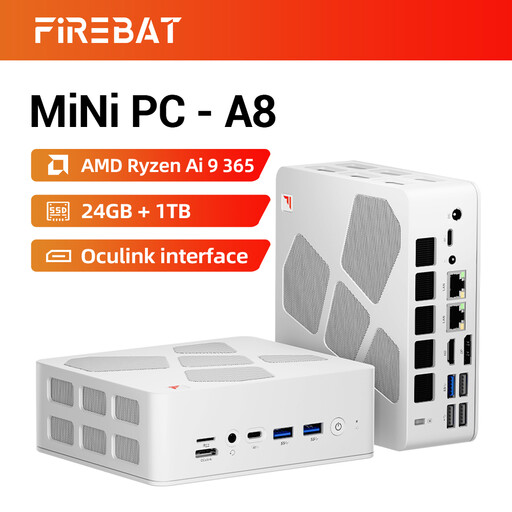
The listed 1 TB SSD provides internal storage for project files and cache. Plan for the total space you’ll need for your files and exports.
According to the product name: 24 GB DDR5, 1 TB PCIe 4.0 SSD and Radeon 880M graphics.
 No image available
This version offers a compact Mac setup. For large recordings, consider the available internal storage and plan for extra storage if needed.
According to the product name: Apple M6 chip, 24 GB memory and 512 GB SSD.
 No image available
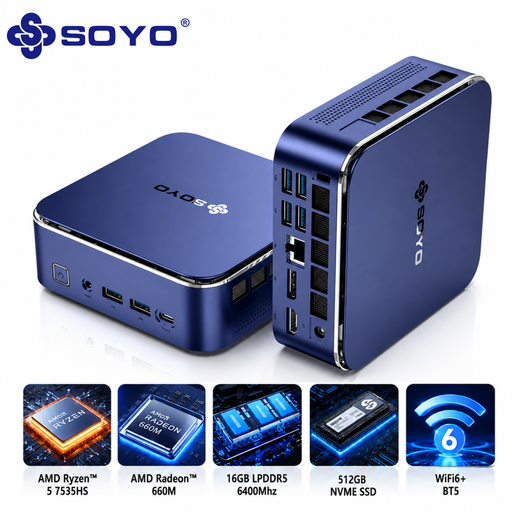
The product information lists two M.2 storage slots in addition to the SSD. Check that the storage options suit your project and chosen configuration.
According to the product name: Windows 11 Pro, 16 GB LPDDR5, 512 GB NVMe SSD and Radeon 660M graphics.
 No image available
The internal SSD provides space for project files. Compare its capacity with the combined storage needed for your source footage and cache.
According to the product name: 16 GB RAM and 512 GB SSD.
 No image available
The listed 24 GB of memory may be a factor in your choice, but check your software’s requirements and plan for extra storage if 512 GB isn’t enough for your source footage and cache.
According to the product name: Radeon 760M graphics.
Adobe recommends fast storage for media and media cache. If you have two drives, Adobe suggests storing media and cache on the same second drive as one option. Also allow space for project files and exports.
No, this isn’t a general requirement for every mini PC. Adobe recommends 32 GB or more for 4K and higher in the Windows system requirements for Premiere mentioned here. Check the requirements for other software, platforms and projects individually.
Check whether memory, an SSD and an operating system are included, and whether you’ll need extra storage. ASUS lists NUC kits without a pre-installed operating system; MINISFORUM also offers the MS-01 as a barebone system. What you need to add depends on the version you choose.
According to the Dutch government, there’s no fixed statutory warranty period in the Netherlands, but consumers are entitled to a product that works as it should. If a product is faulty, the retailer is your point of contact, and a manufacturer’s warranty doesn’t replace your statutory rights. This applies to consumer purchases and not automatically to a theatre buying for business use.
For an applicable distance sale from a business, the Dutch government says you’ll generally have a 14-day cooling-off period. There are exceptions, and a purchase from a private seller isn’t automatically covered by the same rules. Check the terms that apply to your purchase.