First, choose a mini PC with simultaneous video outputs that match the connections and settings of your two screens. Then decide whether you want a ready-to-use setup or would rather choose the memory, storage and operating system yourself. If you plan to use WSL 2 or Docker Desktop, you’ll also need to factor in your development environment’s requirements. Before buying, check the components and compliance information for the exact configuration on offer.
Who is this choice relevant to?
Developer using two screens
You want to use one screen for code or the terminal, and the other for documentation or output. So, first check the video outputs and whether they work with both screens at the same time. ASUS and Lenovo publish connection details for specific models.
Developer using containers
You may want to use Docker Desktop and WSL 2, so you’ll need to check both the PC configuration you choose and the software requirements. Docker describes WSL 2 as the standard way to run Docker Desktop on Windows.
DIY configurator
You want to choose the memory, storage or operating system yourself, and are happy to install anything a kit or incomplete configuration might need. ASUS and Lenovo show why it’s important to check what’s included in the exact configuration.
What should you look for?
First, check the connections on both screens and the simultaneous video outputs of the exact model. Then decide whether you want a ready-to-use PC, a configuration you can customise, or room to expand.
| What to consider |
What should you check? |
Who should pay particular attention? |
| Two compatible screens |
Check that the exact configuration can run both screens at the same time, and that the outputs, resolutions and refresh rates are suitable. Don’t assume USB-C supports video unless this is confirmed for the specific model. |
If I want to see the terminal and documentation at the same time, I check that both screens can connect directly or with a suitable adapter. Around 36% of consumers prioritise screen compatibility. |
| Development environment |
Make a note of your operating system and tools. For Docker Desktop, check the latest requirements for the Windows and WSL 2 setup you plan to use. |
If you want to use Docker Desktop or WSL 2 alongside terminal work, it’s worth choosing a configuration that suits the software. Around 29% of consumers prioritise their development environment. |
| Ready to use |
For the exact configuration, check which components are included, such as installed memory, storage and the operating system. |
If I want to get started as soon as I’ve connected everything, I don’t want to have to source missing components or software first. Around 21% of consumers prioritise a ready-to-use setup. |
| Upgrades and support |
Check which slots are accessible, which components are compatible and who to contact if something goes wrong. Dutch statutory conformity requirements and product rights are not the same as a manufacturer’s warranty. |
If you might want to upgrade the memory or storage later, check in advance which upgrades are compatible with the configuration. Around 14% of consumers prioritise upgradability and support. |
Common buying mistakes
-
Mistaking a barebone for a ready-to-use PC
A kit may be supplied without memory, storage or an operating system. A configurable offer may also be missing components you need to get started straight away.
Be prepared to source and install suitable components and possibly an operating system. Compare what’s included in the exact configuration, not just the maximum supported capacity.
-
Counting two ports without checking their video capabilities
The shape of a USB-C port doesn’t automatically mean it can carry video. Lenovo lists HDMI and DisplayPort for model 12RQ0040IX; these details don’t automatically apply to another configuration.
Compare the inputs on both monitors with the documented video outputs of the exact model. Also check that any adapter you need supports the combination you want.
A different port type may mean you need a suitable adapter or have to choose another configuration.
-
Confusing a manufacturer’s warranty with your statutory rights
An expired manufacturer’s warranty doesn’t automatically mean you no longer have rights if a product is faulty. According to the Dutch government, there is no fixed statutory warranty period in the Netherlands; what you can reasonably expect from the product is what matters.
Keep your purchase and seller details, and contact the seller if something goes wrong.
Relevant brands
ASUS
The NUC 14 Pro is worth considering if you want to compare connection details for a specific compact PC or kit.
- For the NUC 14 Pro, ASUS specifies two HDMI outputs and DisplayPort video through two Thunderbolt 4 ports.
- According to ASUS, the NUC 14 Pro Kit is supplied without memory, storage or an operating system. Components vary by configuration.
Lenovo
The ThinkCentre M75q Gen 5 Tiny is a configurable range of business mini PCs. Check the connections and components for each model number.
- Lenovo lists one HDMI output and one DisplayPort output for model 12RQ0040IX. The product range also features accessible memory and storage modules.
- A separately reviewed configuration, 12RQCTO1WWNL1, doesn’t list a hard drive. The port details for model 12RQ0040IX don’t confirm the connections on that other configuration.
HP
The Pro Mini 400 G9 is a range of compact business PCs with configurations available in the Netherlands.
- For configuration 6D494EA#ABH, HP lists Windows 11 Pro, 16 GB RAM and a 512 GB SSD.
- The two simultaneous screen connections needed for this configuration have not been confirmed. Check the ports before choosing this model for a two-screen setup.
MINISFORUM
The UM760 Slim is a Ryzen mini PC range to consider if upgrade options are important to you.
- MINISFORUM lists a Ryzen 5 7640HS and two M.2 slots for the UM760 Slim.
- Configurations and adapter options vary. Check what’s included in the specific offer and make sure it has the connections you need for two screens.
Mini PCs at Joybuy
These mini PCs are suited to a range of development setups. For each exact configuration, check whether it can run two screens at the same time and which components are included. These details haven’t been confirmed to the same extent for every model.
 Image unavailable
SOYO Y5Pro Mini PC, Intel Core i5 8250U/8350U, 8 GB DDR4, 256 GB SATA SSD
Worth considering if you’re looking for a mini PC with Windows and two HDMI connections. Check that the connections suit your two screens.
The product name lists 8 GB DDR4, a 256 GB SSD and Windows 11. The product description mentions two HDMI ports and support for multiple screens at the same time.
View at Joybuy
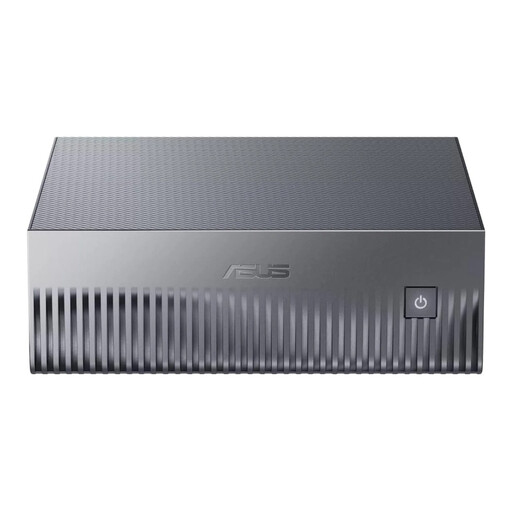 Image unavailable
ASUS Ascent GX10 GX10-GG0003BN, 128 GB LPDDR5x, 1 TB SSD
The product information lists software developers as its target audience. Check the video outputs on this exact configuration before choosing it for two screens.
The product name lists 128 GB LPDDR5x memory and a 1 TB SSD.
View at Joybuy
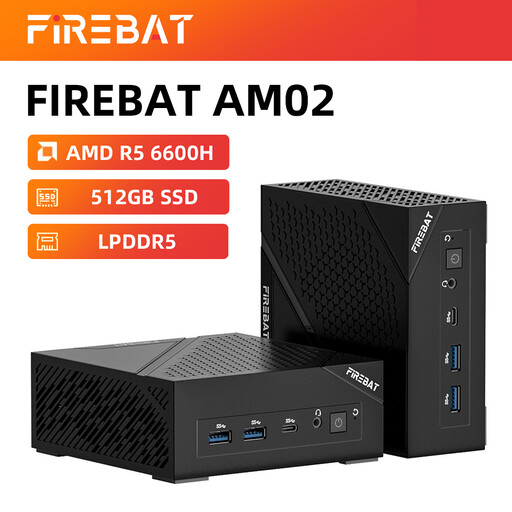 Image unavailable
FIREBAT AM02L Mini PC, AMD 6600H, 16 GB LPDDR5, 512 GB M.2 NVMe
A Windows mini PC to consider for a development workstation. Check the exact video outputs and whether it supports two screens at the same time.
The product name lists Windows 11 Home, 16 GB LPDDR5 and 512 GB M.2 NVMe storage. HDMI 2.1 and DisplayPort 1.4 are mentioned in the product name, but it doesn’t specify how many connections there are.
View at Joybuy
 Image unavailable
FIREBAT R3 Mini PC, AMD Ryzen 5 7430U, 16 GB RAM, 512 GB SSD
The product description mentions support for three screens at the same time, making this configuration worth comparing for a two-screen setup.
The product name lists 16 GB RAM, a 512 GB SSD and Wi-Fi 6.
View at Joybuy
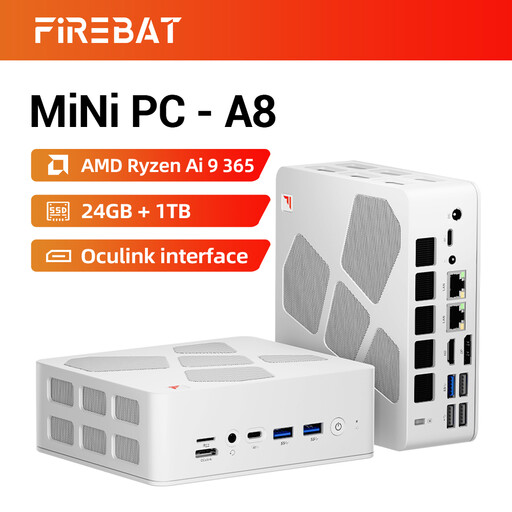 Image unavailable
FIREBAT A8 Mini PC, AMD Ryzen AI 9 365, 24 GB DDR5, 1 TB SSD
The product description mentions support for up to four 4K screens at the same time. Check that the connections and settings suit your two screens.
The product name lists 24 GB DDR5, a 1 TB SSD, HDMI 2.1, USB4 and Wi-Fi 6E.
View at Joybuy
Frequently asked questions
Can I connect a second monitor to any USB-C port?
No. Don’t assume a port supports video based on its shape. ASUS specifies DisplayPort video for the Thunderbolt 4 ports on the NUC 14 Pro; Lenovo lists the USB-C port on model 12RQ0040IX for data transfer only. Check the configuration and your monitor’s input.
What do I need to install before using a barebone for development?
First, check which components are missing. According to its specifications, ASUS supplies the NUC 14 Pro Kit without memory, storage or a pre-installed operating system. If you want to use Docker Desktop on Windows with WSL 2, also check Docker’s latest requirements for this setup.
What does CE mean for a mini PC sold in the Netherlands?
For equipment covered by the relevant EU rules, the manufacturer must meet the applicable requirements and provide the required CE marking and EU declaration of conformity. CE is not an independent quality mark. If in doubt, check the details for the exact configuration; wireless features may bring additional requirements.
Am I always entitled to exactly two years of statutory warranty in the Netherlands?
No. According to the Dutch government, there is no fixed statutory warranty period in the Netherlands; what you can reasonably expect from the product is what matters. If a product is faulty, the seller is your point of contact, even if the manufacturer’s warranty has expired.
Can I return a mini PC I bought online?
According to the Dutch government, when a consumer buys from a business at a distance, they usually have a 14-day cooling-off period. This doesn’t automatically apply to a business purchase or an online purchase from a private seller. Check which type of sale applies to your purchase.


