Start with your two monitors and the operating system your desktop app needs to run on. Check that the exact mini PC configuration can drive both screens independently at the same time and has the right connections. Then choose a configuration to suit your testing workload. With a barebone system, you may need to arrange the memory, storage and operating system yourself.
Who is this buying guide for?
Tester using two monitors
You want to place app windows on separate screens and test the screen layout or scaling settings. That makes simultaneous video outputs and connections that match your monitors important selection criteria. Microsoft Support explains how to use multiple displays in Windows.
Windows app tester
You want to test the app on a suitable version of Windows and find out in advance whether the mini PC is ready to use or needs an operating system installed. Lenovo lists Windows 11 Pro for configuration 12TD0083EZ; ASUS distinguishes between a complete mini PC and a kit for the NUC 14 Pro.
Tester working with multiple environments
You may want to run test tools or virtual machines alongside the app, so it’s worth checking the specific memory, storage and operating system configuration. ASUS states that the NUC 14 Pro kit comes without memory, storage or a pre-installed operating system.
What should you look for in a mini PC for two screens?
First, check that your chosen configuration can drive two separate screens at the same time. Then make sure the software environment, configuration and included components suit your testing plan.
| What to consider |
What should you check? |
Who is this important for? |
| Two separate screens |
Compare the input on each monitor with the connections on the exact configuration, and check that both screens can display separate content at the same time. Lenovo lists HDMI and DisplayPort for the ThinkCentre M70q Gen 5 range; ASUS lists two HDMI outputs and two Thunderbolt 4 ports with DisplayPort video for the NUC 14 Pro. Check the specific configuration and your monitor requirements. |
I want to use both monitors as separate screens, so the outputs need to work at the same time and suit my monitors. For around 36% of consumers, screen compatibility is the top priority. |
| App and OS compatibility |
Compare your app and testing tools’ requirements with the operating system edition explicitly listed for the exact configuration. Check any additional software requirements if you plan to use virtualisation. |
I want to know in advance whether the OS edition is right for the app and tools I plan to test. For around 29% of consumers, app and OS compatibility is the top priority. |
| Memory and storage |
Make a list of your app, testing tools and any virtual machines, then check the installed memory and storage. Lenovo lists 16 GB of memory and a 512 GB SSD for 12TD0083EZ; ASUS says the NUC 14 Pro kit does not include memory or storage. |
If I want to run testing tools or virtual machines alongside the app, I first want to know the capacity of my chosen configuration. For around 21% of consumers, capacity for testing tools and additional environments is the top priority. |
| Complete, suitable configuration |
Check what’s included with the exact listing in the Netherlands, such as the operating system, memory, storage and power supply. Also check which cables your monitors need and, where applicable, ask for conformity information for the configuration. |
I want to know in advance which components and installation steps are still needed to complete my setup. For around 14% of consumers, a complete purchase is the top priority. |
Buying pitfalls when choosing a mini PC for two screens
-
Assuming two ports will automatically work with your whole screen setup
The connections on the exact PC configuration need to suit both monitors, and the PC must be able to drive the screens separately at the same time.
Check the connection for each monitor individually. Once everything is set up, configure the screen layout and resolution. Microsoft Support explains how to check the layout in Windows.
Depending on your monitor connections, you may need a suitable cable or adapter.
-
Comparing a barebone system as if it were ready to use
ASUS says the NUC 14 Pro kit does not include memory, storage or a pre-installed operating system. It’s therefore not the same as a complete mini PC.
Check which components are included with your chosen configuration, and factor in installing the operating system when planning your setup.
You’ll need to put the components and software environment together yourself before you can use your testing setup.
-
Assuming a configuration for another region comes with the same power supply
The supplied power cable can vary between configurations. MINISFORUM lists a choice of US adapters for the UM790 Pro; this doesn’t confirm which power supply comes with a Dutch configuration.
Check the power supply and warranty terms for the specific Dutch listing before you choose.
Brands to compare as a guide
Lenovo
The ThinkCentre M70q Gen 5 is a useful reference if you’re looking at a compact business Windows setup with HDMI and DisplayPort.
- Lenovo lists Windows 11 Pro, 16 GB of memory and a 512 GB SSD for configuration 12TD0083EZ. The range specification lists HDMI and DisplayPort.
- Check that the ports and components match the exact configuration you’re considering; a specification for the range won’t necessarily apply to every variant.
ASUS
The NUC 14 Pro is worth considering if you want to compare a complete mini PC with a kit you configure yourself.
- ASUS lists two HDMI outputs and two Thunderbolt 4 ports with DisplayPort video for the product range.
- According to ASUS, the NUC 14 Pro kit comes without a pre-installed operating system, memory or storage. Also check the power supply and accessories included with the exact configuration.
HP
The Pro Mini 400 G9 is a useful reference if you want to compare a business Windows configuration by exact model number.
- HP lists Windows 11 Pro, 16 GB of RAM and a 512 GB SSD for configuration 6D494EA#ABH.
- Check that the video connections on the exact listing can support two separate screens at the same time and suit your monitors.
MINISFORUM
The UM790 Pro is a useful reference if you want to compare barebone and configurable options.
- MINISFORUM lists two HDMI ports and two USB4 ports for displays, and offers both barebone options and configurations with memory and an SSD.
- The manufacturer’s page lists a choice of US adapters. Check the power supply for the exact Dutch configuration rather than assuming it’s suitable for a Dutch connection.
Joybuy products to compare
These mini PCs come in different configurations to compare for testing a desktop app across multiple displays. For each exact configuration, check that both monitors can display separate content at the same time and see which components are included.
 No image available
Lenovo Yoga Mini 01IPH11 Copilot+ PC
The product description lists support for up to four independent displays. Check that the connections suit your monitors.
Intel Core Ultra 5 325; 16 GB LPDDR5X; 512 GB PCIe 4.0 SSD; Intel Graphics; Wi-Fi 7; Windows 11 Home.
View at Joybuy
 No image available
NVIDIA DGX Spark Founders Edition NVIDIA GB10 Mini PC
The product description lists HDMI and USB-C for multi-monitor setups. Check that both screens can display separate content at the same time.
128 GB RAM; 4 TB SSD; NVIDIA DGX OS.
View at Joybuy
 No image available
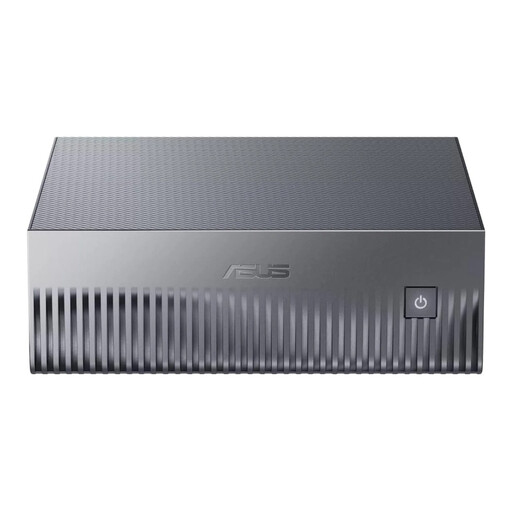
ASUS Ascent GX10 GX10-GG0003BN GB10 Mini PC
For this configuration, check that the video connections can drive both monitors separately at the same time and suit your testing setup.
128 GB LPDDR5x; 1 TB SSD.
View at Joybuy
 No image available
SOYO M5 Mini PC with AMD Ryzen 4300U
The product name lists a triple-display setup of up to 4K 60Hz via HDMI 2.0, Type-C and DisplayPort 1.4. Check that it suits your monitors.
16 GB LPDDR4; 512 GB SSD; Windows 11 Pro.
View at Joybuy
 No image available
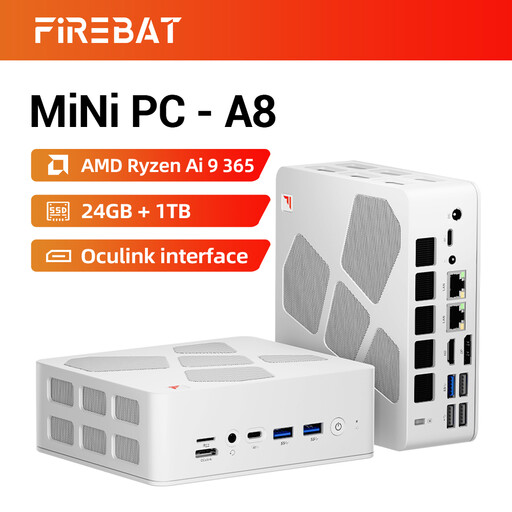
FIREBAT A8 Mini PC with AMD Ryzen AI 9 365
The product name lists support for 4K Quad-Display. Check the connections and simultaneous independent display support on the exact configuration for your screens.
24 GB DDR5; 1 TB PCIe 4.0 SSD; the product name lists HDMI 2.1 and USB4.
View at Joybuy
Frequently asked questions
How do you set up two screens in Windows for app testing?
Connect both monitors, detect them in the display settings and arrange them to match their physical positions. Microsoft Support recommends checking the layout by moving the pointer between the screens. You can also check the resolution and scaling for each display.
Does every ASUS NUC 14 Pro come with Windows?
No. ASUS says the NUC 14 Pro kit does not come with a pre-installed operating system. Check whether you’re looking at a kit or a complete mini PC, and whether the exact configuration includes the operating system you need for your app test.
What product compliance information should you check for a mini PC in the Netherlands?
Check the information that applies to the exact configuration on offer. Ondernemersplein, the Dutch government’s business information portal, outlines the relevant European product rules and mentions CE marking and an EU Declaration of Conformity where required for the device.
Who should you contact if there’s a problem with a mini PC you’ve bought as a consumer?
For a private purchase, contact the seller about any problems with the product. According to the Dutch government, there’s no fixed statutory guarantee period in the Netherlands; a manufacturer’s guarantee is in addition to your statutory rights. This answer applies to consumer purchases, not necessarily business purchases.


