Choose a mini PC based on the resolution, codec, effects and editing software you use for your theatre footage: editing HD has different demands from 4K or an effects-heavy workflow. Consider the storage you’ll need for source footage, project files, cache and backups separately. Adobe explains how Premiere automatically saves project versions, but those files are no substitute for backing up your source media. A Mac mini may suit a compatible macOS workflow, while Windows mini PCs range from configurable models to workstations with a dedicated GPU.
Who is this buying guide for?
Editors managing multiple project versions
If you want to revisit earlier edits, it helps to keep project files, source footage, cache and backups clearly separate. Adobe says Premiere automatically saves every five minutes by default and keeps the last twenty project versions on the hard drive.
Editors working with demanding footage
If you work with 4K or complex footage, match the memory, graphics capabilities and proxies to your recording codec and editing app. For Premiere, Adobe recommends 16 GB of RAM for HD media and 32 GB or more for 4K and above.
Editors using external media
If you use recording drives, multiple screens or shared storage, compare the connections and storage setup you need with the specifications of the exact mini PC configuration before you buy.
What should you look for?
| What to consider |
What should you check? |
Who should prioritise this? |
| Project versions and storage |
Work out how much space you need for source footage, working files and backups separately; check what internal and external storage is available. |
If you want to reopen older edits and keep the footage they use, storage planning is essential. Around 36% of consumers prioritise version control and secure storage. |
| Editing workload |
Note down your resolution, codec, editing app and effects. For Premiere, Adobe recommends 32 GB of RAM or more for 4K and above. |
If you work with 4K or lots of effects, focus on smooth editing and exporting with your software. Around 29% of consumers prioritise editing performance. |
| Connections |
Compare the connections you need for drives and screens with those on the exact PC configuration; check the speed required for shared storage. |
If you want to keep using your existing recording drives, screens or shared storage, they need to work with your editing setup. Around 21% of consumers prioritise compatibility with their existing equipment. |
| Complete configuration |
Check whether RAM, SSD and an operating system are included with each configuration; compare the components you need for a complete workstation. |
If you want an editing setup that’s ready to use, look at the full configuration, not just the PC itself. Around 14% of consumers prioritise the total cost of a usable setup. |
Key things to check before buying
-
Assuming autosave backs up all your footage
Automatically saved project versions are not the same as the source video used in your edit. Without the source media, you can’t reopen or adjust an edit in the same way.
Make a plan for storing source media and project files, and keep a separate backup of anything you can’t record again.
You may need a separate storage location for source media and backups.
-
Comparing a barebones mini PC with a complete configuration
The MINISFORUM UM890 Pro is available as both a barebone model and a complete configuration. The contents of the version you choose determine which components you’ll still need.
Before comparing configurations, check whether RAM, SSD, operating system and the required power adapter are included with each version.
A barebone version may not include RAM, an SSD or an operating system.
-
Focusing only on the processor or monitor ports
A PC with the right display connections doesn’t automatically solve how you’ll store media, cache and backups.
Compare your codec, editing app, media drive and screens with the specifications of the exact PC configuration.
You may need a suitable high-speed drive or connection for external media.
Brands to consider
Apple
Mac mini configurations for a compact editing setup running macOS.
- Apple Netherlands lists hardware-accelerated media support for H.264, HEVC and ProRes in its Mac mini specifications.
- Memory and SSD configurations vary; codec specifications don’t tell you how quickly your theatre footage will edit.
MINISFORUM
The UM890 Pro is a Windows option to consider when comparing internal storage options and connections.
- MINISFORUM lists two SSD slots and two USB4 ports for the UM890 Pro.
- Barebone and complete configurations are available. Check the components and power adapter supplied with the specific version.
HP
The Z2 Mini G1i is a workstation option for those who need a workflow with a dedicated GPU.
- For configuration C69BVEA#ABH, HP Netherlands lists 32 GB RAM, a 1 TB SSD and an RTX 2000 Ada with 16 GB of video memory.
- These configuration details don’t predict how quickly your specific edit will export.
ASUS
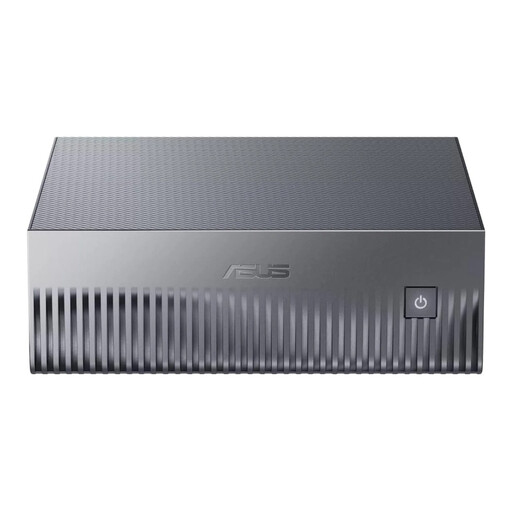
The NUC 15 Pro series is worth comparing if you’re looking for a configurable NUC form factor.
- ASUS lists several NUC 15 Pro model codes and processor configurations.
- Configurations may differ in operating system and specifications; check the exact model code and what’s included in the package.
Mini PCs at Joybuy
These mini PCs from Joybuy are worth comparing for a compact theatre editing setup. Check that each model’s specifications and software suit your footage and editing workflow.
 No image available
Apple Mac mini M6, 12-core CPU and 12-core GPU, 24 GB, 512 GB SSD
A compact option to compare if you use a compatible editing workflow on macOS.
Apple Netherlands lists hardware-accelerated support for H.264, HEVC and ProRes in its Mac mini specifications; check that these suit the codec used to record your footage.
The product title lists 24 GB of memory and a 512 GB SSD.
View at Joybuy
 No image available
NVIDIA DGX Spark Founders Edition, GB10, 128 GB RAM, 4 TB SSD
Compare this version if you specifically need the memory capacity and internal storage listed in the title.
The product title lists NVIDIA GB10, 128 GB RAM, a 4 TB SSD and NVIDIA DGX OS. Check that your editing app and workflow are compatible with this operating system before buying.
View at Joybuy
 No image available
ASUS Ascent GX10 GX10-GG0003BN, GB10, 128 GB LPDDR5x, 1 TB SSD
Compare this mini PC if you’re looking for the listed memory and SSD configuration for your editing setup.
The product title lists NVIDIA GB10, 128 GB LPDDR5x and a 1 TB SSD. Check that the editing app and workflow you need are compatible with the version you choose.
View at Joybuy
 No image available
SOYO M5 Mini PC, AMD Ryzen 4300U, 16 GB LPDDR4, 512 GB SSD
An option to compare if you’re looking for a mini PC with the listed configuration; make sure it suits your editing app and footage.
The product title lists Windows 11 Pro and support for output to three screens at up to 4K at 60 Hz.
View at Joybuy
 No image available
FIREBAT R3 Mini PC, AMD Ryzen 5 7430U, 16 GB RAM, 512 GB SSD
Compare this configuration with the demands of your editing app and theatre footage.
The product title lists Wi-Fi 6, Bluetooth 5.2 and support for three 4K screens.
View at Joybuy
Frequently asked questions
Do I mainly need a larger SSD for multiple edit versions?
Not necessarily for the project files alone: Adobe says Premiere saves automatically by default and keeps the last twenty project versions. Work out your storage needs mainly for source footage, cache, any proxies and separate backups. These features apply to Premiere and don’t automatically apply to other editing apps.
Can I edit with proxies and still export at the original quality?
In Premiere, you can use smaller proxy files for editing, then switch back to the original media for the final export. Make sure you store and link to the original files carefully.
What should I check when editing from an external drive or NAS?
Check that the connection and speed of your existing drive suit your workflow. If you’re using shared storage with Premiere, keep the cache local. Adobe recommends a 10 Gbit/s network for a shared 4K workflow; this isn’t a general requirement for editing from a local drive.


