For a shared desk with limited space and a suitable screen already in place, a mini PC is a sensible starting point. Before choosing, check that its connections work with the screen and presentation equipment, find out which software the school uses, and establish how colleagues will sign in separately. A larger desktop or an all-in-one may suit a different set-up, but it isn’t automatically better for editing teaching slides.
Who is this shared desktop for?
Colleagues sharing a workspace
You take turns using the same PC and want to make sure files and signed-in websites aren’t left accessible to the next person. Radboud University has highlighted this risk with shared staff PCs; ask your school’s IT team how accounts and sessions are managed at your workplace.
Teachers using multiple screens for teaching materials
You edit slides on the existing workspace screen and also want to show them using the presentation equipment. Compare the connections on your chosen configuration with the equipment in the classroom.
Anyone setting up a compact teacher’s desk
You’re looking for a desktop PC for a small space and want to know whether a screen, keyboard and mouse are already available. Lenovo states that the monitor and input devices are sold separately for the ThinkCentre configuration reviewed.
What should you look for when choosing?
Mini PC with a separate screen
A good fit when: you already have a suitable screen or the desk has limited space.
Bear in mind: a compact computer doesn’t automatically make a complete workstation; the screen and input devices may not be included.
Larger desktop with a separate screen
A good fit when: there’s room for the tower and a specific configuration offers the connections you need.
Bear in mind: the case size alone doesn’t offer any particular advantage for editing teaching slides; check the space required and what’s included with each model.
All-in-one
A good fit when: you don’t have a screen yet and an integrated screen-and-PC set-up suits the workspace.
Bear in mind: check the screen settings for the exact model and make sure its video output works with the presentation equipment.
Start with the classroom set-up and connections. Then work out which software and user settings you need before comparing configurations.
| What to consider |
What should you check? |
Who is this important for? |
| Access on a shared PC |
Ask your school’s IT team how colleagues sign in and out, save files and manage access. |
If I share the PC with colleagues, I don’t want my files or signed-in websites left open for the next person. Around 31% of consumers prioritise shared access. |
| Screens and presentation software |
Compare the video outputs with the inputs on the screen and presentation equipment; also check the software, licence and a representative teaching file. |
If my slides need to work on the existing screen and be shown in the classroom, I want to know in advance that the connections and file workflow are suitable. Around 25% of consumers prioritise screen and file compatibility. |
| The software used for teaching |
Compare the school software’s requirements with the processor, memory, storage and operating system in the exact configuration. Specifications alone don’t show how the PC will handle your teaching files. |
If I use the school’s software and my own slides, I want to check that the chosen configuration is suitable. Around 25% of consumers prioritise smooth editing in the software they use. |
| Space and a complete workstation |
Make a note of what’s already available and check for each offer whether a screen, keyboard, mouse and any necessary connection accessories are included. |
If I’m choosing a PC for a small desk, I want to know in advance what else I’ll need to use the workstation. Around 19% of consumers prioritise space and a complete set-up. |
Common pitfalls
-
Assuming a security claim means a shared workstation is secure
The Dutch Data Protection Authority stresses that access to personal data must be properly managed. A product listing doesn’t determine how colleagues use accounts, files and signed-in websites on a shared PC.
Ask your school’s IT team to agree in advance how users sign in and out, where files are saved and who has access.
Setting up and managing accounts and access rights also requires attention from the organisation.
-
Comparing the computer alone
The monitor, keyboard and mouse are optional extras sold separately for the Lenovo mini PC reviewed. A compact case doesn’t necessarily make a complete workstation.
Check what’s included with each version and which screens, input devices and connection accessories you’ll still need.
Missing peripherals and cables may mean extra purchases and more to arrange.
-
Assuming a Windows 10 PC still receives standard support
Microsoft states that standard support for Windows 10 ended on 14 October 2025. Options for extending support don’t automatically apply to every PC or organisation.
Check which operating system comes with the configuration and ask your school’s IT team what support applies to the school.
Switching over or adding security support may require extra coordination and management.
Brands to consider
HP
HP lists the Pro Mini 400 G9, model 6D494EA#ABH, as a compact business Windows desktop.
- For this model, HP lists Windows 11 Pro, Intel Core i5-12500T, 16 GB RAM and 512 GB SSD.
- Check the ports on your chosen model and how they work with the screens at school. The manufacturer’s security claims don’t replace proper set-up of shared accounts.
Lenovo
The ThinkCentre Neo 50q Gen 5 Tiny, model 13B9CTO1WWNL2, is a compact option for a desk with a separate screen.
- For this configuration, Lenovo lists Windows 11 Pro, 16 GB memory, 512 GB SSD and six USB ports.
- According to Lenovo, the monitor, keyboard and mouse are optional extras sold separately. Check the exact video connections and what’s included with the final configuration.
Dell
Dell’s Dutch website offers business configurations of the Pro Micro QCM1250 for a compact fixed workstation.
- The configuration shown lists Windows 11 Pro, 16 GB DDR5 and 512 GB SSD.
- Dell warns that images may differ from the chosen configuration. Check the ports, included components and service when ordering.
Apple
The Mac mini with macOS is an alternative if the school’s workflow and the files you use are compatible with a Mac.
- For the M6 base model reviewed, Apple lists 16 GB memory, 256 GB SSD and support for external displays via Thunderbolt and HDMI.
- Don’t assume it’s compatible with all school software or existing slides without checking. Test the relevant workflow and files in advance.
Joybuy products for this workspace
This selection includes compact mini PCs for use with a separate screen and one all-in-one with a built-in screen. For each configuration, check that the connections and included components suit the classroom.
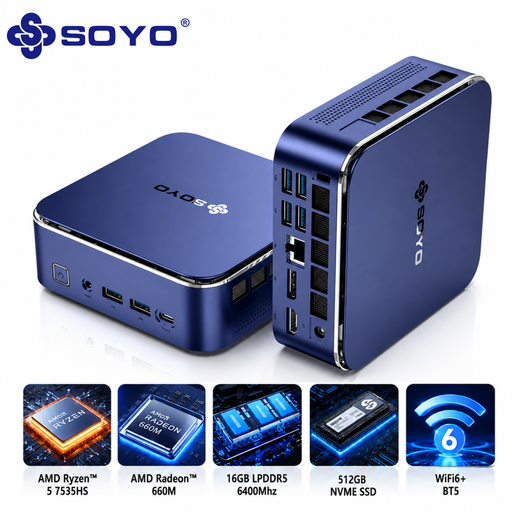 Image unavailable
SOYO S5Air Mini PC AMD Ryzen 5 7535HS
A compact Windows mini PC to consider for a shared workstation with a separate screen; check that its video connections work with the equipment in the classroom.
Windows 11 Pro; 16GB LPDDR5; 512GB NVME SSD.
View at Joybuy
 Image unavailable
SOYO M5 Mini PC AMD Ryzen 4300U
A mini PC to compare for a fixed workstation with a separate screen; make sure its connections suit the existing screen and presentation equipment.
W-11 Pro; 16GB LPDDR4; 512GB SSD; stated support for 4K 60Hz Triple Display.
View at Joybuy
 Image unavailable
MSI CUBI NUC AI 1UMG-005EU
A compact Windows mini PC to compare if you already have a suitable screen; check which ports your presentation set-up requires.
Intel Core Ultra 7 155H; 16GB DDR5-SDRAM; 1TB SSD; Windows 11 Pro.
View at Joybuy
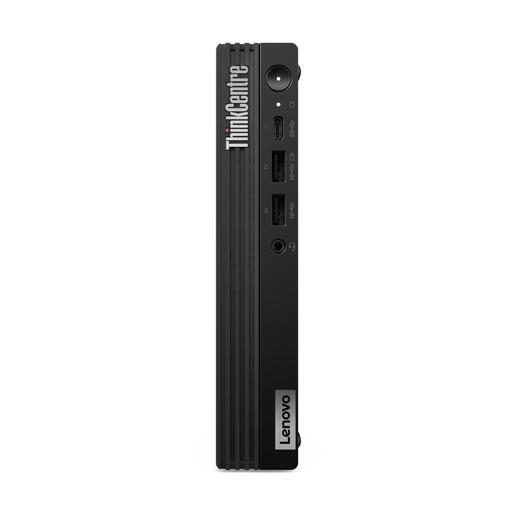 Image unavailable
Lenovo ThinkCentre M70q Gen 5
A compact Windows mini PC to consider for a desk with a separate screen. The screen and power adapter are not included, according to the product description.
Intel Core i7-14700T; 16GB DDR5-SDRAM; 512GB SSD; Windows 11 Pro.
View at Joybuy
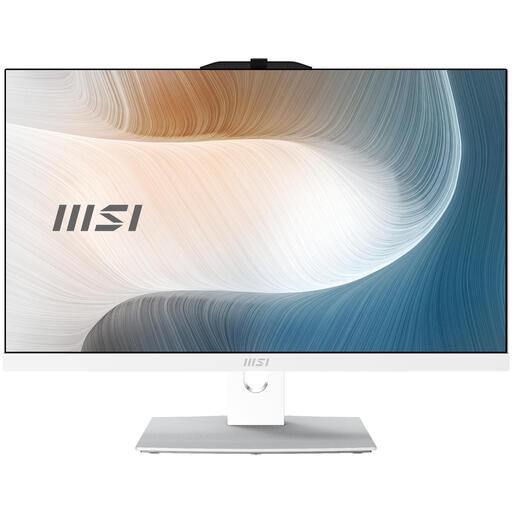 Image unavailable
MSI Modern AM242P 1M-1224EU All-in-One
An all-in-one to consider if you’re looking for a workstation with a built-in screen. Check that the screen output and included components suit the classroom set-up; according to the product description, the power adapter is not included.
Intel Core 5 120U; 23.8-inch Full HD screen; 8GB DDR5-SDRAM; 512GB SSD; Windows 11 Pro.
View at Joybuy
Frequently asked questions
Can everyone use the same Windows account?
If colleagues use the PC to process personal data, the school must prevent unauthorised access and manage access rights appropriately. Agree with your school’s IT team how users should sign in and out individually; the PC’s specifications don’t take care of this.
How do I connect the PC to the screen and presentation equipment?
Before buying, compare the outputs on the exact PC configuration with the inputs on the existing screen and the classroom equipment. Also work out which cable or adapter you’ll need: a stated number of video ports doesn’t mean every connection will fit straight away.
Does a mini PC include a screen and Microsoft 365?
Not necessarily. Lenovo states that the monitor and input devices are sold separately for the configuration reviewed. Also check whether the school already has a suitable licence for the Microsoft 365 apps you use.
What warranty and cooling-off period apply if the school buys the PC?
Consumer purchase rules don’t automatically apply to a business purchase: Ondernemersplein states that different warranty rules apply to sales to businesses and that there is no statutory consumer cooling-off period. For a private purchase, the Dutch government describes statutory warranty without a fixed Dutch warranty period. Check who is legally making the purchase and read the applicable sales and service terms.
Are there rules for working at this shared desk for long periods?
For employees, Arboportaal describes requirements for screen-based work and workstation set-up. If an employee works at a screen for more than two hours a day, the screen and keyboard must not be attached to each other. This is a conditional workplace requirement, not a general product specification for every buyer.


