What to consider when choosing
Start with the software and connections needed at the shared workstation. Then compare configurations and check what else you’ll need to arrange before getting started.
The percentages show which consideration consumers choosing a mini PC for lesson preparation at a shared desk rank as their top priority.
| Consideration |
What to check when buying |
Who it matters most to |
| Using lesson materials and programmes side by side |
Check which school applications you need, then compare the operating system, RAM and SSD in the full model specification. |
If I want to use lesson materials and several programmes, I first need to know whether the school software runs on my chosen system. Around 33% of consumers put their lesson workflow first when buying. |
| Keeping computer use separate |
Agree with the school who will set up user accounts and access rights, and what rules apply to pupil data. |
When colleagues take turns using the same PC, I want personal access and clear rules for files. Around 27% of consumers prioritise shared use. |
| Connecting to the existing desk setup |
Note the connections on your monitor, keyboard, mouse and other devices, then compare them with the exact PC specification. |
If I want to keep using my existing monitors and input devices, I first check that they connect directly. Around 20% of consumers put connections and the workstation first. |
| Setting up a complete workstation |
Check whether the operating system, RAM, SSD, power supply and necessary peripherals are included, and what support comes with the specification. |
When I want to use the computer without extra components or installation, I need to know in advance what’s included. Around 20% of consumers start by looking for a complete setup. |
Mini PCs at Joybuy
These Joybuy products are compact mini PCs for working at a shared desk; check the operating system and connections you need for each specification.
 Image unavailable
Lenovo Yoga Mini 01IPH11 Copilot+ PC
This Windows mini PC has a listed HDMI connection, which may suit a desk where you want to connect a monitor; check that it matches your screen.
Intel Core Ultra 5 325; 16 GB LPDDR5X; 512 GB SSD; Windows 11 Home; HDMI 2.1; 0.65-litre chassis; supports up to four independent displays.
Joybuy
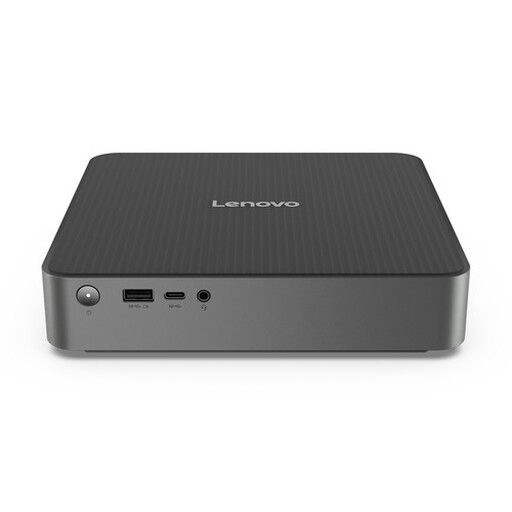 Image unavailable
Lenovo IdeaCentre Mini
The listed video and USB connections are useful if you want to connect your existing screens and devices; compare them with the connections at your desk.
Windows 11 Home; 16 GB DDR5; 512 GB SSD; HDMI 2.1, DisplayPort and Thunderbolt 4; 1-litre chassis; supports up to three independent displays.
Joybuy
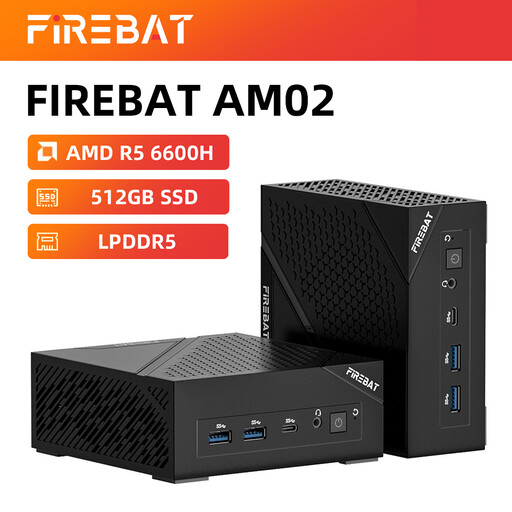 Image unavailable
FIREBAT AM02L
This Windows specification lists HDMI 2.1 and DisplayPort 1.4; check that these video outputs suit the monitor setup at your shared workstation.
AMD 6600H; 16 GB LPDDR5; 512 GB SSD; Windows 11 Home; HDMI 2.1 and DisplayPort 1.4.
Joybuy
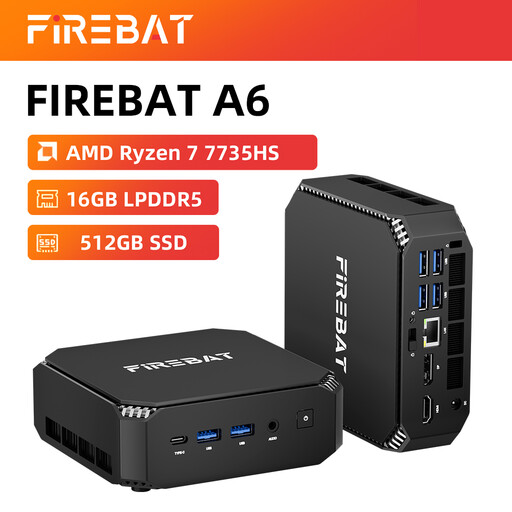 Image unavailable
FIREBAT A6 AMD Ryzen 7 7735HS
If you want to use multiple screens, check that the listed support for three displays works with your screens and cables.
16 GB RAM; 512 GB SSD; two M.2 slots; support for three displays; Wi-Fi 6.
Joybuy
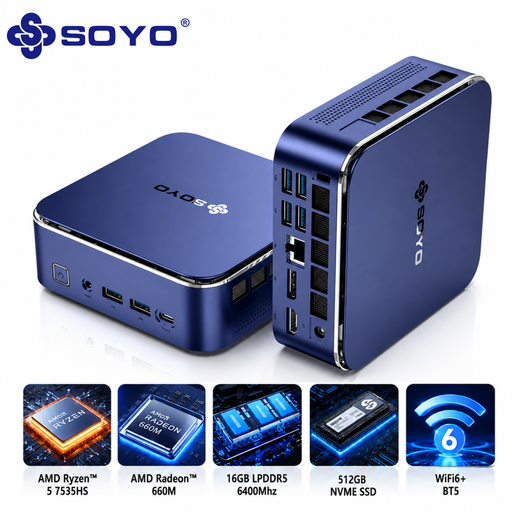 Image unavailable
SOYO S5Air AMD Ryzen 5 7535HS
The listed combination of USB and video outputs may be useful if you want to connect several devices at your desk; check which connections you actually need.
Windows 11 Pro; 16 GB LPDDR5; 512 GB SSD; HDMI 2.0, DisplayPort 1.4, Type-C and six USB 3.0 ports.
Joybuy
Frequently asked questions
Can colleagues use the same Windows mini PC without sharing one account?
Yes. Windows supports separate user accounts with their own settings and documents. Agree with the school who will manage accounts and access rights; separate accounts don’t replace rules on privacy and data.
What do I need to connect before I can work at the shared desk?
Compare your monitor and other devices with the connections on the exact mini PC specification, and check what’s included. For the Lenovo specification reviewed, Lenovo says the monitor, keyboard and mouse are optional; the Dell selection shown didn’t include a keyboard or mouse.
Is there automatically an exact two-year legal guarantee in the Netherlands?
No. According to the Netherlands Government, there is no fixed statutory guarantee period in the Netherlands. You’re entitled to a product that meets the required standard for as long as you can reasonably expect; if a product is faulty, the retailer is your point of contact. A manufacturer’s warranty is separate from this.
What rules apply if lesson materials contain pupils’ personal data?
If a school processes pupils’ personal data, it must be able to demonstrate, under the GDPR, the technical and organisational measures it takes to protect it. The Dutch Data Protection Authority warns about unauthorised access through digital education systems. Discuss the setup and access rights with the school; this doesn’t require one particular mini PC model.
Are there requirements for the setup if you work at a screen for long periods?
Arboportaal outlines rules on screen work for employees. If you work at a screen for more than 2 hours a day, the screen and keyboard must not be attached to each other. Assess the specific workstation with your employer, rather than considering the computer case alone.


