
Presenter with a fixed shared workstation
Looking for a small PC that works with the monitor, keyboard and presentation equipment already available, without an unnecessarily complicated setup.


Start by checking which screens and presentation equipment you want to connect to the shared desk. Then make sure the exact mini PC configuration has the operating system and software you need. A business configuration with an operating system pre-installed can save you time during setup. A model with the right ports may suit your setup better, but you may still need to arrange software, accessories or installation. If your presentations contain personal data, set up separate access permissions.
Looking for a small PC that works with the monitor, keyboard and presentation equipment already available, without an unnecessarily complicated setup.
Collaborates on shared presentations and needs to arrange storage and editing permissions as well as the computer. Microsoft Support explains how to co-author a presentation saved in OneDrive or SharePoint in Microsoft 365.
Shares a workstation where presentations may contain personal data and needs to restrict access by user. The Dutch Data Protection Authority stresses that unauthorised people must not be given access to personal data processed by an organisation.
| Consideration | What to check | Who is this important for? |
|---|---|---|
| Connections at the desk | Count the screens and compare their HDMI, DisplayPort or USB-C inputs with the ports on the exact configuration. Also check which cables and mounting hardware are included. | If I want to keep using my existing screens and presentation equipment, the connections need to suit my setup straight away. Around 33% of consumers put compatibility first. |
| Working on slides together | Check which presentation app you need and whether the team uses OneDrive or SharePoint in Microsoft 365 for the shared file. Microsoft Support explains how to co-author presentations saved there. | When colleagues are working on the same slides at the same time, I also consider shared storage and editing permissions. Around 25% of consumers prioritise collaborative editing. |
| Access to files | Work out who is allowed to access the PC and files, and how users will sign in. Set access permissions according to the data being processed. | If presentations contain personal data, I want to limit access to the people who need the files. Around 25% of consumers prioritise restricting access to confidential slides. |
| Setup and components | For each configuration, check the operating system, the presentation software you need and which monitors, mounting hardware, keyboard and mouse are available. | When I need a workstation that is ready to use, I want to know in advance which software and components I still need to arrange. Around 17% of consumers prioritise having a complete workstation. |
A configuration may come without an operating system pre-installed, while mounting hardware may be optional. Other configurations may include an operating system and certain accessories.
For the exact configuration, make a list of the software, screens and components you need at the shared desk.
Ports, operating systems and included components can vary between configurations. A product line name alone therefore won’t tell you whether a particular configuration suits your presentation setup.
Compare the full model and configuration details of the option you’re considering.
For presentations containing personal data, a general sign-in could give access to people who don’t need the files. The Dutch Data Protection Authority highlights the importance of organisations preventing unauthorised access.
Set up user accounts and file permissions according to who needs to use the presentations.
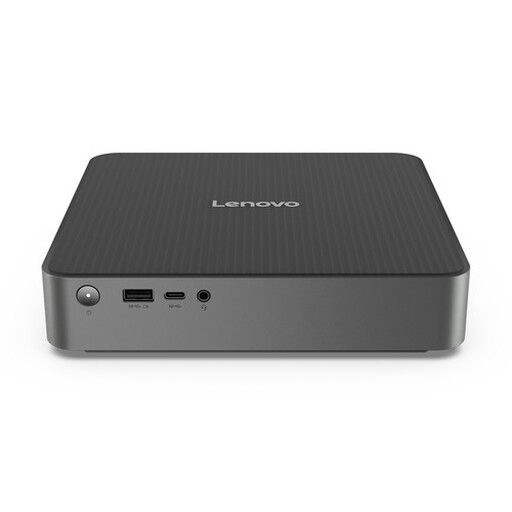
The ExpertCenter PN64 is a compact option to consider if ports and configuration are important to you.
The Pro Mini 400 G9 is a business mini desktop; the Dutch configuration reviewed comes with Windows 11 Pro.
The Dell Pro Micro is a configurable business micro desktop for a fixed workstation.
The ThinkCentre M70q Gen 5 Tiny is a compact business range with a choice of configurations in the Netherlands.
These Joybuy product picks are intended for a shared presentation workstation. Compare the listed display outputs, operating system and configuration with the equipment available and the software your team uses.
 No image available
An option to compare if you’re looking for a mini PC with Windows 11 and several video outputs.
The product information lists 8 GB memory, a 256 GB SSD, two HDMI outputs and Type-C video output. It also mentions Wi-Fi 5 and a gigabit Ethernet port.
 No image available
A mini desktop to consider for a compact workstation with multiple screens.
The product name lists Intel Core Ultra 5 325, 16 GB LPDDR5X, a 512 GB SSD and Windows 11 Home. The product information says it supports up to four screens.
 No image available
An option to compare if your workstation needs several display outputs.
The product information lists Windows 11 Home, 16 GB memory and a 512 GB SSD. It also mentions support for up to three independent displays.
 No image available
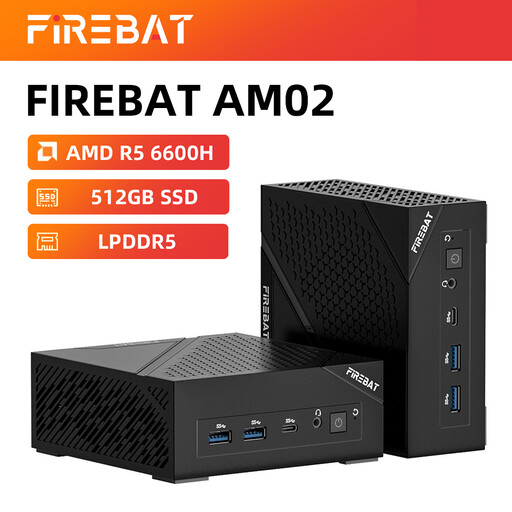
A model to compare if you need Windows 11 Home and both HDMI and DisplayPort outputs.
The product name lists 16 GB LPDDR5, a 512 GB M.2 NVMe SSD, HDMI 2.1 and DisplayPort 1.4. It also mentions Wi-Fi 6 and 2.5G Ethernet.
 No image available
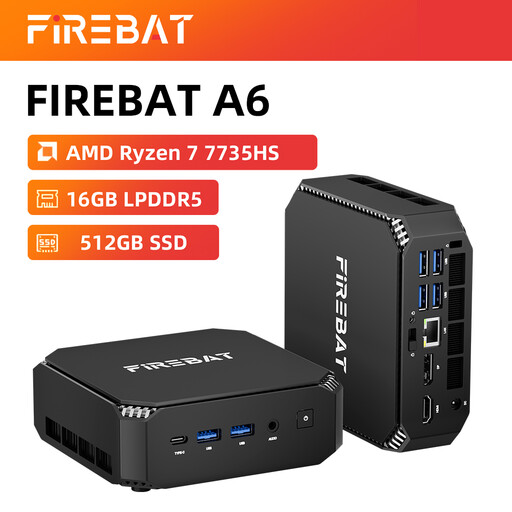
An option to compare for a shared workstation where multiple screens are used.
The product name lists 16 GB RAM, a 512 GB SSD and support for three screens. The product information also mentions dual M.2 slots and Wi-Fi 6.
No, the mini PC alone won’t set this up. Microsoft Support explains how to co-author a presentation saved in OneDrive or SharePoint in Microsoft 365. You’ll also need to check the app, accounts and editing permissions required.
That depends on the exact mini PC configuration and the monitor. ASUS says VESA mounting is optional for the PN64 configuration reviewed; check whether the mount is included with your chosen configuration and fits your monitor.
No. According to the Dutch government, there is no fixed statutory warranty period in the Netherlands: you’re entitled to a product that works properly, and if there’s a problem, the seller must provide a solution. A manufacturer’s warranty may be available in addition.
According to the Dutch government, when you buy from a business at a distance, you’ll often have a 14-day cooling-off period. Not every online transaction is covered, so check which terms apply to your purchase.
Yes, if the applicable harmonised EU rules require CE marking for the product. Check the conformity information for the specific configuration; a brand name or general product specification doesn’t confirm this automatically.