Start by working out how many VMs you want to run at the same time: add up their planned memory and storage, and leave capacity for the host too. A ready-to-use business mini PC takes up less space and is simpler to set up; a barebone gives you more choice over the components, while a larger desktop may offer more room for expansion if you have the space. Before buying, check the exact configuration and the requirements of your chosen hypervisor.
Who should consider these options?
Running several VMs at once
You’ll want to check in advance that your planned memory will be enough for both the host and the guest VMs running at the same time. Proxmox Server Solutions and Microsoft Learn set out the relevant requirements for their virtualisation solutions.
Working from home with a crowded desk
You want to test virtual machines without having a large tower on your desk, so you’re comparing the case, mounting options and space for cables. ASUS Netherlands and Lenovo Netherlands describe compact systems and placement options.
A home lab that can grow over time
You may need extra memory, VM drives or backup storage in the future, so you’re weighing up a barebone or larger desktop against the smallest possible case. ASUS Netherlands, MINISFORUM and Lenovo PSREF describe expansion options for specific products or ranges.
What should you look for when buying?
Ready-to-use mini PC
Choose this option: if space is limited and you want a system with memory, storage and an operating system already installed.
Consider: the included capacity may limit your VM plans, so check the exact configuration.
Mini PC barebone
Choose this option: if you want to select compatible memory and storage, and choose a host operating system yourself.
Consider: you’ll need to source and install the components separately, and check the regional power supply.
Small form factor desktop
Choose this option: if you expect to need more room for expansion and can place the computer next to or under your desk.
Consider: a larger case takes up more space, and features listed for a product range won’t necessarily apply to every configuration.
| What to consider |
What to look for when buying |
Who should pay particular attention? |
| Memory for running several VMs at once |
Add up the planned memory for guest VMs running at the same time, leave capacity for the host, and check the installed RAM and expansion options for the exact configuration. Proxmox Server Solutions recommends at least 2 GB for the system and services, in addition to memory for guest VMs. |
If I want to run several VMs at once, I want to know whether the host and guests will fit within the available memory. Around 36% of consumers prioritise memory for running several VMs at once. |
| Placing it on a small desk |
Measure the available space, including room for cables and connections. Also check whether the configuration you’ve chosen can be mounted behind a monitor and whether the necessary mounting hardware is included. |
If my desk is already full, I want to fit the computer in without overlooking cables or ventilation space. Limited desk space is the main concern for around 29% of consumers. |
| Compatibility with VM software |
Choose your hypervisor first, then check the requirements for the host and the guest VMs you plan to run. For Hyper-V, Microsoft Learn lists Windows 11 Professional or Enterprise, SLAT and enabled hardware virtualisation among the requirements. |
If I already know which host software I want to use, I want to check in advance that the computer and the supplied operating system version are compatible. Around 21% of consumers prioritise compatibility with VM software. |
| VM storage and future expansion |
Check the included SSD, available drive bays and expansion options for the exact configuration. Plan separate backups: Microsoft Learn does not describe a standard checkpoint as a full backup. |
If my virtual drives grow, I want to be able to add more space and keep important data separately. Around 14% of consumers make storage growth their top priority when buying. |
Common pitfalls
-
Assuming a high core count means there’s enough capacity for your VMs
The host and guest VMs running at the same time also use memory. A processor name alone won’t tell you whether your planned VMs will fit within the available RAM.
Before buying, list the guest VMs that will be running at the same time and how much memory you plan to allocate to each. Then check the RAM actually installed and the expansion options.
You may need a configuration with more memory if your planned use exceeds the included RAM.
-
Comparing a barebone with a complete PC
According to ASUS, the ASUS NUC 14 Pro Kit is supplied without a pre-installed operating system, memory or storage. Factor in the components you’ll need to source separately, as well as installation.
Check what’s included with the exact configuration and whether the regional power cable is suitable for your setup.
You’ll need to source and install the memory, an SSD and, if required, an operating system yourself.
-
Assuming snapshots can replace VM backups
Microsoft Learn does not describe a standard checkpoint as a full backup. Relying on one alone could mean you don’t have a separate copy of important VM data.
Plan separate backups for any VMs whose data you want to keep.
You’ll need a separate storage location or backup solution.
Brands to compare
Lenovo
ThinkCentre Tiny for a small desk; ThinkCentre M90s Gen 5 as a larger option with more room for expansion.
- For the Dutch ThinkCentre M70q Gen 5 configuration 12TD0017MH, Lenovo Netherlands lists Windows 11 Pro, 16 GB RAM and a 512 GB SSD. Lenovo also describes mounting it behind a monitor.
- Lenovo PSREF lists up to four DIMM slots and support for multiple drives for the M90s Gen 5 range. These range specifications won’t necessarily apply to every configuration.
ASUS
NUC 14 Pro as a compact barebone you can configure yourself.
- ASUS Netherlands specifies two SO-DIMM slots and two M.2 slots for the NUC 14 Pro Kit.
- According to ASUS, memory, storage and a pre-installed operating system are not included. Check the regional power cable too.
HP
Elite Mini 800 G9 as a business mini desktop; the specifications shown are for the specific Dutch configuration.
- For configuration 622W3ET#ABH, HP Netherlands lists Windows 11 Pro, 16 GB RAM and a 512 GB SSD.
- These configuration details won’t necessarily apply to other Elite Mini models. Check the exact product code and specification.
MINISFORUM
UM790 Pro, available as a barebone or in configurations with memory and storage.
- MINISFORUM specifies two SO-DIMM slots and two M.2 2280 SSD slots for the UM790 Pro.
- One listed retail configuration comes with a US adapter; don’t assume this tells you which power supply or plug is included with a Dutch configuration.
Compact PCs at Joybuy
These Joybuy products are compact mini PCs for workspaces where space is limited. Focus on comparing the RAM, storage and included operating system version with your own VM plans.
 No image available
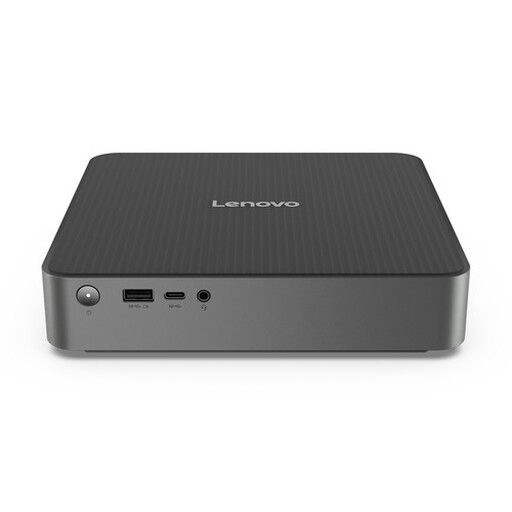
Lenovo Yoga Mini 01IPH11 Copilot+ PC
A compact option if space is limited. Check that the memory and storage are suitable for the VMs you want to run at the same time.
Intel Core Ultra 5 325, 16 GB LPDDR5X, 512 GB SSD and Windows 11 Home. For Hyper-V, Microsoft Learn lists Windows 11 Professional or Enterprise as a required edition.
Joybuy
 No image available
Lenovo IdeaCentre Mini
A compact desktop to compare if desk space is limited. Check that the listed memory capacity suits your VM plans.
Intel Core 5 210H, 16 GB DDR5 memory and a 512 GB PCIe 4.0 NVMe SSD.
Joybuy
 No image available
SOYO M5 Mini PC
A small mini PC to compare if you’re looking for a compact setup. Check that the installed capacity is sufficient for the host and your planned guest VMs.
AMD Ryzen 4300U, 16 GB LPDDR4, 512 GB SSD and Windows 11 Pro.
Joybuy
 No image available
FIREBAT F1 Mini PC
Compare this configuration with your VM plans and check that the listed memory and storage suit the number of guest VMs you’ll be running at the same time.
AMD Ryzen 5 7640HS, 24 GB LPDDR5 memory and a 512 GB PCIe 4.0 SSD.
Joybuy
 No image available
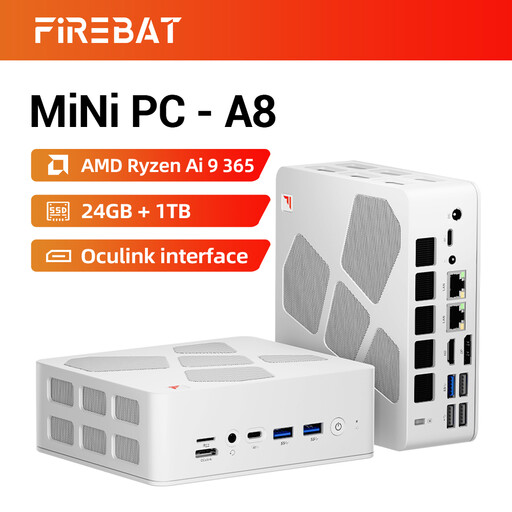
FIREBAT A8 Mini PC
A compact configuration to consider if you’re planning storage for VMs. Also check that the RAM is suitable for the host and guest VMs you’ll run at the same time.
AMD Ryzen AI 9 365, 24 GB DDR5 memory and a 1 TB PCIe 4.0 SSD.
Joybuy
Frequently asked questions
Can I use Hyper-V on a mini PC running Windows 11 Home?
Microsoft Learn lists Windows 11 Professional or Enterprise as the editions on which Hyper-V can be enabled. Also check for SLAT and make sure hardware virtualisation is enabled in UEFI or BIOS; seeing Windows 11 listed on its own doesn’t tell you which edition is included.
What do I need to install myself with a barebone?
Check what’s included with the exact configuration. ASUS states that the NUC 14 Pro Kit has no pre-installed operating system, memory or storage, so you’ll need to source and install those separately. Check the regional power cable too.
How do I back up my VMs?
Plan a separate backup for any VMs whose data you want to keep. Microsoft Learn warns that a standard checkpoint isn’t a full backup.
What statutory guarantee and cooling-off period apply to online purchases in the Netherlands?
According to ACM ConsuWijzer, the seller remains responsible for the statutory guarantee if a product doesn’t meet what you could reasonably expect under normal use; this guarantee isn’t automatically limited to two years. Online purchases generally come with a cooling-off period of up to 14 days after delivery, subject to statutory exceptions. Also check the terms of any separate manufacturer’s or seller’s guarantee.


