Choose a mini PC that suits your development software, operating system and planned displays. You can tackle glare mainly by adjusting the position of your screen and, if necessary, using blinds or curtains. Then compare the exact memory, storage and supply configuration: a complete PC requires less installation work than a kit. Before buying, also check that the specific version has the required CE marking.
Who is this buying guide for?
Programmer working beside a bright window
You’re looking for a compact, permanent workstation, but screen readability and glare are your main concerns. Arboportaal advises positioning your line of sight parallel to the window where possible when working at a screen. Consider blinds or curtains separately from your choice of PC.
Developer using multiple screens
You want to view code, documentation and output side by side. Check the display support and ports on the exact version of the mini PC, as well as the connections on your monitors.
Developer who wants to get started straight away
You want to know in advance whether memory, storage and an operating system are included, so you can work out whether you’re buying a complete PC or will need to install additional components.
What should you look for?
Glare, software requirements, display connections and what’s included can all influence your choice. Start with the factor that matters most for your workstation.
| What to consider |
What to look for when buying |
Who is this important for? |
| Readability in daylight |
Plan where to position your screen in relation to the window and consider whether you need blinds or curtains. Assess your screen set-up separately from the mini PC. |
If you read code beside a bright window, you’ll want to reduce reflections on the screen; around 33% of consumers prioritise a readable workstation. |
| Capacity for your workflow |
Compare the installed RAM, storage and operating system with your development environment and the tasks you run at the same time. |
If your software or projects have specific requirements, you’ll want to know whether the configuration is suitable; around 27% of consumers prioritise their own development workflow. |
| Monitor connections |
Check the number of displays supported at the same time and the video outputs on the exact version. Compare these with the inputs on your monitors. |
If you want to spread code and documentation across several screens, you’ll need to know whether your monitors will actually connect; around 20% of consumers prioritise their screen set-up. |
| Complete configuration |
Check the full model number and see which components, storage and software are included. |
If you want to get set up as soon as your PC arrives, you’ll want to know in advance whether it’s complete or requires additional components and installation work; around 20% of consumers make being ready to use their top priority. |
Common buying mistakes
-
Buying a more powerful mini PC to solve window glare
A more powerful computer won’t change the light falling on your screen. Arboportaal treats glare as a matter of screen positioning and blinds or curtains.
First, decide where to position your screen in relation to the window and consider whether you need blinds or curtains. Then choose a mini PC based on your software and screen connections.
-
Assuming a barebone kit is a complete PC
A kit may differ from a complete system because it doesn’t include memory, storage or a pre-installed operating system.
Compare the full model number and check what’s included before deciding how much installation and set-up you’re prepared to do yourself.
-
Assuming the maximum number of displays will work with your monitors
Display support and ports vary by model or version. A stated maximum doesn’t guarantee that your monitors and cables will connect.
Compare the video outputs on the exact version with the inputs on your monitors. If necessary, allow for a suitable cable or a different screen set-up.
Brands to consider for this choice
Apple
The Mac mini could be a good fit if your development tools run on macOS and you’ve checked support for the external displays you plan to use.
- For the M6 base configuration described, Apple Netherlands lists 16 GB of unified memory and a 256 GB SSD.
- Check that your software runs on macOS and that the storage suits your projects. Display support won’t prevent glare.
Lenovo
The ThinkCentre M75q Gen 5 is an example of a business Windows mini PC with a specified configuration.
- For version 12RQ004MEZ, Lenovo Netherlands lists Windows 11 Pro, 16 GB DDR5 and a 512 GB SSD.
- Lenovo says the product line supports up to three displays; check the ports on your chosen version and the connections on your monitors.
ASUS
According to ASUS, the NUC 14 Pro line includes both complete mini PCs and kits.
- The product line offers different configurations to compare.
- Some kits are supplied without a pre-installed operating system. Check the full model number, processor and included components.
GEEKOM
The A8 is an example of a compact mini PC line with several model versions.
- For the A8, GEEKOM lists features including two HDMI ports and DDR5 SODIMM memory.
- Specifications may vary by version; check the full model and the terms that apply to the specific offer.
Joybuy products for a compact development workstation
These compact mini PCs are options to compare for a permanent programming workstation. Also check that the specific version has the required CE marking: the Government of the Netherlands states that electronic devices in the EU must have a CE marking.
 Image unavailable
Lenovo Yoga Mini 01IPH11 Copilot+ PC
An option to compare if you’re looking for a compact mini desktop for a permanent workstation.
The product title lists an Intel Core Ultra 5 325, Windows 11 Home, 16 GB LPDDR5X and a 512 GB SSD.
The product description states that it supports up to four independent displays; check that the connections are suitable for your monitors.
View at Joybuy
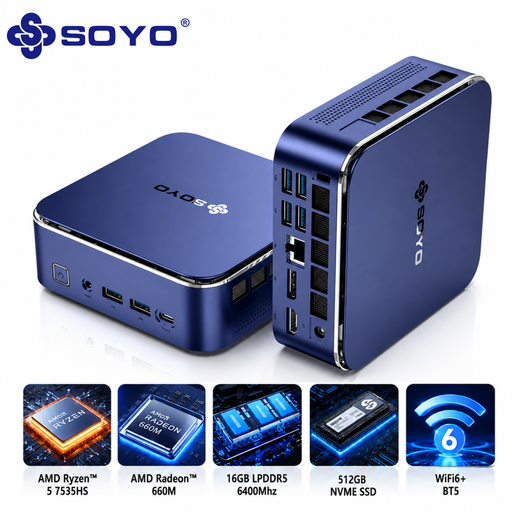 Image unavailable
SOYO S5Air Mini PC
Compare this version if you’re looking for a mini PC with a Windows configuration for a permanent workstation.
The product title lists an AMD Ryzen 5 7535HS, Windows 11 Pro, 16 GB LPDDR5 and a 512 GB NVMe SSD.
The product description lists HDMI 2.0, DisplayPort 1.4 and Type-C video output; check which connections your displays require.
View at Joybuy
 Image unavailable
SOYO M5 Mini PC
An option to compare if you want to set up a permanent workstation with multiple displays.
The product title lists an AMD Ryzen 4300U, Windows 11 Pro, 16 GB LPDDR4 and a 512 GB SSD.
The title lists a three-display set-up of up to 4K 60 Hz, with HDMI 2.0, Type-C and DP 1.4 connections.
View at Joybuy
 Image unavailable
FIREBAT R3 Mini PC
A compact mini PC to compare for a permanent development workstation; check that the version suits your software.
The product title lists an AMD Ryzen 5 7430U, 16 GB RAM, a 512 GB SSD and support for three 4K displays.
Check the full product information for the operating system and video outputs on the version you’ve chosen.
View at Joybuy
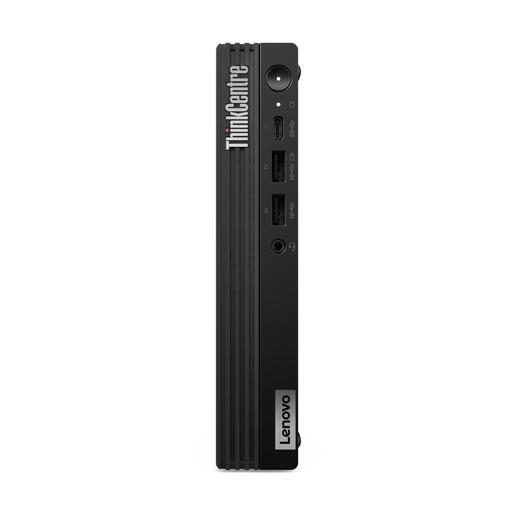 Image unavailable
Lenovo ThinkCentre M70q Gen 5
Compare this business mini PC if you’re looking for a specified Windows configuration for a permanent workstation.
The product title lists an Intel Core i7-14700T, Windows 11 Pro, 16 GB DDR5 and a 512 GB SSD.
The product description lists one DisplayPort 1.4a and one HDMI port. It also states that the power adapter isn’t included and must be bought separately.
View at Joybuy
Frequently asked questions
Will a faster mini PC reduce glare from the window?
No. Glare is a matter of your screen and workstation set-up. If it’s a problem, Arboportaal advises positioning your line of sight parallel to the window where possible and using suitable blinds or curtains.
Can I install my development environment as soon as the PC arrives?
That depends on the version and your software requirements. ASUS also lists kits without a pre-installed operating system in the NUC 14 Pro line, so check what’s included and the requirements of your development environment.
What should I check about the CE marking?
Check that the specific version on offer has the required CE marking. The Government of the Netherlands states that electronic devices in the EU must have a CE marking; the language used by a web shop alone doesn’t prove that a version complies with the relevant rules.
What can I do if the mini PC doesn’t meet the terms of the sales contract?
According to the Government of the Netherlands, you’re entitled to a product that works properly and can contact the seller if there’s a problem. The Netherlands doesn’t have one fixed statutory guarantee period for all products; any manufacturer’s warranty doesn’t replace your legal right to a product that works properly.
Do I have a cooling-off period when I buy online?
For a standard online product purchase, you generally have a statutory cooling-off period of up to 14 days after delivery, according to ACM ConsuWijzer. Check the terms and any exceptions that apply to your order.


