
Newsletter editor who works with lots of windows
While writing, you switch between sources, email and documents. So check the installed memory and storage, and compare them with the requirements of the programmes you use.


For writing, email and light office work, choose a complete mini PC that’s compatible with the monitor and input devices at your shared desk. If you use several programmes at once or regularly edit images, pay particular attention to the installed memory and storage. With a barebone, you’ll need to source and install the components yourself. Also check the ports and access settings for work files.
While writing, you switch between sources, email and documents. So check the installed memory and storage, and compare them with the requirements of the programmes you use.
You want to connect the mini PC to the equipment already there and keep work files secure. Check the ports and agree appropriate accounts and access permissions; the Dutch Data Protection Authority stresses that personal data must not be accessible to unauthorised people.
If you regularly work with images or larger files as well as text, check that the memory and storage configuration suits your software and files. The Consumers’ Association cites 16 GB of memory as a useful guide for more demanding laptop use; it’s not a performance guarantee for every mini PC or application.
First, work out which programmes and files you use at the same time. Then compare the installed components and connections with the equipment already at the shared desk.
| What to consider | What should you check? | Who is this important for? |
|---|---|---|
| Switching between writing tasks | Check the installed RAM and storage, and compare them with your programmes’ requirements. | If you keep lots of sources, emails and documents open while editing, you’ll want to know exactly what the configuration includes. Around 36% of consumers in this choice context put multitasking first. |
| Connecting to a shared desk | Compare the HDMI, DisplayPort or Thunderbolt connection and USB ports with your monitor and peripherals. | If you want to use the existing equipment and keep work files secure, consider both the connections and access permissions. For consumers whose main priority is a shared workspace, this is the top consideration; they make up around 29%. |
| Space for images and layout work | Check your layout software’s requirements and the installed storage; distinguish between installed memory and the maximum supported memory. | If you regularly work with images or larger files stored locally, you’ll want to match the configuration to your workflow. Around 21% of consumers prioritise image layout and file storage. |
| Buying a complete system | Check whether the operating system, RAM, SSD and any necessary peripherals are included. | If you want to get started without installing components yourself, check exactly what’s in the box. Around 14% of consumers are mainly looking for a complete system. |
According to ASUS, the ASUS NUC 14 Pro Kit is supplied without a pre-installed operating system, memory or storage. So the Kit isn’t the same as a complete configuration.
Check the exact model and which components you’ll still need to choose and install before comparing it with a complete mini PC.
For the Lenovo ThinkCentre neo 50q Gen 5 configuration mentioned, the monitor, keyboard and mouse are optional and sold separately.
Compare what’s in the box with the equipment already available at the shared desk.
The maximum memory capacity doesn’t tell you how much RAM the configuration on offer already includes.
Check the installed memory for the exact model, and separately confirm how much it can be upgraded if necessary.
The ThinkCentre neo 50q Gen 5 13B9009EEZ is an example of a complete business-class Tiny PC configuration.
The NUC 14 Pro is available as both a mini PC and a Kit; check which version is actually on offer.
The HP Pro Mini 400 G9 6D494EA#ABH is an example of a business configuration with Windows 11 Pro.
The Cubi 5 12M range includes compact PCs with HDMI and DisplayPort; specifications vary between configurations.
This selection focuses on mini PCs with memory and SSD storage for editing and layout work at the same time. Check each configuration to make sure its connections and included components suit your shared workspace.
 No image available
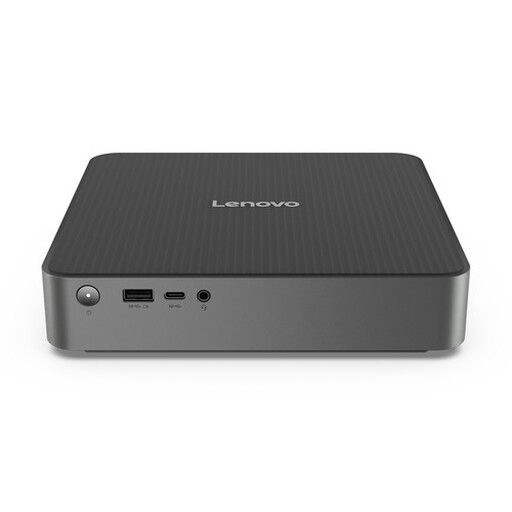
Suitable for a workflow involving several programmes and files stored locally.
Intel Core Ultra 5 325, 16 GB LPDDR5X, 512 GB PCIe 4.0 SSD and Windows 11 Home.
 No image available
Worth considering if you use several programmes and want to keep files stored locally.
16 GB DDR5 memory, 512 GB SSD and Windows 11 Home. Listed connections include HDMI, DisplayPort and Thunderbolt 4.
 No image available
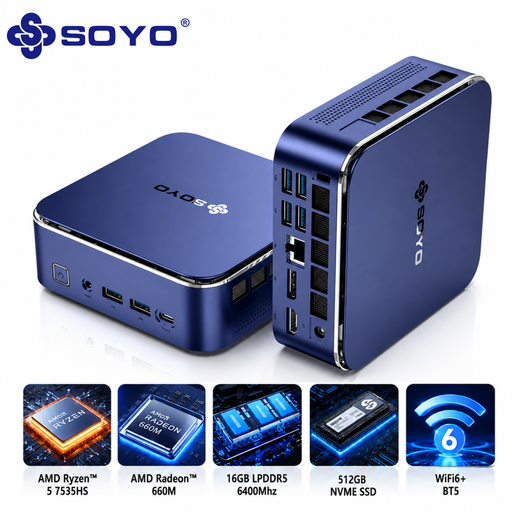
The listed memory and storage configuration is suited to working with several tasks at once and keeping files locally.
16 GB LPDDR5, 512 GB NVMe SSD and Windows 11 Pro. Listed connections include HDMI, DisplayPort, USB-C and six USB 3.0 ports.
 No image available
A configuration to compare if you use several applications and documents.
16 GB RAM, 512 GB SSD, Wi-Fi 6 and support for three monitors.
 No image available
The listed 24 GB RAM may be useful if you combine several programmes with layout work; check your software’s requirements too.
24 GB LPDDR5 RAM, 512 GB PCIe 4.0 SSD and Radeon 760M graphics. Listed connections include USB 4.0 and HDMI 2.1; the product name specifies output for three monitors.
If you want to get started straight away, check whether the operating system, RAM and SSD are already installed. ASUS supplies the NUC 14 Pro Kit without these components, so don’t treat the Kit as the same configuration as the complete mini PC.
Compare the connections on the exact configuration with the monitor and peripherals available. If your organisation processes personal data, make sure access permissions and any multi-factor authentication are appropriate for the working environment; the Dutch Data Protection Authority stresses that unauthorised people must not be given access.
Agree how work files will be stored and backed up, and check the service terms for the specific configuration. A manufacturer’s service offer is separate from your statutory rights against the seller.
When you buy as a consumer, you’re entitled to a product that conforms to the contract; according to the Dutch government, there’s no fixed statutory warranty period in the Netherlands. Online consumer purchases generally come with a 14-day cooling-off period. Consumer rules don’t automatically apply to purchases made by a business, as Business.gov.nl explains.
According to Business.gov.nl, electrical and electronic equipment sold in the Netherlands must meet the relevant European requirements. For the specific mini PC and adapter, check which product information and documentation apply.