Start by checking the video outputs on the exact mini PC configuration and making sure they work with both your screens. Then check which Linux distribution is supported on that specific hardware. A complete PC generally needs less preparation than a barebone, but neither option guarantees that both your screens and all the components will work with your Linux installation.
Who is this buying guide for?
Linux beginner with two screens
You want to install and explore Linux without having to guess in advance whether both screens can be connected. So check the video outputs on the exact configuration and support for your chosen distribution. Lenovo and Canonical document specific connections and a particular certified configuration.
Builder who also wants to learn about hardware
You want to choose your own memory and storage, and don't mind installing components before setting up Linux. ASUS states that the NUC 14 Pro Kit is supplied without memory or storage.
Space-conscious home user
You’re looking for a compact PC to learn on and want to compare display outputs, placement and how much preparation is needed. Lenovo and MSI list different connection options, so check which ones suit your screens.
What should you look for when buying?
Configuration with Linux documentation
A good fit if: you want to spend less time checking hardware support and the documented distribution matches your plans.
Bear in mind: support or certification for one configuration doesn’t automatically apply to other versions, distributions or two connected screens.
Barebone or PC without an operating system
A good fit if: you also want to learn how to choose and install memory, storage and software.
Bear in mind: a kit without memory or storage isn’t ready to set up straight away; also check whether a power cable is included.
Compact PC with HDMI and DisplayPort
A good fit if: your screens have compatible connections and you’re looking for a compact computer to learn on.
Bear in mind: having the right connections doesn’t prove that a specific configuration will work with your Linux distribution. Check the full model number.
| What to consider |
What to look for when buying |
Who is this important for? |
| Connecting two screens |
Compare the HDMI, DisplayPort or video-capable USB-C outputs on the exact configuration with both screens and the cables you need. |
I want to connect both screens separately and avoid discovering later that a port only transfers data. Around 36% of consumers give compatible connections for two screens top priority. |
| Linux on the exact hardware |
Check the distribution and version, processor, graphics hardware and network module of the configuration on offer. |
I mainly want to practise using Linux and find out in advance which documentation applies to my specific hardware. Around 29% of consumers prioritise support for their chosen Linux configuration. |
| Ready to use or build it yourself |
Check whether memory, storage, a power cable and an operating system are included with the full model number. |
I want to choose the components myself as part of the learning project, or get started with installation quickly. Around 21% of consumers name building it themselves or being able to get started straight away as their top priority. |
| Complete purchase and help if something goes wrong |
Compare complete configurations and check which components are included. Also review the applicable returns policy and your statutory rights. |
I want to know in advance whether the configuration is complete and who to contact if something goes wrong. Around 14% of consumers prioritise a complete purchase and after-sales support. |
Common buying mistakes
-
Assuming every USB-C port can drive a screen
A USB-C connection may only transfer data. Lenovo specifies the front USB-C port on the ThinkCentre M75q Gen 5 as a data connection; that doesn’t mean it supports video output.
For each port, check the full model’s specifications for explicit video support and compare them with both screens.
If the connection isn’t compatible, you may need a different cable or configuration.
-
Treating a barebone as a complete PC
ASUS specifies that the NUC 14 Pro Kit doesn’t include memory or storage; some SKUs may also be supplied without a power cable.
Check what’s in the box for the exact configuration and get any additional components you need before you start setting it up.
You’ll need to source any missing memory, storage and, if necessary, a power cable separately.
-
Assuming support for a product family means every configuration is certified
Canonical lists a certified ThinkCentre M75q Gen 5 configuration with a Ryzen 5 PRO 8500GE and specific Wi-Fi hardware. Lenovo also offers other configurations in the product family.
Compare the full model number and relevant components with the documentation for your Linux distribution.
Brands to consider
Lenovo
The ThinkCentre M75q Gen 5 Tiny is a compact PC worth comparing if you want to check its connections and a specific Ubuntu-certified configuration.
- Lenovo specifies HDMI and DisplayPort 1.4a. Canonical lists a certified configuration with Ryzen 5 PRO 8500GE and specific Wi-Fi hardware.
- That certification doesn’t automatically apply to other configurations in the product family.
ASUS
The NUC 14 Pro is worth comparing if you want to choose between a configuration with components included and a kit you assemble yourself.
- ASUS lists Ubuntu 24.04 LTS support for the product line and two HDMI outputs.
- The kit is specified without memory or storage. Check the exact configuration and box contents; information about the product line doesn’t prove that every configuration is the same.
MSI
The Cubi N ADL family is an option to compare for its display outputs and compact case.
- MSI specifies HDMI, DisplayPort and USB-C with DisplayPort Alt Mode.
- The family specifications list Windows configurations; check Linux support for the full model number.
Dell
The Pro Micro QCM1250 is a compact PC to compare with configurations that have Linux-focused documentation.
- Dell lists the model on its Dutch product page.
- For your chosen configuration, check Linux support and the connections you need for both screens.
Mini PCs at Joybuy
These mini PCs are worth comparing for Linux practice with two screens. For each model, check its video outputs and whether the specific hardware is suitable for the Linux distribution you want to use.
 No image available
SOYO Y5Pro mini PC, Intel Core i5 8250U/8350U, 8GB DDR4, 256GB SATA SSD
The product information lists HDMI and Type-C video outputs to compare if you want to connect two screens. Check the Type-C port’s supported output for your screen.
The title lists Windows 11, 8GB DDR4 and a 256GB SATA SSD.
View at Joybuy
 No image available
NVIDIA DGX Spark Founders Edition, NVIDIA GB10, 128GB RAM, 4TB SSD, NVIDIA DGX OS
The product information lists HDMI and USB-C for multi-monitor configurations. Check the video output of the specific USB-C port and whether the operating system suits your Linux learning goals.
The title lists 128GB RAM, a 4TB SSD and NVIDIA DGX OS.
View at Joybuy
 No image available
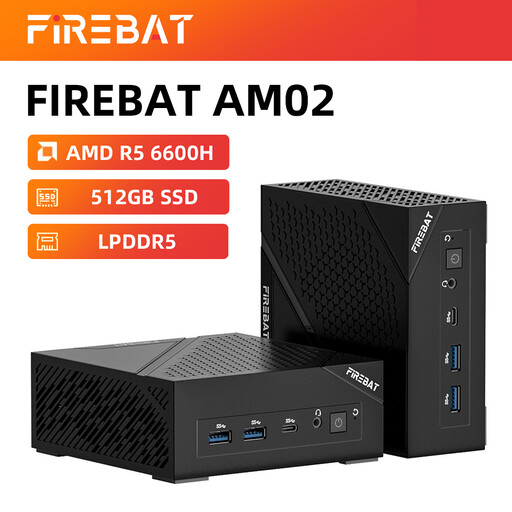
FIREBAT AM02L mini PC, AMD 6600H, 16GB LPDDR5, 512GB NVMe SSD
HDMI 2.1 and DisplayPort 1.4 are listed in the title, so you can compare the connections with those on your two screens.
The title lists Windows 11 Home, 16GB LPDDR5 and a 512GB M.2 NVMe SSD; check Linux support for this configuration.
View at Joybuy
 No image available
FIREBAT R3 mini PC, AMD Ryzen 5 7430U, 16 GB RAM, 512 GB SSD
The title lists 4K Triple Display support; compare the actual outputs with the connections on both screens.
The title lists 16 GB RAM, a 512 GB SSD and Wi-Fi 6. Also check whether the Linux distribution you want to use is suitable for this configuration.
View at Joybuy
 No image available
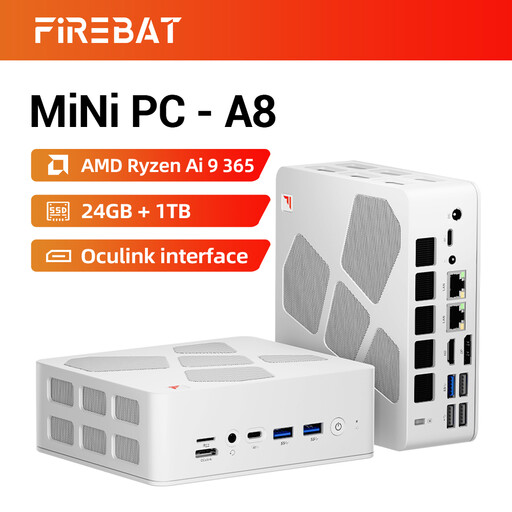
FIREBAT A8 mini PC, AMD Ryzen AI 9 365, 24 GB DDR5, 1 TB PCIe 4.0 SSD
The title lists quad-display support and HDMI 2.1; check which outputs can be used with your two screens.
The title lists 24 GB DDR5, a 1 TB PCIe 4.0 SSD, USB4 and Oculink. Check Linux support for the exact configuration.
View at Joybuy
Frequently asked questions
Are two USB-C ports enough for two monitors?
Not unless you check that both ports support video output. ASUS lists DisplayPort via the NUC 14 Pro’s Thunderbolt 4 ports; Lenovo specifies the M75q Gen 5’s front USB-C port for data only. Compare the ports on the exact configuration with your screens.
Can I try Linux before replacing my existing installation?
Yes. According to the Linux Mint installation guide, you can start a live session from a USB stick, where changes aren’t saved permanently to your existing installation. You can use it to test the screens and other features on your hardware; the guide says that a live session runs more slowly than an installation on internal storage.
Who should I contact about a faulty product, and how do online returns work?
According to the Dutch government, if a product is faulty, the seller must provide a solution; the manufacturer’s guarantee is in addition to your statutory warranty. ACM ConsuWijzer states that for a standard online consumer purchase, the statutory cooling-off period generally ends 14 days after delivery. Terms and exceptions may apply.
Does a mini PC sold in the Netherlands need a CE marking?
For electrical and electronic equipment covered by the relevant EU product rules, the Dutch government describes CE marking as a product requirement. The marking is not a Linux or dual-monitor certification. Check the information for the specific configuration you want to buy.


