
Linux beginner
Wants to explore a Linux desktop and values a straightforward start and support for their chosen configuration.


If you want to get started with Linux straight away, a pre-installed system means less setup; with a barebone, you can choose the components yourself and practise installing the system. If you’ll also use the mini PC for everyday work at home, check Linux support for the exact configuration and version, as well as the memory, storage and connections you need.
Wants to explore a Linux desktop and values a straightforward start and support for their chosen configuration.
Wants to use the same compact computer for everyday office tasks, so also considers memory, storage, networking and display connections.
Wants to practise choosing or installing components, and is comparing a barebone with a complete mini PC.
First decide how much installation and configuration work you want to do yourself. Then check whether the specific model suits your home workspace and what you want to learn with Linux.
Choose this if: you mainly want to start practising with Linux quickly and would rather not begin by installing it yourself.
Consider: check which distribution and components are included with your order. Pre-installation is not the same as independent testing of every version.
Choose this if: you want to use one computer for working from home and installing Linux yourself.
Consider: an included operating system or certification for a different version does not prove that your configuration and Linux version are compatible.
Choose this if: you also want to learn how to choose memory and storage components and install a system.
Consider: some kits don’t include memory or storage, so check in advance what else you’ll need.
| What to consider | What to look for when buying | Who is this important for? |
|---|---|---|
| Linux support | Compare the full configuration and the intended distribution and version with the documentation. If possible, try a live USB session first. | If you want to get started with a usable Linux desktop without too much research, you’ll want to know whether the specific version you’ve chosen is suitable; around 33% of consumers make support their top priority. |
| Everyday work from home | Check the amount of memory and storage included, along with the display, USB and network connections your workspace needs. | If you use the same PC for work and practising Linux, suitable connections and components will be useful; around 27% of consumers put their everyday home workspace first. |
| More advanced experiments | Decide whether development or virtualisation is part of your learning plan, then check the configuration and upgrade options. Lenovo recommends 16 GB or more for more demanding applications, but this isn’t a general requirement. | If you want to explore development work or virtualisation as well as using the desktop, focus on whether the system has enough capacity for these activities; around 20% of consumers make more advanced Linux experiments their top priority. |
| Building your own system | Check whether the chosen version includes memory, storage and an operating system, and which components you’ll need to choose yourself. | If you want to select the components yourself and learn how to install the system, you’ll want to know what’s in the box beforehand; around 20% of consumers put building their own system and the included contents first. |
Ubuntu lists specific configurations; components and supported software versions can vary between versions.
Compare the full configuration being sold with the documentation for your intended distribution, and try essential components with a live USB first if possible.
An ASUS NUC 13 Pro kit may not include memory and storage, whereas a complete PC may include both.
Check what’s included with the version you’ve chosen. If a kit doesn’t include memory or storage, remember that you’ll need to buy those components separately.
An installation option that erases the drive can delete the data stored on it.
Back up your files first, then decide whether to try Linux, install it alongside an existing system or erase the drive.
The ASUS NUC 13 Pro is available as a complete mini PC or as a kit for choosing your own components and operating system.
The Pro Mini 400 G9 is a business mini PC; Canonical lists certain configurations in its Ubuntu certification catalogue.
The ThinkCentre M70q Gen 5 Tiny is an option for a permanent, compact home workspace; Canonical lists a configuration in its Ubuntu certification catalogue.
TUXEDO describes the Nano Pro Gen14 as a configurable Linux mini PC with upgradeable memory and storage.
These Joybuy products include complete mini PCs for installing Linux yourself, as well as barebones you can configure to suit your needs.
 Image unavailable
A complete mini PC to consider if you want to install Linux yourself and also use the computer for working from home.
The product name lists 16 GB RAM, a 512 GB SSD, Wi-Fi 6 and Bluetooth 5.2.
The product name lists support for three 4K displays; check that the connections suit your screens and intended Linux installation.
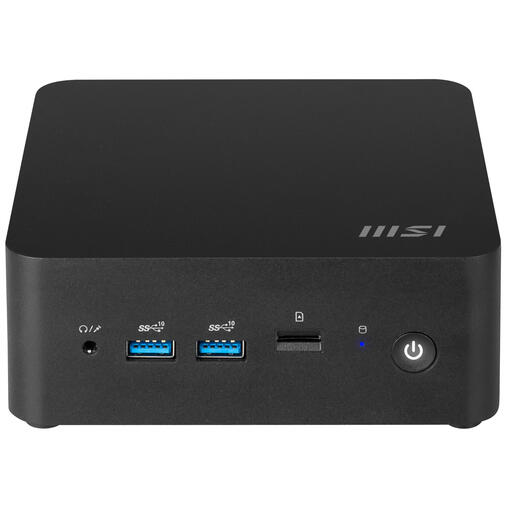 Image unavailable
This barebone is suited to anyone who wants to work on the configuration and installation themselves, rather than looking specifically for a complete, ready-to-use PC.
The product description lists an Intel Core 7 150U and support for up to 64 GB DDR5.
Listed connections include HDMI, Thunderbolt 4 and Ethernet. Check which components are included with the version you’ve chosen.
 Image unavailable
A complete mini PC to consider if you want to install Linux yourself on a system that, according to the product name, comes with Windows 11.
The product name lists 8 GB DDR4, a 256 GB SATA SSD, Wi-Fi 5 and Bluetooth 5.2.
The product description lists two HDMI outputs and a Type-C video output. Check that the connection you need is available and that your chosen version works with your Linux release.
Yes, you can try Linux from a USB stick before installing it. Linux Mint describes a live session, and Ubuntu also offers an option to try the desktop first. Test the components you need during the session, but don’t treat it as a guarantee that every application will work.
Back up your data first. Canonical warns that creating installation media erases the USB stick; according to the Linux Mint installation guide, the option to erase the drive also deletes the existing data on it.
No, the Netherlands doesn’t have a fixed statutory warranty period. The Dutch government states that you’re entitled to a product that meets reasonable expectations and that you should contact the seller if there’s a problem; any manufacturer’s warranty is in addition to this.
For a distance purchase from a business, a 14-day cooling-off period applies in many cases, according to the Dutch government. There are exceptions, and a purchase from a private individual doesn’t fall under this definition of a distance purchase.