First, choose the operating system you actually need to test on. Then check that the specific mini PC you’ve chosen can drive both monitors at the same time, with the right ports and cables. A Windows mini PC is suited to testing in a Windows environment; for Safari on macOS or inspecting a connected iPhone or iPad, a Mac mini is another option. Two working screens make your test setup practical, but they don’t prove that a website or app is accessible using a keyboard.
Who is this setup for?
Tester using two monitors
You want to view the interface you’re testing on one screen and your test notes or development tools on another. Check that the specific model supports both screens at the same time; the number of visible ports alone doesn’t tell you this. Microsoft explains how to configure individual displays connected to Windows.
Tester of Windows apps or websites
You’ll need Windows when the test has to take place in that environment. Checking keyboard operation and focus order manually is still important, alongside any automated checks. The W3C Web Accessibility Initiative explains keyboard operation and focus order, while Microsoft discusses targeted manual checks as part of accessibility testing.
Tester of Safari and Apple devices
You’ll need macOS to test in Safari or inspect web content on a connected iPhone or iPad. Apple explains how to inspect iOS and iPadOS web content from a Mac.
What should you look for in a mini PC for two screens?
First, choose the test environment you need. Then compare the video outputs on the exact model with both monitors, and finally check what’s included with the PC.
Pre-configured Windows mini PC
Choose this option if: you mainly test in Windows and want a PC with the operating system already installed.
Bear in mind: ports can vary by model, so check the full product code and confirm that both screens are supported simultaneously.
Mac mini with macOS
Choose this option if: you need Safari on macOS or want to inspect a connected iPhone or iPad using Apple Web Inspector.
Bear in mind: this option won’t replace testing in a required Windows environment. Also check which display cables and input devices you’ll need.
Barebone mini PC
Choose this option if: you want to choose and install the memory, storage and operating system yourself.
Bear in mind: a kit may be missing components that come with a complete PC. Check whether a power cable is included for each SKU.
| What to consider |
What should you check? |
Who is this important for? |
| Two screens at the same time |
Compare the outputs on the exact model with both monitors and check that they’re supported simultaneously. |
I want to see the interface and my test notes at the same time, so two screens are my first buying priority. Around 36% of consumers prioritise being able to use two screens simultaneously. |
| The required test platform |
List the operating systems, browsers and devices you need, then check that they’re compatible with the model on offer. |
If my project requires a specific Windows or macOS workflow, I want to know before buying whether the PC is suitable. Around 29% of consumers prioritise having the required test platform. |
| Room for multitasking |
Check the installed memory and storage against the product code, and distinguish between a complete PC and a kit. |
I want to use my test environment and tools at the same time, so I look for a configuration that suits my own projects. Around 21% of consumers prioritise room for multitasking. |
| A complete setup |
Check what’s included and compare the ports on the PC and monitors to work out which cables or adaptors you’ll need. |
I want to know in advance which other components I’ll need to use the setup. Around 14% of consumers prioritise a complete purchase that meets their needs. |
Pitfalls to avoid
-
Assuming two video ports mean you can run two screens
The ports, the specific PC model and its simultaneous display support all need to be compatible with your monitors. Seeing two ports alone doesn’t confirm this.
Compare the ports on both monitors with the specifications for the full product code. Once connected, check that the display mode you want works.
You may need compatible cables or adaptors.
-
Treating a barebone as a ready-to-use PC
A kit may come without a pre-installed operating system, memory or storage, so you’ll need to choose and install these components yourself.
Check what’s included with the exact SKU before comparing a kit with a complete PC.
Allow for any components you’ll need, and check whether the model includes a power cable.
-
Confusing the manufacturer’s warranty with your statutory rights
A manufacturer’s warranty doesn’t replace your statutory rights if a product is faulty.
Check any additional warranty terms and contact the retailer if there’s a fault. The Dutch government explains that there is no fixed statutory warranty period in the Netherlands.
Relevant brands to compare
Lenovo
The ThinkCentre M70q Gen 5 is a pre-configured Windows option to compare if you’re looking for a compact business PC.
- For model 12TD0017MH, Lenovo lists Windows 11 Pro, 16 GB of memory and a 512 GB SSD.
- Lenovo PSREF documents HDMI and DisplayPort for the series, but notes that some ports are only available on selected models. Check the exact model; series specifications aren’t an independent performance test.
ASUS
The NUC 14 Pro range is worth considering if you want to compare a complete mini PC with a customisable kit.
- ASUS documents two HDMI 2.1 outputs and two Thunderbolt 4 ports with DisplayPort 1.4 for this range.
- ASUS says the Kit comes without a pre-installed operating system, memory or storage. Some models don’t include a power cable, so check the full SKU and box contents.
HP
The Pro Mini 400 G9 range offers another Windows mini PC to compare, including for ports and box contents.
- For model 9H6Z2ET#ABH, HP lists Windows 11 Pro, 16 GB RAM and a 512 GB SSD.
- HP documentation for the range describes DisplayPort outputs and flex ports that can vary by model. Check the exact configuration for sale before relying on it to run two screens.
Apple
A Mac mini with macOS is worth considering when Safari or inspecting connected Apple devices is part of your test brief.
- Apple documents support for multiple external displays via Thunderbolt and HDMI, and explains how to inspect connected iOS and iPadOS devices using Safari on a Mac.
- This workflow doesn’t confirm that a Mac mini is suitable if you also need to test in a required Windows environment.
Joybuy products for a two-screen setup
This selection of Joybuy products features mini PCs you can compare for a compact two-screen test setup.
 No image available
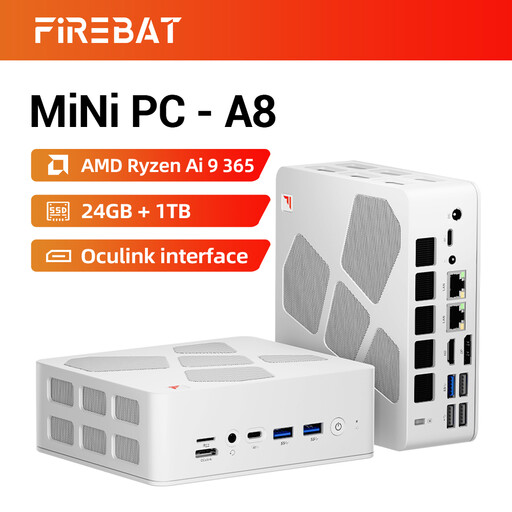
FIREBAT A8 Mini PC, AMD Ryzen AI 9 365
The product title lists 4K quad-display support, making this mini PC worth comparing for a two-screen setup. Check that its ports and simultaneous display support are compatible with your monitors.
Listed configuration: 24 GB DDR5 memory, 1 TB PCIe 4.0 SSD and Radeon 880M Graphics. The title lists HDMI 2.1, USB4, dual 2.5G Ethernet, Oculink, Wi-Fi 6E and Bluetooth 5.2.
View at Joybuy
Frequently asked questions
How do you set up two connected screens in Windows?
Check the cables first. In Windows display settings, you can identify, detect and arrange screens. Then choose the display mode that suits your test setup.
Is a second screen enough to test keyboard accessibility?
No. You need to check keyboard operation and focus order in the content you’re testing. The W3C Web Accessibility Initiative explains keyboard operation and meaningful focus order; Microsoft recommends targeted manual checks alongside automation.
Which components might be missing from a barebone mini PC?
It depends on the model. ASUS says the NUC 14 Pro Kit comes without memory, storage or a pre-installed operating system. Also check whether the SKU you choose includes a power cable.
What warranty applies to a purchase by a consumer in the Netherlands?
You’re entitled to a product that works as it should, and you can contact the retailer if there’s a problem. The Dutch government says there is no fixed statutory warranty period in the Netherlands; a manufacturer’s warranty is in addition to your statutory rights.


