First, choose a mini PC that supports the development tools and project dependencies you need. Then consider whether you’ll also be running local containers, builds and multiple screens. Always compare the exact configuration, as the operating system, memory, storage and included components can vary. Before buying, also check the applicable conformity documentation for the specific configuration and included power supply.
Who is a mini PC for coding suitable for?
Developers using local containers
If you use local Linux environments or containers alongside your code editor, check the requirements for your complete development environment. Microsoft’s Visual Studio Code documentation and Docker’s Docker Desktop documentation set out different usage requirements.
Developers with specific OS tools
If your projects require specific Windows, macOS or Linux tools, compatibility will determine which mini PC configuration you should look at next. Also check support for your project dependencies and processor architecture: compatibility with one editor doesn’t prove that the whole project will work.
Home workers using multiple screens
If you want to keep using your existing screens and input devices, compare their connections with the ports on the exact mini PC configuration. Also check whether a screen, keyboard and mouse are actually included.
What should you look for when choosing?
Start with the development environment you need and the programmes you use at the same time. Microsoft’s documentation sets out the requirements for Visual Studio Code, while Docker publishes separate installation and system requirements for Docker Desktop.
| What to consider |
What should you check? |
Who should consider this? |
| Development tasks running at the same time |
List your editor, local services and containers. Then compare the installed memory and storage, along with any upgrade options, for the exact configuration. |
If I want to run containers or several development programmes at once, I need to consider the overall workload, not just the editor. Around 40% of consumers have this priority. |
| OS and development tools |
Check the operating system, processor architecture and support for your tools, project dependencies and any container images. Microsoft describes WSL as a Linux environment within Windows; also check the requirements of the software you use. |
When a project requires a particular OS environment or specific tools, I want to know before choosing whether that combination will work. Around 30% of consumers prioritise compatibility above all else. |
| Connections for your workspace |
Note the connections on your screens and devices, then compare them with the ports and display support of the model you’ve chosen. Also check which peripherals are included. |
If I want to keep using my existing screens and devices, the connections need to suit my desk setup. Around 20% of consumers prioritise workspace connections. |
| Complete or configurable setup |
Check whether the operating system, memory and SSD are included, and whether the memory or storage can be upgraded later. Compare the complete configuration before choosing. |
Anyone who wants to choose their own components or would rather buy a complete PC needs to know exactly what the configuration includes. Around 10% of consumers have this priority. |
Common buying mistakes
-
Using an editor’s system requirements for all your development tasks
Microsoft’s Visual Studio Code documentation covers the editor; it doesn’t automatically account for the demands of containers, builds and other programmes running at the same time.
List the software you use together and check the requirements for each component before choosing memory and storage.
-
Mistaking a kit for a complete PC
ASUS describes the NUC 14 Pro Kit as not including a pre-installed operating system, memory or storage. A configuration with the same product line name may include different components.
Read the component list for the exact configuration and check what you’ll need to install or add yourself.
-
Assuming an overseas configuration applies to a UK-market model
The manufacturer’s UM790 Pro page describes a configuration with a US adapter and delivery to the US; this doesn’t confirm which power supply or configuration comes with a UK listing.
Check the power supply, plug and market configuration for the specific product before relying on overseas specifications.
Brands worth comparing
ASUS
According to ASUS Netherlands, the NUC 14 Pro range includes both complete mini PCs and kits, giving you the choice of getting started straight away or configuring one yourself.
- For the product range, ASUS lists features including HDMI, Thunderbolt and storage slots.
- According to ASUS, the NUC 14 Pro Kit doesn’t include a pre-installed operating system, memory or storage. Check what’s included with the specific configuration.
Apple
The Mac mini M6 is a macOS option for developers whose required tools and project dependencies work on Apple silicon.
- Apple lists 16 GB of unified memory and a 256 GB SSD for the base configuration.
- Check that amount of memory and storage against your projects, and check which screens and input devices you’ll need. Compatibility with one programme doesn’t confirm that all your project dependencies will work.
Lenovo
The ThinkCentre M70q Gen 5 Tiny is a business Windows mini desktop; Lenovo lists 16 GB of memory and a 512 GB SSD for the configuration reviewed.
- Lenovo lists tool-free access to the memory and storage.
- For the configuration reviewed, Lenovo states that the screen, wireless keyboard and mouse are sold separately. Check what comes with the specific configuration.
HP
The Pro Mini 400 G9 is a Windows 11 Pro product range; the Dutch configuration reviewed, 6D494EA#ABH, is specified with 16 GB of RAM and a 512 GB SSD.
- The listed configuration provides specific details to compare with a complete office PC.
- The listed features apply to configuration 6D494EA#ABH and don’t automatically apply to other configurations.
MINISFORUM
According to MINISFORUM, the UM790 Pro range includes several configurations, including a barebone option and versions with memory and storage.
- The choice of configurations could be useful if you want to select your own components or compare different setups.
- For a UK listing, check the specific configuration and power supply. Information about a model sold in another market doesn’t confirm which configuration you’ll receive.
Joybuy products for coding and working from home
These options include Windows mini PCs and Mac mini configurations for coding and a permanent home office setup. Before buying, check the applicable conformity documentation for the exact configuration and included power supply. If the device has Wi-Fi or Bluetooth, the relevant radio equipment regulations also apply.
 No image available
SOYO Y5Pro mini PC, Intel Core i5 8250U/8350U, 8 GB DDR4, 256 GB SATA SSD
A good fit if you’re looking for a Windows mini PC with video connections for a permanent workspace.
The product name lists Windows 11, 8 GB DDR4 and a 256 GB SATA SSD. The product description mentions two HDMI outputs, Type-C video and four USB ports.
Before buying, check the applicable conformity documentation for this configuration and the included power supply. If it has Wi-Fi or Bluetooth, radio equipment regulations are also relevant.
View at Joybuy
 No image available
Apple Mac mini M6, 12-core CPU, 12-core GPU, 16 GB, 256 GB SSD
A good fit if the development tools and project dependencies you need work on macOS with Apple silicon.
The product name lists 16 GB of memory and a 256 GB SSD. The product description mentions HDMI, Thunderbolt 4 and support for up to three external screens.
Before buying, check the applicable conformity documentation for this configuration and the included power supply. If it has Wi-Fi or Bluetooth, radio equipment regulations are also relevant.
View at Joybuy
No image available
Apple Mac mini M6, 12-core CPU, 12-core GPU, 16 GB, 512 GB SSD
A good fit if you need macOS with Apple silicon and want a 512 GB SSD for your projects.
The product name lists 16 GB of memory and a 512 GB SSD. The product description mentions HDMI, Thunderbolt 4 and support for up to three external screens.
Before buying, check the applicable conformity documentation for this configuration and the included power supply. If it has Wi-Fi or Bluetooth, radio equipment regulations are also relevant.
View at Joybuy
No image available
Apple Mac mini M6, 12-core CPU, 12-core GPU, 24 GB, 512 GB SSD
A good fit if you need macOS with Apple silicon and want the listed combination of 24 GB of memory and a 512 GB SSD.
The product name lists 24 GB of memory and a 512 GB SSD. The product description mentions HDMI, Thunderbolt 4 and support for up to three external screens.
Before buying, check the applicable conformity documentation for this configuration and the included power supply. If it has Wi-Fi or Bluetooth, radio equipment regulations are also relevant.
View at Joybuy
 No image available
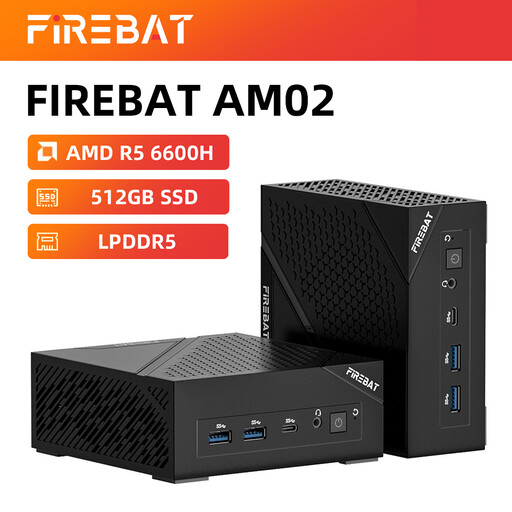
FIREBAT AM02L, AMD 6600H, 16 GB LPDDR5, 512 GB M.2 NVMe, Windows 11 Home
A good fit if you’re looking for a mini PC with Windows 11 Home and the listed memory and storage configuration.
The product name lists 16 GB LPDDR5, a 512 GB M.2 NVMe SSD, HDMI 2.1 and DisplayPort 1.4.
Before buying, check the applicable conformity documentation for this configuration and the included power supply. If it has Wi-Fi or Bluetooth, radio equipment regulations are also relevant.
View at Joybuy
Frequently asked questions
Are a code editor’s system requirements enough to work out how much memory you need?
No. The recommended hardware in Microsoft’s Visual Studio Code documentation relates to the editor. Also check the requirements of other programmes and your local development environment. Don’t use the requirements of one programme as a general guide for every development task.
What should I check if I want to use Linux tools on Windows?
Microsoft describes WSL as a Linux environment within Windows. If you use Docker Desktop, also check its requirements and installation mode. Buying a mini PC won’t install this environment automatically.
Are a screen, keyboard and mouse included?
Not always. For the ThinkCentre M70q Gen 5 configuration reviewed, Lenovo states that the screen, wireless keyboard and mouse are sold separately. Check what comes with the specific configuration and the connections on your existing devices.
What are my rights when buying online or receiving a faulty product in the Netherlands?
According to the Dutch government, a 14-day cooling-off period generally applies to eligible distance sales. If a product is faulty, the seller must offer a solution; the Netherlands doesn’t have one fixed statutory warranty period for all products. The rules for a purchase by an individual consumer don’t automatically apply to a business purchase.
Which product safety requirements apply when buying in the Netherlands?
Electrical and electronic devices are subject to applicable EU safety and conformity requirements, including CE marking and an EU declaration of conformity. Ondernemersplein and the Netherlands Food and Consumer Product Safety Authority also explain that radio equipment regulations apply to configurations with Wi-Fi or Bluetooth. Check the specific configuration and included power supply; information about a product family doesn’t in itself prove that the specific configuration has been checked.


