
Programmer with two existing monitors
You want to keep your editor on one screen and, for example, documentation or output on the other. So check that the model you choose supports both screens at the same time and has the right video outputs.


First, choose a model confirmed to support two separate screens at the same time, with video outputs that match your monitors. Then choose the memory, processor and storage to suit your development tools. A complete business mini PC involves less configuration than a barebone, but gives you less freedom to choose the components yourself.
You want to keep your editor on one screen and, for example, documentation or output on the other. So check that the model you choose supports both screens at the same time and has the right video outputs.
If you use databases, containers or larger projects alongside your editor, choose a processor, memory and storage configuration suited to that combination of tasks.
If you’re considering a barebone, check which components and software you’ll need to choose and install yourself.
| What to consider | What to look for | Who is this important for? |
|---|---|---|
| Two screens | Check that the exact model supports two screens at the same time and that its video outputs match both monitors. Don’t assume USB-C outputs video unless the product specifications confirm it. | If I want to use my editor and documentation side by side, I first check that the connections and display mode are suitable. Around 36% of consumers give a two-screen setup top priority. |
| Development workload | Make a note of the tools you use and check that the capacity and expandability of the model you choose meet your needs. | If I’m running several development tools or local projects at once, I want to choose a configuration that can handle them. Around 29% of consumers prioritise this type of workload. |
| Components and upgrades | Check what’s included with the model and whether you can replace or upgrade the memory and storage later. | If I want to understand the full configuration and how easy it will be to adapt later, I compare a barebone with all the additional components it needs. Around 21% of consumers prioritise the purchase and upgrade options. |
| Software and set-up | Check which operating system is included and the system requirements of the development tools you use. | If I want to spend as little time as possible setting up software after buying, I first check which operating system is included. Around 14% of consumers give software and configuration top priority. |
The shape of the connector alone doesn’t confirm that the port supports a display signal.
Check the video outputs on the exact model and compare them with the connections on both monitors.
You may need a different cable, adapter or dock.
A barebone may be missing components you need to use the computer, such as memory, storage or an operating system.
Check what’s included with the model you choose, and factor any missing components and software into your comparison.
You’ll need to source and install any missing components and, if necessary, software yourself.
FIREBAT describes the R3’s memory as non-replaceable, so it’s important to check the memory capacity of that model before you buy.
Check the upgrade options for the exact model before choosing, especially if your development workload could change later.
The ThinkCentre neo 50q Gen 5 is a compact business PC range. The Dutch model 13B9007CEZ has its own specifications.
The NUC 13 Pro is a mini PC range to consider if you’re looking for multiple direct display outputs.
The UM890 Pro is a configurable mini PC range that also includes a barebone model.
The R3 is a compact mini PC range for which the manufacturer lists separate display outputs via HDMI, DisplayPort and USB-C.
The ProDesk 4 Mini G1i is a business mini PC range with Windows configurations.
This selection focuses on compact mini PCs for a coding workspace. For each model, check that its video outputs support two screens at the same time and match your monitors.
 No image available
Check the video outputs on this model before using it with two screens.
The product name lists 8 GB DDR4 and a 256 GB SATA SSD.
The exact processor version is listed in the product name as Intel Core i5 8250U/8350U; check which variant you’re choosing.
 No image available
The listed HDMI 2.1 and DP 1.4 outputs may suit monitors with those connections; check that this model supports the two-screen mode you want.
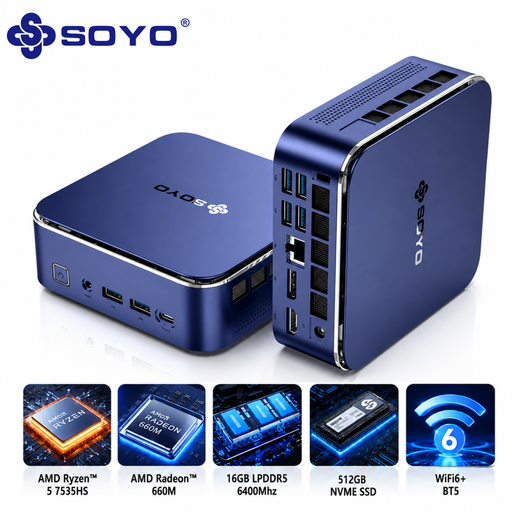
The product name lists 16 GB LPDDR5, a 512 GB M.2 NVMe SSD and Windows 11 Home.
 No image available
The product description lists HDMI 2.0 and DP 1.4 as video outputs; check that this model can support both your screens at the same time.
The product name lists 16 GB LPDDR5, a 512 GB NVMe SSD and Windows 11 Pro.
 No image available
The product name lists triple-display support via HDMI 2.0, Type-C and DP 1.4. Check that the exact model can drive your chosen screens at the same time.
The product name lists 16 GB LPDDR4 and a 512 GB SSD.
 No image available
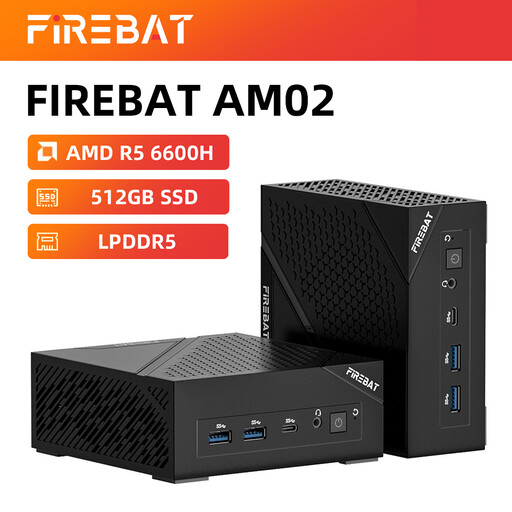
For the R3, FIREBAT lists separate display outputs via HDMI, DisplayPort and USB-C; check that the ports suit your monitors and preferred display mode.
The product name lists 16 GB RAM and a 512 GB SSD. FIREBAT describes the R3’s LPDDR4 memory as non-replaceable.
Ask Windows to identify or detect the displays, then arrange them in the display settings. Microsoft explains these steps for setting up multiple monitors; they don’t confirm that a specific mini PC supports two screens.
No, a barebone isn’t automatically a complete PC. Check which memory, storage and software components are missing from the model you’ve chosen, then set up the development environment you want to use.
For a consumer purchase, the seller must provide a solution if the product isn’t as it should be. According to the Dutch government, the Netherlands has no fixed statutory guarantee period; a manufacturer’s guarantee is in addition to your right to a product that works properly.
According to the Dutch government, purchases made remotely from a business usually come with a 14-day cooling-off period. Check the terms of your specific purchase; buying from a private seller isn’t covered by the same distance-selling rules.