What should you look for when buying?
First, check that the ports are right for your workspace. Then assess the requirements of your writing and testing software, and only after that consider whether you need shared account management or extra peripherals.
| Consideration |
What should you check? |
Who is this important for? |
| Connecting to your existing workspace |
Compare the video outputs on the exact PC configuration with the monitor’s inputs and the cables available. Also check the number and type of USB ports and, if needed, whether there’s a wired network connection. |
If I want to keep using my existing monitor and peripherals, I’ll first check that everything is compatible; around 36% of consumers put connectivity first. |
| Writing with local testing tools |
Check the requirements of your editor, operating system and any local testing software against the exact configuration. Compare the memory and storage available with what those programmes require. |
If I want to use documentation, a browser and local tests at the same time, the PC needs to handle my own software; around 29% of consumers prioritise this combination of writing and testing. |
| Accounts on a PC that’s genuinely shared |
Establish whether users are sharing just the desk or the same computer as well. If the PC is shared, discuss the required Windows edition, sign-in settings and access to local files with the administrator. |
If different people use the same PC, I want to know in advance how accounts and local data will be managed; around 21% of consumers want to arrange this management first. |
| What you need in addition to the PC |
Check what’s included with each configuration, such as the power supply, monitor, keyboard, mouse, cables and any mounting hardware. Factor in what’s already available at the desk. |
If the workspace isn’t fully equipped yet, I want to know in advance what I’ll need to provide myself; around 14% of consumers prioritise the complete setup. |
Joybuy products for an existing workspace
These Joybuy products are mini PCs for an existing workspace. For each configuration, compare the connections, operating system and included components with what you need for documentation and any local testing.
 No image available
SOYO Y5Pro Mini PC, Intel Core i5 8250U/8350U
Consider this configuration if the listed connections suit your existing screen and peripherals.
The title lists Windows 11, 8 GB DDR4, a 256 GB SATA SSD, Bluetooth 5.2 and Wi-Fi 5. The product description mentions two HDMI outputs, Type-C video, four USB ports and RJ45.
Joybuy
 No image available
Lenovo Yoga Mini 01IPH11 Copilot+ PC
Check the listed connections and screen support if you want to use this PC with several existing screens.
The product title lists an Intel Core Ultra 5 325, 16 GB LPDDR5X, a 512 GB PCIe 4.0 SSD, Windows 11 Home, Wi-Fi 7 and Intel Graphics. The product description mentions support for up to four independent screens.
Joybuy
 No image available
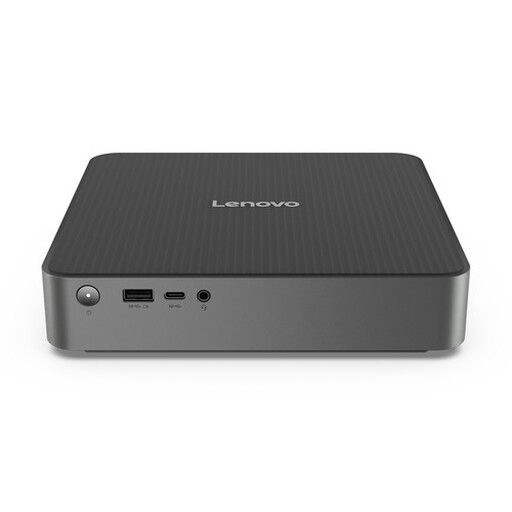
Lenovo IdeaCentre Mini
The product description lists connections for screens and wired networking. Check that they match your existing workspace.
The product description lists 16 GB of memory, a 512 GB SSD, HDMI 2.1, DisplayPort, USB-C, USB-A and Gigabit Ethernet. It also mentions support for up to three independent screens.
Joybuy
 No image available
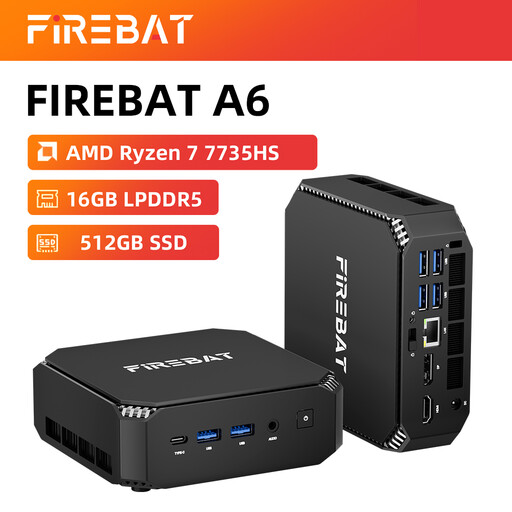
FIREBAT A6 Mini PC, AMD Ryzen 7 7735HS
Compare the listed three-screen output with the inputs and cables on your existing monitors.
The product title lists Radeon 680M, 16 GB RAM, a 512 GB SSD, two M.2 slots, Wi-Fi 6 and output for three screens.
Joybuy
 No image available
SOYO M5 Mini PC, AMD Ryzen 4300U
The listed screen and network connections could be useful for a workspace with multiple screens and wired networking. Check that they’re compatible with your equipment.
The product title lists Windows 11 Pro, 16 GB LPDDR4, a 512 GB SSD and output for three screens. The product description mentions HDMI 2.0, DisplayPort 1.4, Type-C, six USB 3.0 ports and RJ45.
Joybuy
Frequently asked questions
Do I need a business PC because the desk is shared?
No, not just because several people use the same desk. If they also share the same Windows PC, discuss separate sign-ins and the management of accounts and local storage with the administrator. Microsoft Learn describes settings for shared Windows devices.
Can I use Docker Desktop for local API testing on any mini PC?
Not without checking the system requirements. Compare the current Windows requirements for Docker Desktop with the exact PC configuration, Windows edition and installation you want. Docker isn’t required if you only write documentation.
How do I set up a PC at a shared desk?
Connect the monitor and input devices to suitable ports. If several people also use the PC, discuss with the administrator which accounts are needed, who can access local files and how user data will be managed.
What does a manufacturer’s warranty mean for my rights in the Netherlands?
A manufacturer’s warranty is separate from your statutory consumer rights. ACM ConsuWijzer explains that the seller is responsible if a product doesn’t meet what you could reasonably expect under normal use; the appropriate solution depends on the circumstances. In the Netherlands, the statutory guarantee isn’t simply a fixed two-year period for every product.
Does a mini PC sold in the Netherlands need a CE marking?
Relevant product rules apply to electrical and electronic equipment placed on the market. The Dutch government explains CE marking and the EU declaration of conformity issued after the requirements have been assessed. Which rules apply depends on the specific device and, for example, its power supply or radio functions. A product listing alone doesn’t prove that a particular item meets all applicable requirements.


