Who is this choice relevant to?

Teacher with lots of digital teaching materials

When planning lessons, you work with sources, documents and presentations side by side. Compare the configuration with your software requirements and think about the monitor set-up you need. Lenovo, Acer and Apple publish configurations with different memory and storage specifications.

Teacher using a shared workspace

You take turns using the computer or desk with colleagues. If you work with pupil data, make sure access and storage follow the school’s arrangements. The Dutch Data Protection Authority outlines schools’ responsibility for appropriate safeguards and access management.

Setting up a small staff office

You’re looking for a set-up that fits the available desk space without overlooking how adjustable the screen is. Lenovo describes a monitor that is available separately; the Arboportaal explains key points to consider when working with display screens.

What should you look for when choosing?

Mini PC with separate monitor

A good fit when: you already have a suitable monitor or want to choose and adjust the screen separately.

Bear in mind: you may need to buy the monitor, cables and input devices separately. Lenovo states that the Tiny-In-One screen for the ThinkCentre configuration mentioned is sold separately.

All-in-one

A good fit when: you want to choose an integrated computer and screen set-up.

Bear in mind: check the screen adjustments and ports; the computer and screen are chosen together. The Arboportaal outlines key points to consider when setting up display screen workstations.

Tower desktop

A good fit when: there’s enough space and expandability is a priority for the school.

Bear in mind: a tower usually takes up more space than a mini PC. HP positions the Pro Tower 400 as a scalable business range; check the options available on the exact model.

What to consider What should you check? Which consumers?
Memory and storage Compare the configuration with the requirements of the teaching and office software you use, and the amount of local storage you need. If I use sources, documents and presentations at the same time, I want to know whether the configuration suits my work. Around 36% of consumers prioritise teaching materials and running several applications.
Shared use and management Ask about school software, separate accounts, access rights, storage and update management. If colleagues use the same computer and I work with pupil data, I want to know in advance how access and storage will be managed. Around 29% of consumers prioritise secure shared use.
Space and screen Check which monitor is available, which video connections are suitable and which cables you need; also assess how adjustable the workstation is. When I share a desk with colleagues, I want a set-up that fits the available space and lets me adjust the screen properly. Around 21% of consumers prioritise a compact, adjustable workspace.
Complete workstation and after-sales support Check what’s included, which service terms apply to the configuration and which purchasing arrangements are relevant. If I still need peripherals, I want to be able to assess the complete workstation and the support available after purchase. Around 14% of consumers focus mainly on the total cost and after-sales support.

Common buying mistakes

  • Looking only at the mini PC

    A mini PC isn’t automatically a complete workstation. Lenovo states that the Tiny-In-One screen for the ThinkCentre configuration mentioned is sold separately.

    Make a list of the monitor, cables and input devices already available at the shared desk, then compare the set-ups you’ll need.

  • Treating a shared PC like a personal computer

    If you process pupil data, restricting access and putting appropriate security measures in place are part of the school’s arrangements. Choosing a particular brand won’t take care of this.

    Before the computer is used, agree with the school’s IT team how accounts, storage, updates and access to pupil records will be managed. The Dutch Data Protection Authority stresses that access should be limited to those who need it.

  • Choosing an all-in-one without checking the screen set-up

    The right display screen set-up depends partly on the working situation. An integrated computer and monitor won’t automatically suit every shared workspace.

    Check the screen adjustments and workstation set-up for everyone who will use it. The Arboportaal outlines the relevant points to consider when working with display screens.

Brands to compare

Lenovo

The ThinkCentre M70q Gen 5 Tiny is a compact business option if you already have a screen or want to choose one separately.

  • For configuration 12TD0083EZ, Lenovo lists Windows 11 Pro, 16 GB memory, a 512 GB SSD and three years of on-site service.
  • The Tiny-In-One screen is sold separately. Check that the service terms listed apply to the configuration you’re considering.

HP

The Pro Mini 400 G9 is a compact business Windows option; the Pro Tower 400 is worth considering if expandability is a higher priority.

  • For Pro Mini configuration 9H6Z2ET#ABH, HP specifies Windows 11 Pro, 16 GB RAM and a 512 GB SSD.
  • The tower’s features don’t necessarily apply to every Pro Mini configuration. Check the configuration you choose.

Acer

The Veriton 2000 Mini is a compact Windows desktop to compare if you need connections for multiple screens.

  • For DT.R4ZEH.002, Acer specifies Windows 11 Pro, 16 GB RAM, a 512 GB SSD, HDMI and DisplayPort.
  • These specifications apply to that configuration; on their own, they don’t confirm whether the computer is quiet or works with specific school software.

Apple

The Mac mini is a compact macOS option if the school applications you actually use run on macOS.

  • Apple lists a Mac mini with M6, 16 GB unified memory and a 256 GB SSD.
  • A monitor isn’t included with the mini PC itself. Check software compatibility and which peripherals you’ll need.

Dell

The OptiPlex Micro is a compact business range to compare for mounting and managing a fixed workstation.

  • Dell describes the OptiPlex 7020 Micro as having a compact chassis and mounting options.
  • Check the processor, memory, accessories and service for the configuration you choose; the product range doesn’t specify one fixed configuration.

Joybuy computers for lesson planning

Joybuy computers to compare for lesson planning in a shared workspace; check whether each model’s set-up suits your school software and peripherals.

HP 24-inch All-in-One 24-cr0050nd 895R0EA#ABH

HP 24-inch All-in-One 24-cr0050nd 895R0EA#ABH

An integrated computer and screen set-up to compare if you’re looking for that combination.

The stand described isn’t height-adjustable. Check that the screen set-up suits its users; the power adapter must be purchased separately.

View at Joybuy

SOYO Y5Pro mini PC, Intel Core i5 8250U/8350U

SOYO Y5Pro mini PC, Intel Core i5 8250U/8350U

A mini PC to compare if you want a compact computer with a separately chosen screen.

The product name lists Windows 11, 8 GB DDR4, 256 GB SATA SSD, Bluetooth 5.2 and Wi-Fi 5.

View at Joybuy
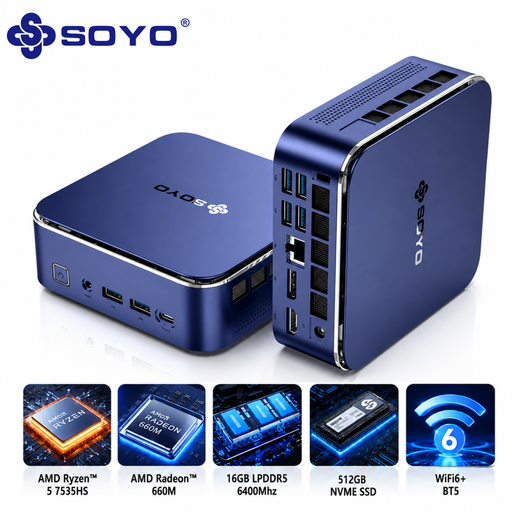
SOYO S5Air mini PC, AMD Ryzen 5 7535HS

SOYO S5Air mini PC, AMD Ryzen 5 7535HS

A mini PC to compare if you’re looking for a compact computer for a shared desk.

The product name lists Windows 11 Pro, 16 GB LPDDR5, 512 GB NVME SSD, Wi-Fi 6E and Bluetooth 5.2.

View at Joybuy

SOYO M5 mini PC, AMD Ryzen 4300U

SOYO M5 mini PC, AMD Ryzen 4300U

A mini PC to compare if you’re looking for a compact computer with connections for peripherals.

The product name lists Windows 11 Pro, 16 GB LPDDR4, 512 GB SSD, Wi-Fi 5 and Bluetooth 4.2.

View at Joybuy

FIREBAT R3 mini PC, AMD Ryzen 5 7430U

FIREBAT R3 mini PC, AMD Ryzen 5 7430U

A mini PC to compare if you want to plan lessons and prepare presentations on a compact computer.

The product name lists 16 GB RAM, a 512 GB SSD, Wi-Fi 6, Bluetooth 5.2 and output for three 4K screens.

View at Joybuy

Frequently asked questions

Can you work with pupil data on a shared office PC?

Only if the school’s set-up and arrangements make this suitable. The Dutch Data Protection Authority explains that schools are responsible for being able to demonstrate appropriate technical and organisational measures for pupil data. Restrict access to pupil records to those who need it, and agree how accounts and storage will be managed with the school’s IT team.

Does the monitor need to be adjustable for extended screen use?

That depends partly on the working situation. The Arboportaal outlines the requirements for display screen work when an employee works at a screen for more than two hours a day, including a height-adjustable screen. According to the official guidance, an employer can depart from these requirements if health and safety remain protected.

Can an existing Windows 10 desktop still be used without further checks?

No. Check the security and update plan first. Microsoft says support for Windows 10 ended on 14 October 2025. For an existing computer, check the current support arrangements and the school’s IT policies.

Do the same returns and warranty rules apply when a teacher or a school buys a computer?

Not necessarily. For online consumer purchases, the Dutch government describes a cooling-off period that is usually 14 days, as well as a legal guarantee for which the retailer is the point of contact. For a business purchase by a school, have the contract and purchasing terms checked separately; many educational institutions must also take procurement rules into account.

What requirements must a desktop meet to be sold in the Netherlands?

CE marking may be mandatory for electrical and electronic equipment if the relevant EU rules require it. The European Commission explains that the manufacturer uses the marking to declare that the applicable requirements have been met; it isn’t a separate EU approval certificate. Check the conformity information for the specific product.
