What should you look for when choosing?
First, choose between a fixed, integrated screen and a separate monitor. Then test magnification, screen layout and connections with your own software and peripherals.
Mini PC with a separate monitor
Choose this setup if: you want to decide on the screen size and position yourself, or replace the monitor later.
Bear in mind: you’ll need extra components and connections; for the Lenovo model reviewed, the monitor and keyboard are sold separately.
All-in-one desktop
Choose this setup if: you want an integrated computer and screen, and a test confirms the built-in display gives you enough workspace.
Bear in mind: you can’t replace the built-in screen independently. Check how much of your note and index remains visible after magnification.
| What to consider |
What should you check? |
Who should prioritise this? |
| Readable text and controls |
Test text size, scaling and Magnifier with a representative note and your own indexing software. |
If I read inspection notes for long periods, I want to enlarge text and controls without making my software difficult to use. Around 33% of consumers prioritise readability. |
| Viewing the note and index together |
Open the source note and register side by side, using your preferred magnification. If you choose a mini PC, also check the monitor’s video connection. |
If I need the source note and register at the same time, I want to be able to see enough of both after enlarging the text. Around 27% of consumers prioritise this overview. |
| Security and recovery |
Decide who needs access and how index files will be backed up and restored. An SSD is not a separate backup. |
If I may be managing confidential records, I want to arrange appropriate access and a recoverable copy. Around 20% of consumers prioritise record security and recovery. |
| Complete workstation |
Check which monitor, input devices and connections you already have, and what else you need. |
When I’m putting together my workstation, I want to know which components I still need before choosing a setup. Around 20% of consumers base their choice mainly on the complete setup. |
Joybuy products for these setups
These Joybuy product options include all-in-ones with built-in screens and mini PCs for use with a monitor of your choice. For each model, check that the screen layout and connections work with your indexing software and peripherals.
 No image available
Acer Aspire C24-A WI5418 NL All-in-One
An all-in-one setup for anyone who wants to combine a computer and screen; check that the built-in display gives you enough room for your preferred magnification.
23.8-inch Full HD IPS screen, Intel Core 5 120U, 16 GB DDR5 memory, 1 TB SSD and Windows 11 Home.
View at Joybuy
 No image available
SOYO M5 Mini PC, AMD Ryzen 4300U
A mini PC for anyone who wants to choose their own monitor; check that the listed video outputs are compatible with your screen.
16 GB LPDDR4 memory, 512 GB SSD and Windows 11 Pro. Listed video outputs: HDMI 2.0, DisplayPort 1.4 and Type-C.
View at Joybuy
 No image available
FIREBAT F1 Mini PC, AMD Ryzen 5 7640HS
A mini PC for use with a separate screen; check which connection is right for your monitor and workstation.
24 GB LPDDR5 memory and 512 GB PCIe 4.0 SSD. The product name lists HDMI 2.1, USB 4.0 and output to three screens.
View at Joybuy
 No image available
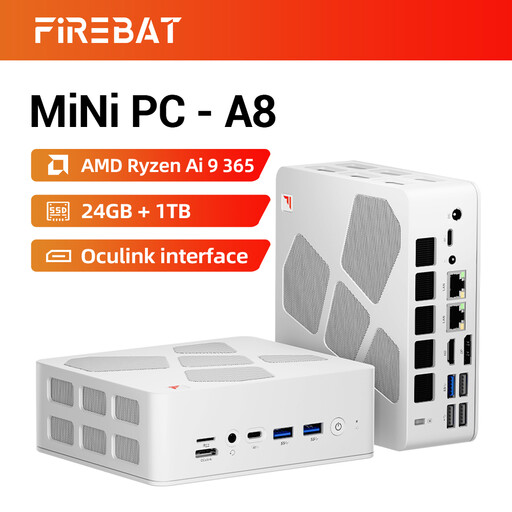
FIREBAT A8 Mini PC, AMD Ryzen AI 9 365
A mini PC for anyone who wants to choose a separate monitor; first decide how many screens you actually need.
24 GB DDR5 memory and 1 TB PCIe 4.0 SSD. The product name lists support for up to four 4K screens.
View at Joybuy
 No image available
MSI CUBI NUC AI 1UMG-005EU
A mini PC for anyone choosing their own monitor; check the screen connections and test your preferred magnification with your own software.
Intel Core Ultra 7 155H, 16 GB DDR5 memory, 1 TB SSD and Windows 11 Pro. The product information lists support for up to four screens.
View at Joybuy
Frequently asked questions
How can you enlarge notes without relying on a bigger screen alone?
In Windows, you can adjust the text size, scale the display or use Magnifier. Test these settings in the software you use to open notes and your index, as the available workspace can vary depending on the screen layout.
How can you make a recoverable copy of your index?
Windows File History can save files from libraries to an external drive or network location. Check that the folder containing your index is included, then try restoring a file.
Do you need to consider GDPR when handling construction notes?
If an organisation processes personal data in its notes, it must protect that data appropriately, based on the risks involved. Whether a particular note contains personal data, and which measures are appropriate, depends on the situation; the Dutch Data Protection Authority provides examples and points to consider.
What rules apply to prolonged screen work?
The Dutch Occupational Health and Safety Portal says employers must take steps to reduce the risks of screen work, including considering breaks from screen tasks and workstation setup. These rules don’t require you to buy one specific desktop model.
Is a manufacturer’s warranty the same as your statutory rights?
No. According to the Dutch government, the Netherlands has no fixed statutory warranty period; if a consumer product is faulty, the retailer is your point of contact. A manufacturer’s warranty or an extended warranty is separate and may come with additional terms.


