Choose a mini PC with a separate monitor if you want to decide on the screen size and placement yourself. An all-in-one combines the computer and screen, but limits your choice of screen. Also check that your education software works with the operating system you choose, which components are included, and what rules your institution has for handling pupil data.
Which setup is right for you?
If you mark work on screen for long periods
If you spend long periods reading and annotating assignments, it helps to have a screen that suits your available workspace and preferred viewing position. Arboportaal outlines points to consider when working with display screens.
If you have limited desk space
A mini PC keeps the computer itself compact, but you’ll still need a separate screen. An all-in-one combines the computer and screen in a single device; Lenovo and HP describe these different setups for their respective models.
If you use your institution’s software
If your marking platform has requirements for Windows, macOS or data processing, check in advance what your institution allows. The Dutch Data Protection Authority stresses that schools must handle pupil data carefully and securely.
What should you consider when choosing?
Start with the screen setup and the space available. Then check the software, data-handling rules and what else you need to complete your workspace.
| What to consider |
What should you check? |
Who should consider this most? |
| Screen and workspace |
Check the screen size, connections and preferred placement, as well as the space available for a keyboard and mouse. |
If I read and annotate for long periods, I want to see assignments clearly and position my screen comfortably. Around 36% of consumers say readability and workspace layout are their top priorities. |
| Desk space |
Measure the available desk space and allow for the screen stand and the computer’s location. |
With limited space, I want to know whether the computer can sit separately or whether a screen with a built-in computer would be a better fit. Around 29% of consumers prioritise a compact desk setup. |
| Software and pupil data |
Ask your institution which software, operating systems, accounts and rules for local storage or working from home apply. |
If my marking work relies on institutional software or involves pupil data, I want to know first which environment and working practices are permitted. Around 21% of consumers say software requirements and data-handling rules are their top priorities. |
| Complete setup |
Check which components are included and whether you still need a screen, cables, input devices or software. |
I want to know in advance which components I need to complete my setup and what service terms apply. Around 14% of consumers focus mainly on the complete setup they need and aftercare. |
What to look out for when buying
-
Comparing just the computer, not the whole workspace
A mini PC and an all-in-one don’t automatically include the same combination of screen and accessories. This means the extra components you need can vary between setups.
Before comparing your options, make a list of what’s included and what you still need for the exact model.
Depending on the version, you may still need memory, storage or an operating system.
-
Confusing a security feature with permission to use local storage
A computer feature doesn’t automatically determine whether you’re allowed to store pupil data locally. The Dutch Data Protection Authority says that schools are responsible for handling this data carefully and securely.
Follow your institution’s rules for storage, access and working from home.
Brands worth comparing
Lenovo
The ThinkCentre Tiny is a compact Windows option with a screen you choose separately; the version described here is the M75q Gen 5 Tiny 12RQ003QEZ.
- Lenovo lists Windows 11 Pro, 16 GB RAM and a 512 GB SSD for this version.
- Check that the screen and marking software suit your connections and how you plan to use the computer.
HP
The OmniStudio X 27 is an all-in-one for anyone who wants a computer and screen in one setup; the version described is the 27-cx0625nd.
- HP lists a built-in 27-inch QHD screen, 24 GB RAM, a 512 GB SSD, and a wireless keyboard and mouse for this version.
- Check that the screen size and adjustability suit your desk and viewing distance.
Apple
The Mac mini is a compact option with a separate screen, provided the required software works in the Mac environment you choose.
- For the Mac mini with M6 in the Netherlands, Apple lists a configuration with 16 GB of unified memory and a 256 GB SSD, among other options.
- This configuration doesn’t confirm whether your institution’s marking software is compatible.
Dell
OptiPlex Micro is a compact desktop range worth comparing if you want to use a separate screen.
- Dell describes mounting options and a compact chassis for the range.
- Configurations vary, so check the specifications for the exact model you’re considering.
ASUS
NUC 14 Pro is an option if you’re considering a mini PC or kit and check the version carefully.
- ASUS describes various NUC14RVH and NUC14RVH-B versions.
- According to ASUS, these differ in operating system, memory and storage, among other things. The kit versions described come without a pre-installed operating system, memory or storage; check the version available in the Netherlands.
Joybuy products for a separate-monitor setup
These product options are mini PCs designed to be used with a separately chosen screen.
 No image available
SOYO Y5Pro Mini PC, Intel Core i5 8250U/8350U, Windows 11, 8GB DDR4, 256GB SATA SSD
A mini PC option to compare if you want to choose a separate screen yourself.
The product name lists Windows 11, 8GB DDR4, a 256GB SATA SSD and an Intel Core i5 8250U/8350U. The description mentions two HDMI outputs and a Type-C video output.
View at Joybuy
 No image available
Lenovo Yoga Mini 01IPH11 Copilot+ PC, Intel Core Ultra 5 325, 16GB LPDDR5X, 512GB PCIe 4.0 SSD
A mini desktop to consider if you’re looking for a compact computer with a separate screen.
The product name lists Intel Core Ultra 5 325, 16GB LPDDR5X, a 512GB PCIe 4.0 SSD and Windows 11 Home. The description mentions support for up to four independent displays and a 0.65-litre chassis.
View at Joybuy
 No image available
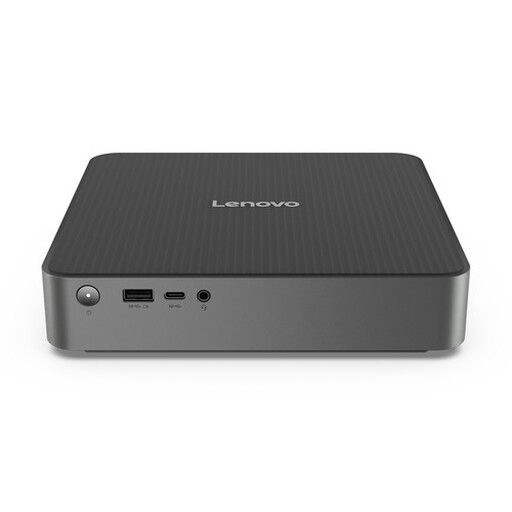
Lenovo IdeaCentre Mini Mini PC
A mini PC option for anyone comparing a separate-screen setup with a compact computer chassis.
The description lists 16 GB DDR5, a 512 GB SSD, Windows 11 Home and support for up to three independent displays. The chassis is listed as having a volume of 1 litre.
View at Joybuy
 No image available
NVIDIA DGX Spark Founders Edition, 128GB RAM, 4TB SSD
This mini PC has a separate screen connection; check that the listed configuration suits the marking software you actually use.
The product name lists 128GB RAM, a 4TB SSD and NVIDIA DGX OS. The description mentions a 15 × 15 × 5,05 cm USFF chassis and HDMI and USB-C video outputs.
View at Joybuy
 No image available
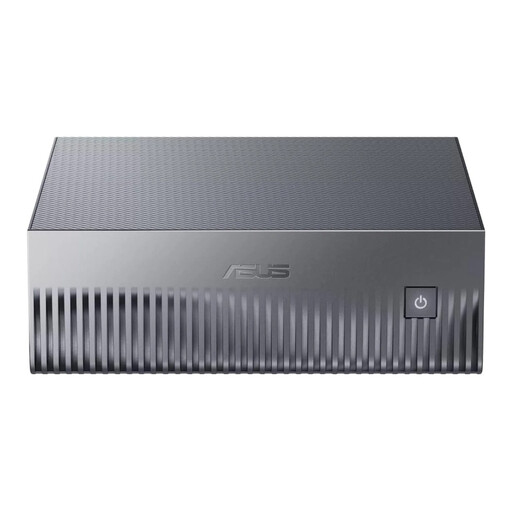
ASUS Ascent GX10 GX10-GG0003BN, 128 GB LPDDR5x, 1 TB SSD
A compact mini PC to compare if you want to connect a separate screen; check in advance which software works with the version you choose.
The product name lists 128 GB LPDDR5x and a 1 TB SSD. The description mentions video connections for a display.
View at Joybuy
Frequently asked questions
Do I need a faster processor to mark assignments digitally?
Not just for the marking task itself. First check your software requirements, screen setup and what’s included with the version you choose. The specifications listed aren’t a comparative measure of marking performance.
Can I mark pupils’ assignments on a personal computer?
That depends on your institution’s rules and systems. The Dutch Data Protection Authority says that schools must handle pupil data carefully and securely; ask which devices and working practices are permitted for this marking work.
What should I check when connecting a separate screen?
Check that the connections on the computer and screen match, and that you have the right cable. Also allow enough desk space for the screen, keyboard and mouse.
How can I tell if a mini PC is complete?
Check the full model number and the contents of the exact version. A kit may include different components from a complete mini PC, so check the operating system, memory, storage and any screen or input devices separately.
Who should I contact if a desktop I’ve bought as a private individual doesn’t work properly?
According to the Dutch government, the retailer—not the manufacturer—is your point of contact for your statutory guarantee. The Netherlands has no fixed statutory guarantee period that applies to all products; if you’re offered an extended guarantee, check whether it really gives you any additional rights.


