
Producer with limited desk space
You want to use your keyboard alongside your laptop and weigh up the space available against playing range and extra controls.


Start by considering how much desk space you have and how many keys you need: a compact keyboard takes up less room, while a larger one gives you more keys within easy reach. Then compare the pads and DAW controls. According to Akai, a standard MIDI controller such as the MPK mini mk3 sends MIDI to software but makes no sound of its own, so check how you’ll play and listen to your software instruments too.
You want to use your keyboard alongside your laptop and weigh up the space available against playing range and extra controls.
You want to play rhythms on pads and control functions in your DAW; check support for the exact model.
You want to play parts by hand, so you’re comparing the keyboard range with the space a larger keyboard takes up.
Start with the space available and the keyboard range you want to use. Then check whether the pads and DAW controls suit the way you work, and what software and listening equipment you’ll need.
| What to consider | What to look for | Who should pay particular attention? |
|---|---|---|
| Desk space | Measure the available width and depth, leaving room for connections. Novation lists the Launchkey Mini 25 MK4 as 339 × 177 mm; Arturia lists the MiniLab 3 as 355 × 220 mm. | If my desk also needs to accommodate my study and computer setup, I want to know whether the keyboard will fit first. Around 26% of consumers put desk space first. |
| Control of your DAW | Check support for your DAW and whether configuration, registration or downloads are required. Novation lists specific integrations for the Launchkey Mini 25 MK4; Nektar outlines the steps for integrating the SE25. | If I want to control features directly while making music, I check that my software works with the exact model. Around 21% of consumers prioritise DAW controls. |
| Playing beats on pads | Compare the number of pads and what they can do. Novation lists 16 velocity-sensitive pads for the Launchkey Mini 25 MK4; Akai lists eight for the MPK mini mk3. | If I prefer entering rhythms on pads rather than keys, I weigh up the pad controls against the space required and keyboard range. Around 21% of consumers make pads and beats their top priority. |
| Keyboard range | Compare 25, 37 and 49-key models, and check the key size too. A wider range gives you more notes within easy reach, but requires enough space. | If I want to practise melodies or chords without changing octaves often, the range available at my fingertips is key. Around 16% of consumers put this range first. |
| Getting started | Check the software bundle, system requirements and how you’ll listen to the sound. Akai explains how to register for the MPK mini mk3 software; Arturia lists a software bundle with the MiniLab 3. | If I’m putting together my first setup, I want to know that my computer, software and listening equipment will work together. Around 16% of consumers say getting started straight away is their top priority. |
According to Akai, the MPK mini mk3 sends MIDI messages to software; the device itself makes no sound.
Decide in advance which computer and software you’ll use, and how you’ll listen to the sound.
A wider keyboard range still needs to fit on your desk, and models can also differ in key size and controls.
Measure the space available and compare the dimensions and keyboard type of the exact version.
Akai explains how to register for the MPK mini mk3 software; for the SE25 integration described, Nektar lists registration and downloadable files.
Before buying, check the software bundle, system requirements, DAW support and any activation steps.
These are different versions. Features of one generation can’t be assumed to apply to the other without checking.
Check the full model name and generation before comparing features.
The Launchkey Mini 25 MK4 combines a compact keyboard with pads, while the Mini 37 MK4 has more keys.
The MiniLab 3 combines compact keys with controls, while the KeyLab 49 mk3 is a larger option for those who want more keys.
The MPK mini mk3 is a compact model with keys and pads for playing notes and beats.
The SE25 is a small keyboard for those who mainly want to input notes and don’t need pads as a priority.
The Oxygen Pro Mini is a compact option with 32 mini keys and direct software controls to compare.
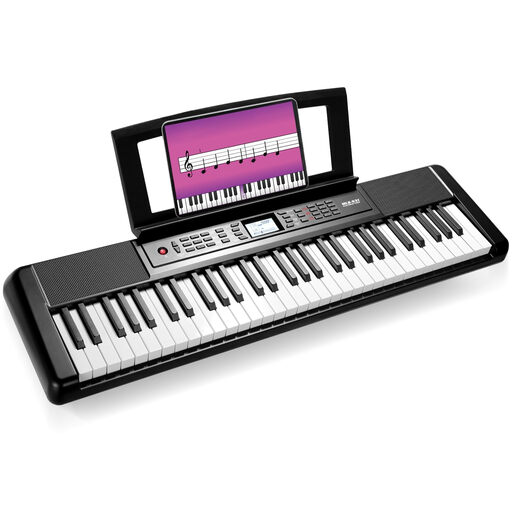
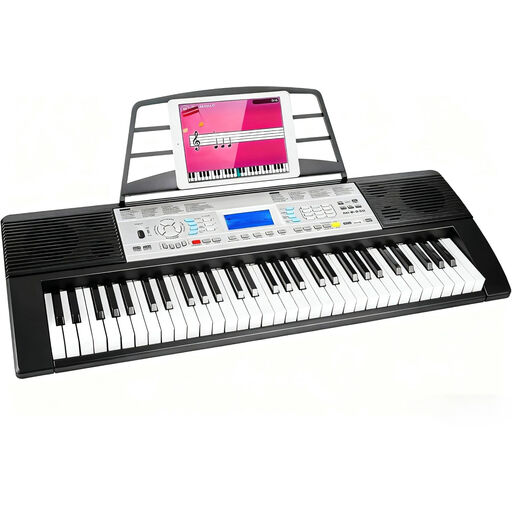
Below are two 61-key keyboards for those looking for more keys within easy reach and who have enough space. For each model, check the MIDI connection and make sure the dimensions and controls suit your desk and DAW.
 No image available
The 61-key keyboard is an option if you want a wider playing range within easy reach; bear in mind the desk space available.
The product name lists weighted keys, USB-MIDI, speakers, a headphone socket, an LCD screen and 300 sounds and rhythms.
 No image available
The 61 keys give you a wider playing range straight away; measure up beforehand to make sure the keyboard will fit on your desk.
The product name lists a recording function, speakers, a metronome and a music stand. Check the exact MIDI connection and how it works with your DAW.
Not always: according to Akai, the MPK mini mk3 sends MIDI messages to software, which generates the sound. Check which computer and software you need and how you’ll listen to the sound; don’t assume the USB connection is all you need.
That depends on the exact model and your DAW. Novation lists specific integrations for the Launchkey Mini 25 MK4; for the SE25 integration, Nektar outlines registration and downloads. Check the manual and settings for your setup.
Check the system requirements and activation steps for the software that comes with the exact model. Akai explains how to register for the MPK mini mk3 software. Keep the product and account details you’ll need if you reinstall it later.
Check whether you already have a suitable computer, software and a way to listen to the sound. Also find out which software comes with the exact version, and whether registration, installation or configuration is required.
According to the Dutch government, if a product is faulty, you’re entitled to a product that works properly and the seller must provide a solution; there is no single fixed statutory guarantee period for all products. If you buy from a business as a consumer at a distance, you generally have 14 days to change your mind. Check whether these rules and conditions apply to your purchase.